![TAI_LOGO_CMYK Option 1.2-03.jpg]](https://learn.tai-software.com/hs-fs/hubfs/TAI_LOGO_CMYK%20Option%201.2-03.jpg?height=40&name=TAI_LOGO_CMYK%20Option%201.2-03.jpg)
Use Organization and Customer Accessorials to set standard accessorial pricing without a tariff and apply it to a shipment's buy or sell side.
What this doesOrganization and Customer Accessorials let you define standard accessorial pricing (detention, layover, stop charges, fuel, and similar) at the broker organization or customer level and apply it directly to a shipment, without linking the accessorial to a tariff. This means you can spot-quote your linehaul and still pull in your contracted accessorial and fuel pricing, with no dummy tariff required.
- Manage standard accessorial pricing once, at the organization or customer level, and reuse it across shipments.
- Support spot-quote workflows: price linehaul manually and still apply structured accessorial pricing.
- Apply a rate to a single charge line and a single side (buy or sell) without recalculating or overwriting the rest of the shipment.
- Stop building throwaway tariffs just to reach fuel or accessorial schedules.
Before you start — what you need first
- You need one of these staff permissions to create or edit these records: TMS Site Admin, Tariff Add/Edit together with Customer Add/Edit, or IT Support Admin.
- The accessorial you want to use must already exist in the system. New accessorial options cannot be added through the UI — contact TAI Support if the one you need is missing.
- To apply an accessorial during pricing, you need a shipment with an editable charge line.
How to add an Organization (Broker) Accessorial
Where to go: LSP → My Organization → Broker Tools → Broker Accessorials, then click Add Organization Accessorial.
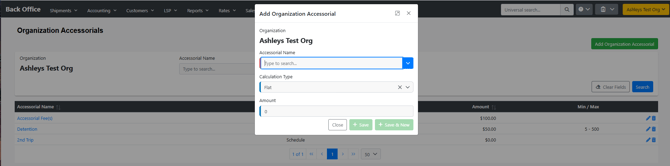
- Accessorial Name: select the accessorial you are pricing (for example, ACH Fee, Detention, Layover).
- Calculation Type: choose how the charge is figured — a flat amount, or a rate-based method such as Percentage, Mileage, CWT, Pieces, Pound, or Ton — mirroring the tariff accessorial setup you already know.
- Min Amount / Max Amount: optionally set a floor and a ceiling for the calculated charge. When set, the applied amount is held to that range — a result below the minimum is raised to the minimum, and a result above the maximum is lowered to the maximum. You can set both together (for example, Min 10 and Max 100).
- Click Save (or Save and New to add another).
This page manages accessorials independently of tariffs; its layout and behavior mirror the existing Tariff Accessorial add/edit page.
How to add a Customer Accessorial
Where to go: open the customer, then Customer Tools → Customer Accessorials, and click to add a customer accessorial.
- Set the Accessorial Name, Calculation Type, and optional Min/Max Amount exactly as you would for a Broker Accessorial.
- Customer Accessorials apply to that customer specifically; Organization (Broker) Accessorials apply across the organization.
How to apply an accessorial to a shipment
Where to go: open the shipment → Edit Pricing → the charge line you want to update → the calculation options (calculator).
- In the calculation options, choose Broker Accessorial or Customer Accessorial. These appear alongside the existing calculation methods.
- The system searches your organization hierarchy and returns the accessorials that apply, so the right broker- or customer-level pricing is available to select. The option shows the organization name followed by "Accessorial"; long names are shortened in the list, and the full name appears on hover.
- Select the side you are updating — Buy or Sell. The calculated value applies only to that side.
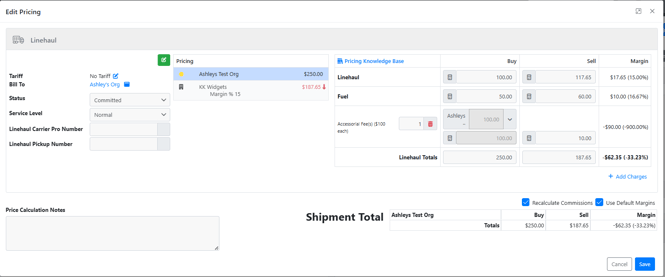
- The amount is calculated for you from the accessorial's configured rate and calculation type and held within its Min/Max — it is read-only and can't be typed over, which keeps the applied charge matching the schedule your broker or customer set. If you change the charge line's quantity, the amount recalculates to match.
- Apply the value. It updates only the selected charge line; it does not change any other pricing on the shipment. This is a spot update.
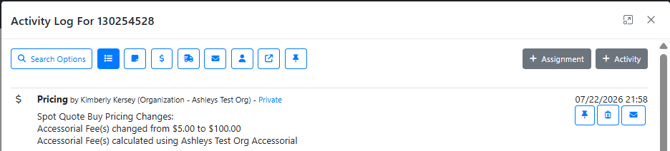
- Save the pricing. The shipment's Activity Log records which calculation method was used. The accessorial schedule itself is not attached to the shipment — only the resulting charge amount is saved.
Tips & best practices
- We recommend confirming the charge line and the side (buy vs. sell) before applying — the update lands only where you select it.
- Use Organization Accessorials for pricing that is the same across the org, and Customer Accessorials for pricing negotiated with a specific customer.
- Because this is a spot update, you can apply fuel or an accessorial after the linehaul is already set — including after delivery — without disturbing the linehaul.
Do I still need a tariff to use accessorial or fuel pricing?
No. Organization and Customer Accessorials let you apply accessorial and fuel pricing without linking it to a tariff, so you no longer need to build a dummy tariff to reach those schedules.
Does applying an accessorial change the rest of my shipment pricing?
No. The calculated value applies only to the charge line and side (buy or sell) you selected; it does not modify other pricing on the shipment.
Can I apply it to just the buy or just the sell?
Yes. You choose buy or sell when you apply the accessorial, and only that side is updated.
Can I manually change the calculated accessorial amount?
No. The amount comes from the accessorial's configured rate and is held within its Min and Max, so it is read-only in the calculator. This keeps the applied charge matching the schedule set by your broker or customer, and keeps the calculation method recorded in the Activity Log accurate. If the amount is wrong, update the accessorial record under Broker/Customer Accessorials, or change the charge line's quantity to recalculate.
Are the Min and Max amounts applied to the charge?
Yes. If the calculated amount falls below the minimum it is raised to the minimum, and if it exceeds the maximum it is reduced to the maximum, before the value lands on the charge line.
Is the accessorial saved to the shipment?
No. Only the calculated charge amount is saved on the charge line. The accessorial schedule is not permanently attached to the shipment, and the calculation method used is noted in the shipment's Activity Log.
Who can create or edit these accessorials?
Users with TMS Site Admin; Tariff Add/Edit combined with Customer Add/Edit; or IT Support Admin permissions.
Does this change how tariff accessorials work?
No. Existing tariff workflows are unchanged — accessorials can still be linked to tariffs. This feature simply adds accessorial pricing at the broker and customer level.
If something doesn't work- If you can't open or edit the Broker/Customer Accessorials page, confirm you have one of the required permissions (TMS Site Admin; Tariff Add/Edit with Customer Add/Edit; or IT Support Admin).
- If the accessorial you want isn't in the list, it may not exist in the system yet — new accessorial options can't be added through the UI; contact TAI Support.
- If no Broker or Customer Accessorial option appears in the shipment calculator, confirm an applicable accessorial has been set up at the organization or customer level in the shipment's hierarchy.
- If a mileage- or percentage-based accessorial shows a $0.00 charge and Save stays disabled (for example on a 0-mile shipment where a minimum should apply), you may be on an earlier build that did not apply the minimum to rate-based accessorials. Update to the latest release; if it persists, contact TAI Support with the shipment ID and the accessorial you were applying.
- If a saved amount doesn't land where you expected, re-open Edit Pricing and confirm the correct charge line and side (buy/sell) were selected before applying.
- If it still isn't right, contact TAI Support with the shipment ID and the accessorial you were applying.
To learn more, see Understanding and Managing Accessorials and Shipment Profile - Edit Pricing.