![TAI_LOGO_CMYK Option 1.2-03.jpg]](https://learn.tai-software.com/hs-fs/hubfs/TAI_LOGO_CMYK%20Option%201.2-03.jpg?height=40&name=TAI_LOGO_CMYK%20Option%201.2-03.jpg)
What this does
Mileage to Next Stop shows the distance from each stop on a shipment to the stop that follows it. The value is calculated once and stored on the stop, so it stays put — it does not move with the driver, tracking updates, or ETAs.
- Set realistic appointment times. If stop 3 is 500 miles from stop 2, you can schedule stop 3 roughly eight hours out instead of guessing.
- Sell the load without making a carrier route it. Describe the run leg by leg — pick up here, 150 miles to the second pickup, then 1,000 miles to delivery.
- See it where you already work. The same value appears on the Stops panel, the Company Loadboard, Shipment Search, the check call screen, custom reports, and document templates.
- Works on any shipment. Two stops or twelve — every stop except the last one carries a value.
User Guide
Before you start — what you need first
- The shipment needs at least two stops. Every stop except the last one will carry a value.
- Mileage to Next Stop must be enabled for your organization. If you do not see it anywhere described below, contact TAI Support.
- No setup is needed to choose a mileage provider. The TMS picks one automatically — see Where the mileage comes from below.
How to see mileage between stops on a shipment
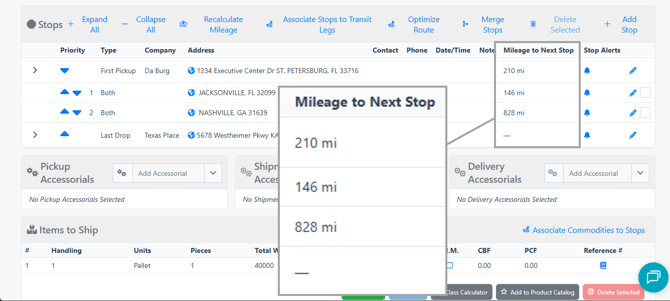
Where to go: Open the shipment, then look at the Stops panel on the Shipment Details page.
- The Mileage to Next Stop column shows the distance from each stop to the next stop in the route.
- The final stop is always blank. There is no next stop to measure to, so this is expected and not an error.
- Values are shown in whole miles.
- To see the same value while editing a stop, open the stop from the Stops panel — it appears in the Edit Stop modal.
How to add the Mileage to Next Stop column to the Company Loadboard
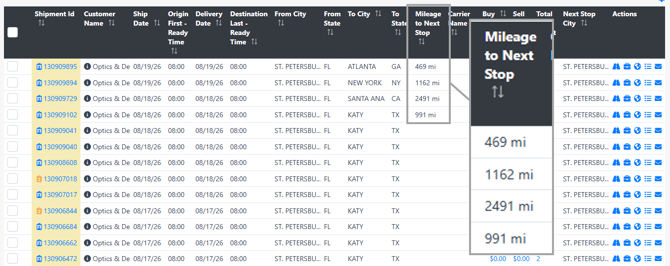
Where to go: Go to the Company Loadboard, open Customize Columns, enable Mileage to Next Stop, and save.
- On the loadboard, the column shows the mileage for the leg the shipment is currently running — the distance from the stop it last departed to the stop it is heading for.
- The value advances one leg each time a departure is recorded on a stop. Recording an arrival does not advance it; the shipment has to leave the stop.
- The column is blank once a shipment reaches Delivered, Complete, or Canceled. The run is over, so there is no next leg to report.
- This is not the same as the existing Next Stop columns. Those describe the upcoming stop itself; this one reports the mileage of the leg being driven.
How to see every leg without opening the shipment
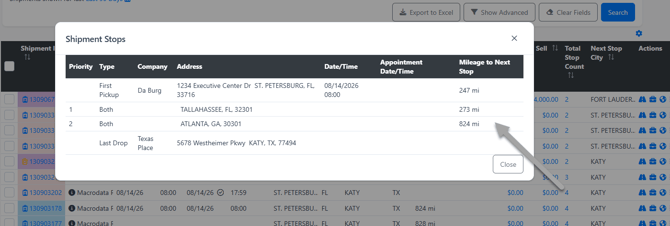
Where to go: On the Company Loadboard or Shipment Search, click the total stops count on a shipment row to open the Shipment Stops modal.
- The modal lists every stop on the shipment with its Mileage to Next Stop value, so you can read the whole route without leaving your search results.
- These are the same per-leg values shown on the Stops panel — not the single current-leg number in the loadboard column.
- The last stop is blank here too.
- We recommend using this modal when you are working a list of loads and want to quote a multi-stop run quickly — it is faster than opening each shipment.
How to see mileage while making a check call
Where to go: Open the shipment and start a check call or status update. The value appears on the Stop Card for the stop, labeled Mileage to Next Stop.
- Use it to sanity-check a driver position against how far the leg actually is before you commit to an ETA.
- If a stop has no stored mileage, the line is hidden on the card rather than showing zero.
How to recalculate mileage after you change the stops
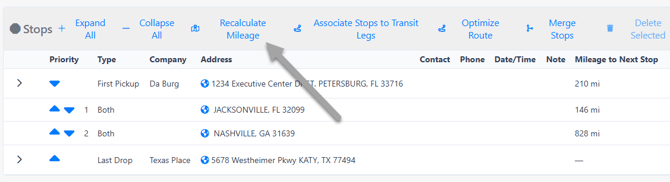
Where to go: On the Shipment Details page, use the Recalculate icon on the Stops panel.
- Mileage is calculated automatically when a shipment is created and when a shipment is duplicated.
- It is not recalculated on its own when you later add, remove, reorder, or re-address a stop. The stored values stay as they were.
- After changing stops, click Recalculate to refresh every leg on the shipment. We recommend doing this any time you change a stop address or the stop order, so your appointment planning is not based on the old route.
How to pull Mileage to Next Stop into a report
Where to go: Go to Reports > Custom Reports, then add the Mileage to Next Stop field from the Shipment Stops group.
- The report returns the stored per-stop values, one row per stop.
- The last stop of each shipment comes through blank, the same as it displays on screen.
How to put Mileage to Next Stop on a document or email template
Where to go: Edit a content template, open the System Tags picker, and find Mileage to Next Stop under Stop Reference Numbers.
- The tag is [SHIPMENT_STOP_REFERENCES.MILEAGE_TO_NEXT_STOP], and it only works inside a stop-references loop — the block that starts with [EACH]([SHIPMENT_STOP_REFERENCES]) and ends with [ENDEACH]. The loop is what repeats the row once per stop.
- Placing the tag anywhere outside that loop will print the tag name on the finished document instead of a number. The picker inserts the tag wherever your cursor is, so check that it landed inside the loop.
- If your template does not already have a stop-references loop, add one as its own rows or its own small table. This structure works:
<!-- [EACH]([SHIPMENT_STOP_REFERENCES]) --> <tr> <td width="20%"><strong>[IF]([SHIPMENT_STOP_REFERENCES.MILEAGE_TO_NEXT_STOP])Mileage to Next Stop:[ENDIF]</strong></td> <td width="30%">[SHIPMENT_STOP_REFERENCES.MILEAGE_TO_NEXT_STOP]</td> </tr> <!-- [ENDEACH] -->
- Keep the [IF] wrapper. It hides the label on stops with no mileage, so you do not get an empty Mileage to Next Stop: line against the last stop of every shipment.
- Do not put this inside an existing additional-stops loop. That is a different loop and it will not produce a mileage value.
- This is most useful on carrier confirmations, where you want the leg mileage stated in writing.
- After editing the template, generate a fresh document to check it. Documents that were already generated are not updated.
Where the mileage comes from
Where to go: No setup is required for this — the TMS chooses a provider automatically. To override the choice, see How to use ZIP-to-ZIP mileage instead of your PC*Miler integration below.
- If your organization has a PC*Miler integration configured, stop-to-stop mileage is calculated through it, so the numbers line up with the routing you already use elsewhere in the TMS.
- If you do not have a PC*Miler integration, the TMS falls back to a ZIP-to-ZIP estimate. This measures the distance between the two postal codes rather than routing over roads, so expect it to read lower than true driving miles.
- The choice is automatic and the field looks the same either way. If precise road mileage matters to your operation, a PC*Miler integration is the way to get it.
How to use ZIP-to-ZIP mileage instead of your PC*Miler integration
Where to go: Go to LSP > Integration Sources, open your mileage (PC*Miler) source, and add a setting under Source Settings.
- Add a setting named exactly EnableStopMileage with the value false. Stop mileage will then use the ZIP-to-ZIP estimate even though your PC*Miler integration stays connected.
- The default is true. If the setting is not present at all, stop mileage uses your PC*Miler integration — which is the behavior you already have, so you do not need to add anything to keep it.
- This affects stop-to-stop mileage only. Shipment total mileage, rating, and the Mileage Calculator continue to use PC*Miler regardless of this setting.
- After changing the setting, click Recalculate on a shipment's Stops panel and confirm the mileage changed. Existing stored values are not updated until a shipment is recalculated.
For the full list of settings you can add to a PC*Miler source, see PC Miler — Configurable Routing and Mileage Options.
Tips & best practices
- Recalculate after any stop change. This is the single most common reason a value looks wrong — the route moved and the stored mileage did not.
- Check the whole route before you quote it leg by leg. One blank leg in the middle undercuts a leg-by-leg pitch to a carrier, and a blank usually means that leg has not been calculated yet.
- Do not treat a blank final stop as a problem. It is the intended behavior on every shipment.
- If you compare loadboard mileage against the Stops panel, remember the loadboard shows only the leg currently being run, not every leg.
Frequently asked questions
Why is the last stop blank?
Because there is no stop after it to measure to. Every shipment behaves this way, and it is not an error.
Why did the mileage not change after I edited a stop?
Mileage is stored, not recalculated live. Use the Recalculate icon on the Stops panel to refresh it after adding, removing, reordering, or re-addressing a stop.
Does the mileage update as the driver moves?
No. The value is a fixed property of the route between two stops. It does not shrink as the truck gets closer, and it is not connected to tracking or ETAs.
Why does the Company Loadboard show a different number than the Stops panel?
They are answering different questions. The Stops panel lists the mileage for every leg; the loadboard column shows only the leg the shipment is currently running. If you want every leg while staying on the loadboard, click the total stops count to open the Shipment Stops modal.
How do I see the mileage for all stops from a search result?
Click the total stops count on the shipment row, on either the Company Loadboard or Shipment Search. The Shipment Stops modal lists every stop with its Mileage to Next Stop value.
Why is the Mileage to Next Stop column empty on a delivered load?
Once a shipment reaches Delivered, Complete, or Canceled there is no next leg, so the loadboard column is intentionally blank. The per-leg values are still on the Stops panel.
Why is my mileage lower than what PC*Miler tells me?
Your organization most likely does not have a PC*Miler integration configured, so the TMS is using a ZIP-to-ZIP estimate that does not follow roads. Contact TAI Support if you expected PC*Miler mileage.
Is Mileage to Next Stop available on reports and documents?
Yes. It is available in Custom Reports under Shipment Stops, and as a system tag under Stop Reference Numbers for use on documents and email templates.
Why does my document show [SHIPMENT_STOP_REFERENCES.MILEAGE_TO_NEXT_STOP] instead of a number?
The tag is outside the stop-references loop. It only resolves between [EACH]([SHIPMENT_STOP_REFERENCES]) and [ENDEACH] — anywhere else it prints as plain text. Move it inside that loop, or add the loop if the template does not have one, then generate a fresh document.
Can I use ZIP-to-ZIP mileage for stops even though we have PC*Miler?
Yes. Add a setting named EnableStopMileage with the value false to your mileage integration source, under LSP > Integration Sources. This changes stop-to-stop mileage only — shipment total mileage and rating keep using PC*Miler.
I set EnableStopMileage to false but nothing changed. Why?
Three things to check: the value must be the word false; the setting name must be spelled exactly EnableStopMileage; and it must be on the organization whose mileage source holds your PC*Miler license key. Then recalculate a shipment, because stored values do not change on their own.
If something doesn't work
- One leg is blank, the others are fine. Click Recalculate on the Stops panel first. If it stays blank, one of the two addresses on that leg may not be resolvable by the mileage provider — check both for typos, then contact TAI Support with the shipment number if it persists.
- Every leg is blank on a shipment that should have values. Click Recalculate on the Stops panel. If it stays blank, contact TAI Support with the shipment number.
- The values look stale. Confirm whether the stops changed since the shipment was created, then recalculate.
- You cannot find the column or the field anywhere. The feature may not be turned on for your organization — contact TAI Support.
- The numbers dropped sharply with no stop change. This usually means stop mileage is now using the ZIP-to-ZIP estimate. Check whether EnableStopMileage was set to false on your mileage integration source, and that your PC*Miler license key is still in place.
To learn more, see Shipment Mileage Calculation for shipment-level mileage, Additional Stops for managing the stops themselves, and PC Miler — Configurable Routing and Mileage Options for the settings on your mileage source.