![TAI_LOGO_CMYK Option 1.2-03.jpg]](https://learn.tai-software.com/hs-fs/hubfs/TAI_LOGO_CMYK%20Option%201.2-03.jpg?height=40&name=TAI_LOGO_CMYK%20Option%201.2-03.jpg)
The Create Shipment modal is the fastest way to create a new shipment in the Back Office from any page, without leaving what you're doing. The modal is designed to get you to a viable shipment fast. Rather than requiring every detail up front, it captures only what's essential to create a working load: customer, contact, shipment type, origin, destination, weight, and equipment. Once saved, you can immediately quote, rate, or open the shipment directly to Details. From there, every change is handled through inline editing — precise, individually validated updates that keep commodities, reference numbers, alerts, and pricing in sync as the shipment takes shape. No all-at-once save to worry about, and no silent overwrites when one detail changes. And because shipment details don't always arrive all at once, you don't have to wait for a complete picture. Save what you have, track it as an Incomplete Shipment, and fill in the rest as the information comes in.
Opening the Modal
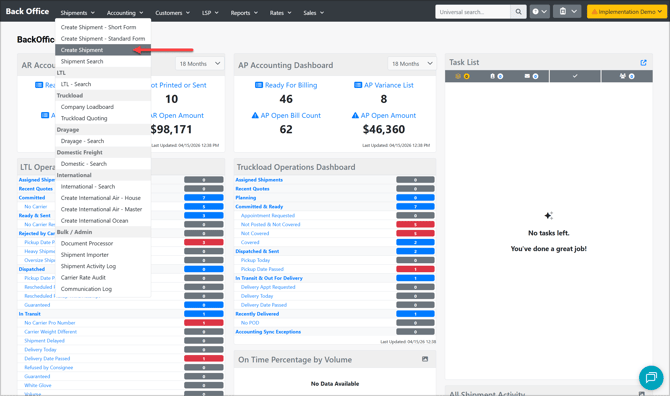
Access the Create Shipment modal from the Shipments menu in the Back Office navigation.
Fields Overview
Template (Optional)
If your customer has saved shipment templates, a Template search field appears at the top of the modal. Type to search by template name and select one to auto-populate specific fields.
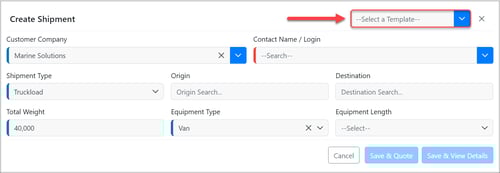
The Template option appears only when the selected customer has at least one saved shipment template. Click HERE to learn more about shipment templates.
Customer Company (Required)
Search for the customer organization by name. Start typing and select from the dropdown results.
Contact Name / Login (Required)
Search for an active staff contact associated with the selected customer company.
- The staff list is filtered to only show active contacts for the selected company.
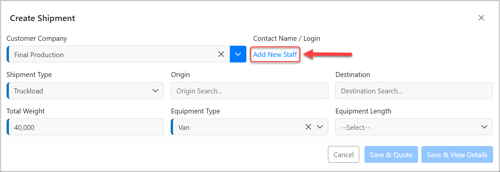
- If the selected company has no active staff, an Add New Staff link appears in place of the search field, which opens the staff creation form in a new tab.
- If only one staff member exists for the company, they are selected automatically.
- If the selected staff member has a default shipment type configured, the Shipment Type field updates automatically upon selection.
Shipment Type (Required)
Select the mode of transportation. Defaults to Truckload. Available options:
- Small Package
- LTL (Less Than Truckload)
- Truckload
- Domestic Freight
- Cartage
- Drayage
The fields displayed below the Shipment Type selector change depending on whether LTL or a non-LTL type is selected.
Origin
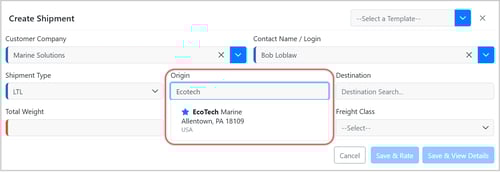
Search for the pickup location by address, city, or zip code. The search also finds saved customer addresses.
Destination
Search for the delivery location by address, city, or zip code.
Shipment-Type-Specific Fields
LTL
| Field | Description |
|---|---|
| Total Weight | Total weight of the shipment |
| Handling Units | Number of pallets, skids, or handling units |
| Freight Class | Freight classification used for rating |
Truckload and All Other Types
| Field | Description |
|---|---|
| Total Weight | Defaults to 40,000 lbs; adjust as needed |
| Equipment Type | Type of trailer required (e.g., Van, Flatbed, Reefer) |
| Equipment Accent | Variant or material for the selected Equipment Type (e.g., Dry, Conestoga, Stainless Steel). Required for some equipment types, optional for others. Must match exactly; leave blank only if no variant is needed. |
| Equipment Length | Available lengths load based on the selected equipment type. If only one valid length exists, it is selected automatically |
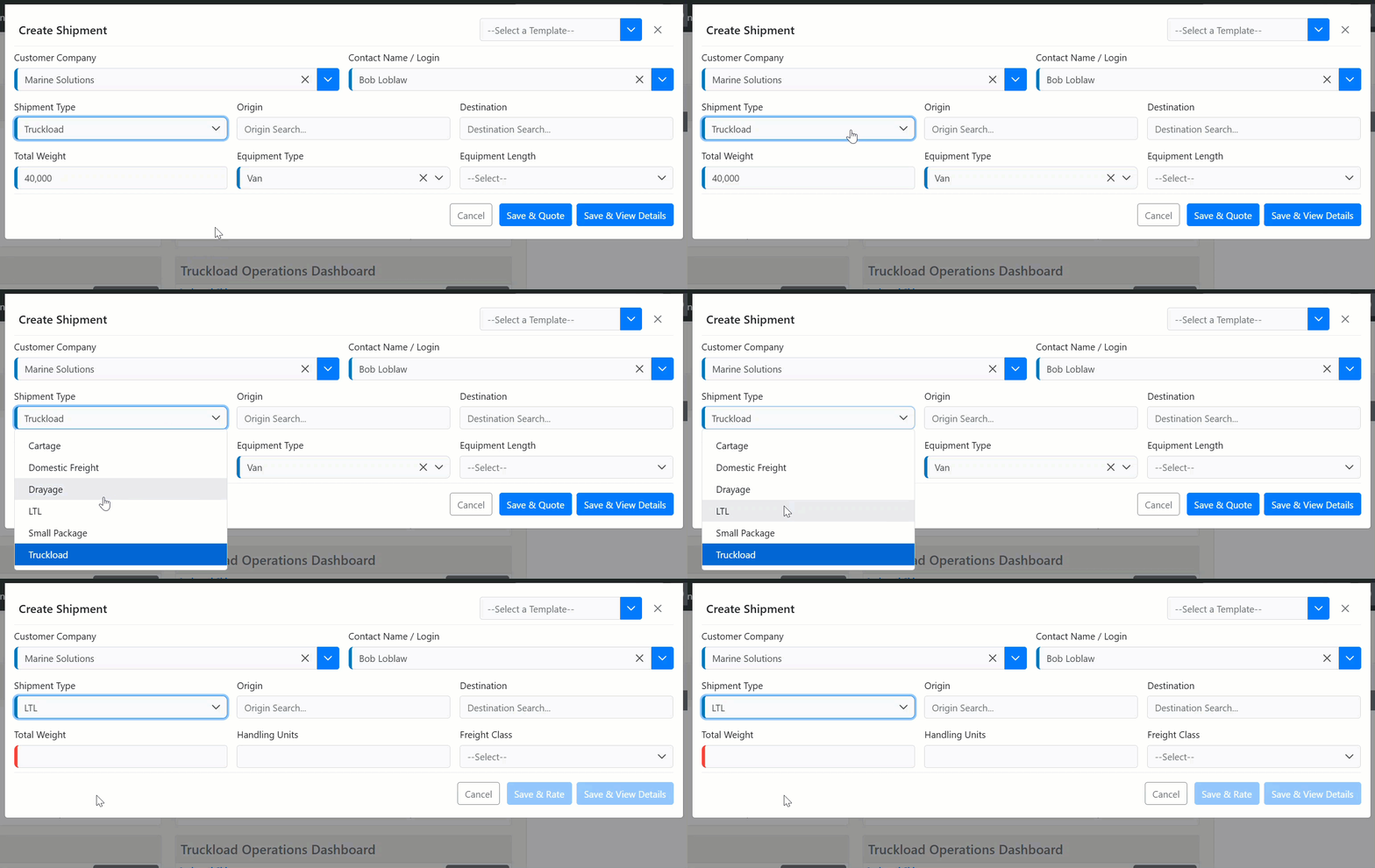
The commodity description also updates automatically based on the selected shipment type. For LTL, it defaults to FAK, and for Truckload and all other types, it defaults to Cargo.
Saving the Shipment
Three save options are available at the bottom of the modal:
| Button | Available For | Action |
|---|---|---|
| Save & View Details | All shipment types | Creates the shipment and opens the Shipment Details page |
| Save & Quote | Non-LTL only | Creates the shipment and opens the Truckload Quoting page |
| Save & Rate | LTL only | Creates the shipment and opens the Rating page. Only enabled when Origin, Destination, Handling Units, and Freight Class are all filled in |
The Create Shipment modal allows you to save a shipment as incomplete. You are not required to have all shipment details at the time of creation. If information is missing, you can still create the load as an incomplete shipment and track it in the TMS until the details are finalized.
To learn more about the Incomplete Shipment workflow, please click HERE.