![TAI_LOGO_CMYK Option 1.2-03.jpg]](https://learn.tai-software.com/hs-fs/hubfs/TAI_LOGO_CMYK%20Option%201.2-03.jpg?height=40&name=TAI_LOGO_CMYK%20Option%201.2-03.jpg)
General Reasons:
- Carrier Status 🚛:
Make sure the carrier profile is enabled. To locate a carrier, please refer to this article on finding a carrier. Once on the carrier profile, scroll down to the LSP Carrier Information section where you will find the carrier status. If it is set to Disabled or Blocked, you will need to enable it.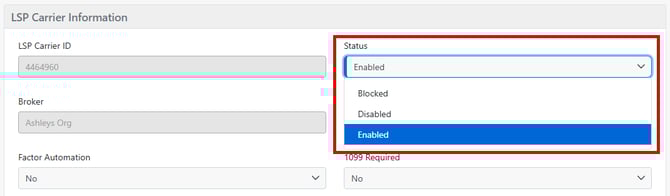
- Shipment Type 📦:
If the shipment type of the shipment you are currently trying to add the carrier to is not listed, you will need to update it.
It is possible that the shipment type you are trying to assign is not listed as a supported shipment type in the carrier profile. On the same carrier profile page, locate the Shipment Types section on the right side. There, you will see the shipment types currently supported by the carrier.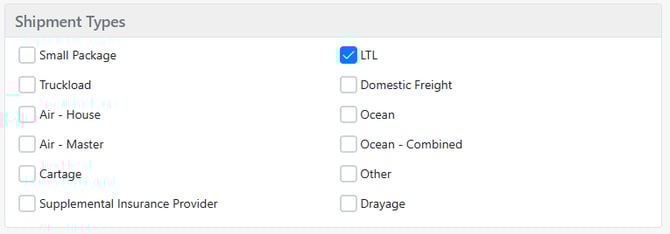
- By default, carriers have Truckload and LTL as supported shipment types. If you need to add carriers to Pickup, Delivery, or Other transit leg types, you will need to add Cartage as a supported shipment Type.
- Compliance ⚠️:
The carrier may not be compliant. This means that Authority, Insurance, Safety, or Packets may be flagged in red. If your organization has the Require Carrier Compliance setting enabled, the carrier will not appear as an option.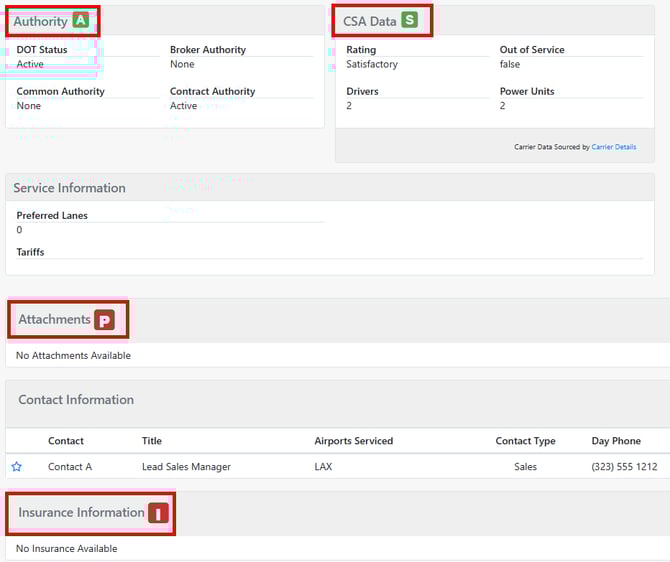
Specific Reasons:
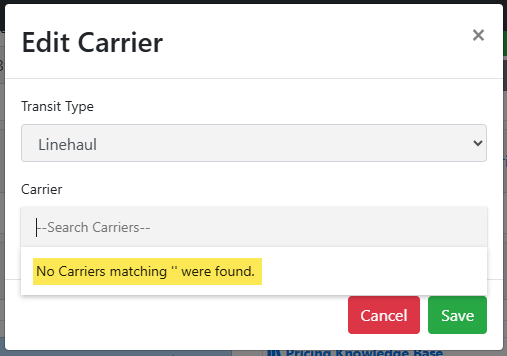
If you see this error message ⬇️ when trying to add a carrier, the following may be the cause:
- Carrier Rules 🔎:
The customer or orgnizations associated with the shipment may have specific carrier rules that the carrier does not meet. - Missing Location Information 🚩:
The city, zip code, or state may be missing or formatted incorrectly from one or more shipment stops. Since this information is required, the system will not allow you to search for carriers.
If you are still unable to find or add the carrier after completing these checks, please contact the support team for further assistance.