Collection Summary Overview
The Collection Summary page functions as both an aging report and a collections management tool. This guide outlines its features, columns, and available actions to streamline your accounts receivable processes.
Accessing the Collection Summary Page
There are two ways to access the Collection Summary page:
- Click the AR Open Amount link in the AR Accounting dashboard.
- Go to the Accounting tab and select Collection Summary.
Customer List and Aging Report Columns
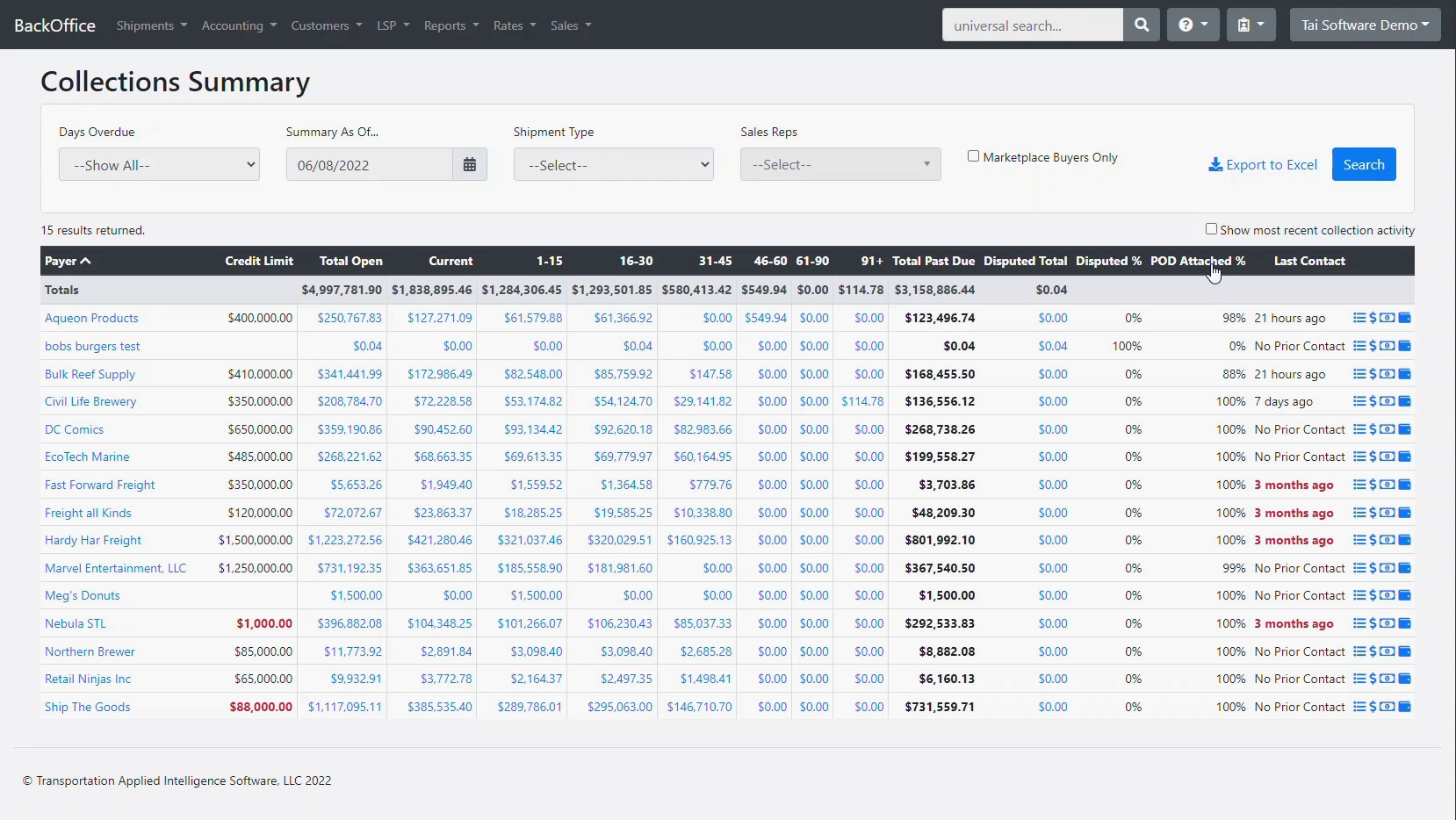
On the left side of the Collection Summary page, you'll find a comprehensive list of all customers. The columns provide important financial details:
- Customer List: Names of all customers.
- Credit Limit: The maximum allowed credit per customer.
- Total Open Amount: The sum of unpaid invoices for each customer.
- Current Amount Due: Amounts due within the current payment period.
- Past Due Amounts:
- Broken out by days (e.g., 30, 60, 90 days overdue).
- Total Past Due Amount: Sum of all overdue amounts.
- Disputed Total: Total value of disputed invoices.
- Disputed Percent: Percentage of disputed invoices relative to the total.
- POD Attached Percentage: Percentage of invoices sent to the customer with Proof of Delivery (POD) attached.
Note: Any amount displayed in blue acts as a link to the invoice search page. Clicking the link allows you to view more details and review the individual invoices contributing to the total.
Collections Tools and Actions
The rightmost columns serve as collection tools, allowing you to take actions directly from the page:
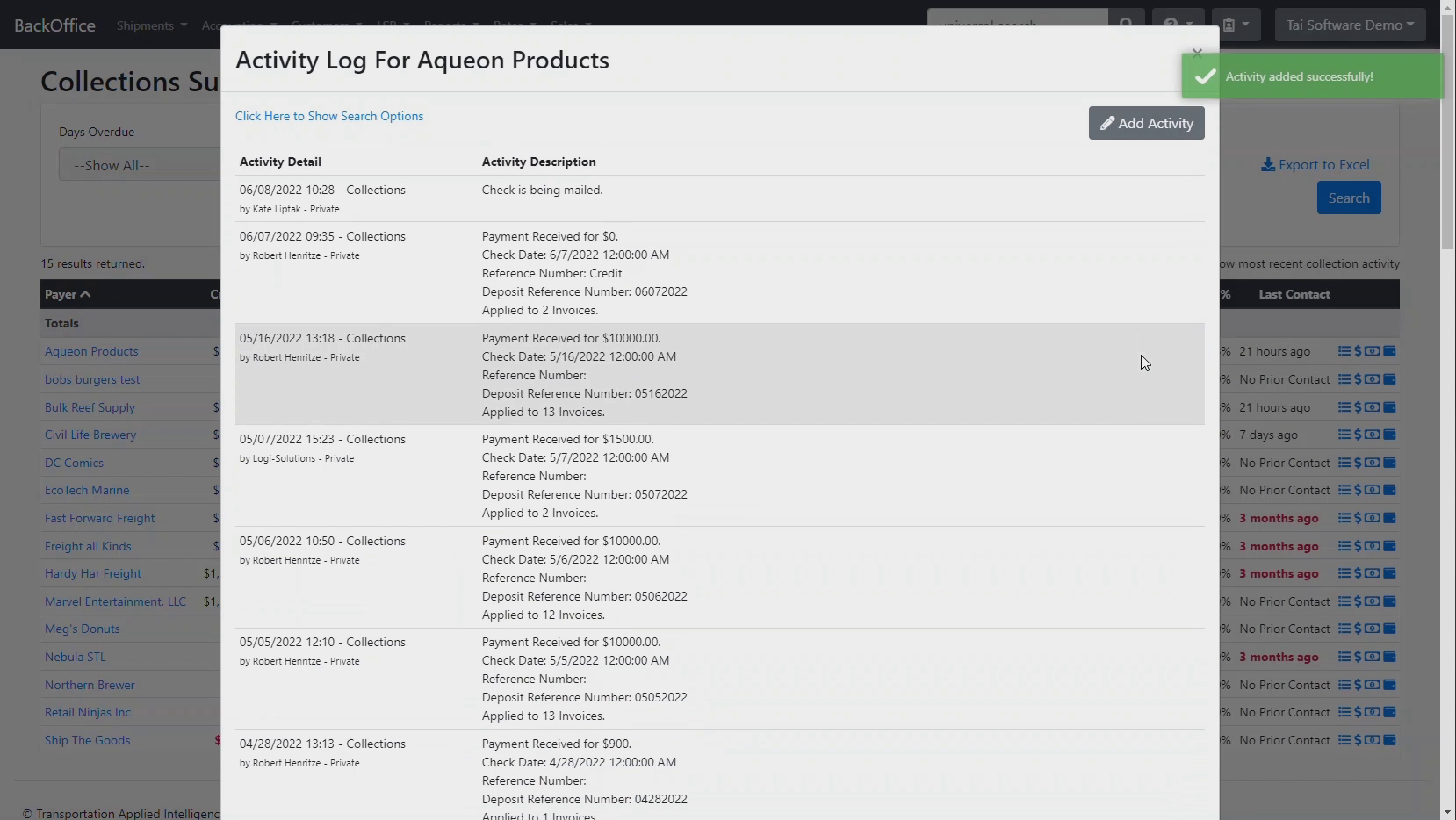
Activity Log
- Use the Actions menu to access the activity log for a customer.
- Add an activity:
- Select an activity type.
- Enter a note manually or choose a preset note.
- Save the activity.
- Once saved, the Last Contact column updates to reflect the latest communication.
- If you are collaborating with a partner, updated contact information is visible to all users.
Received Payments Shortcut
- Next to the activity log, find a shortcut to the Received Payments page.
- Enter payments received from customers as they arrive.
View Statement
- If a customer requests a statement of all open invoices and credits:
- Click View Statement.
- The statement will display all open invoices and credits.
- You can send the statement directly from the page, or print/download it as needed.
Customer Accounting Profile Shortcut
- The last icon links to the customer's accounting profile.
- Use this shortcut to view detailed customer information or make profile changes.
Summary
The Collection Summary page provides a clear snapshot of customer payment statuses and equips you with tools to manage collections efficiently. By utilizing its features, you can monitor aging reports, log collection activities, receive payments, and provide customers with statements quickly and accurately.