Handling AR Credits and Invoice Modifications
Overview
This guide explains how to manage credits within the AR (Accounts Receivable) workflow using the Modify Invoice feature. It covers the creation of credits as negative amounts, generating credit memos, tracking invoice revisions, and managing write-offs through General Ledger (GL) accounts.
Creating Credits
Credits are treated as negative amounts applied to customer invoices. The following steps outline how to create and apply a credit:
- Select the Assessorial Credit:
-
Choose the appropriate credit type when modifying an invoice.
-
Enter the Negative Credit Amount:
- Input the credit as a negative number (e.g., -$100) to reflect the amount to be credited.
-
This action adds an additional charge line of type "credit" to the shipment.
-
Apply the Credit:
- Use the Recalculate feature if necessary to update totals.
-
Submitting the change creates a credit memo, which acts as an invoice template with a negative total.
-
Notify the Customer:
- The credit memo can be generated and sent to the customer for their records and application as needed.
Tracking Invoice Revisions and Credits
- All invoice revisions and created credits are tracked within the system.
- To review these records:
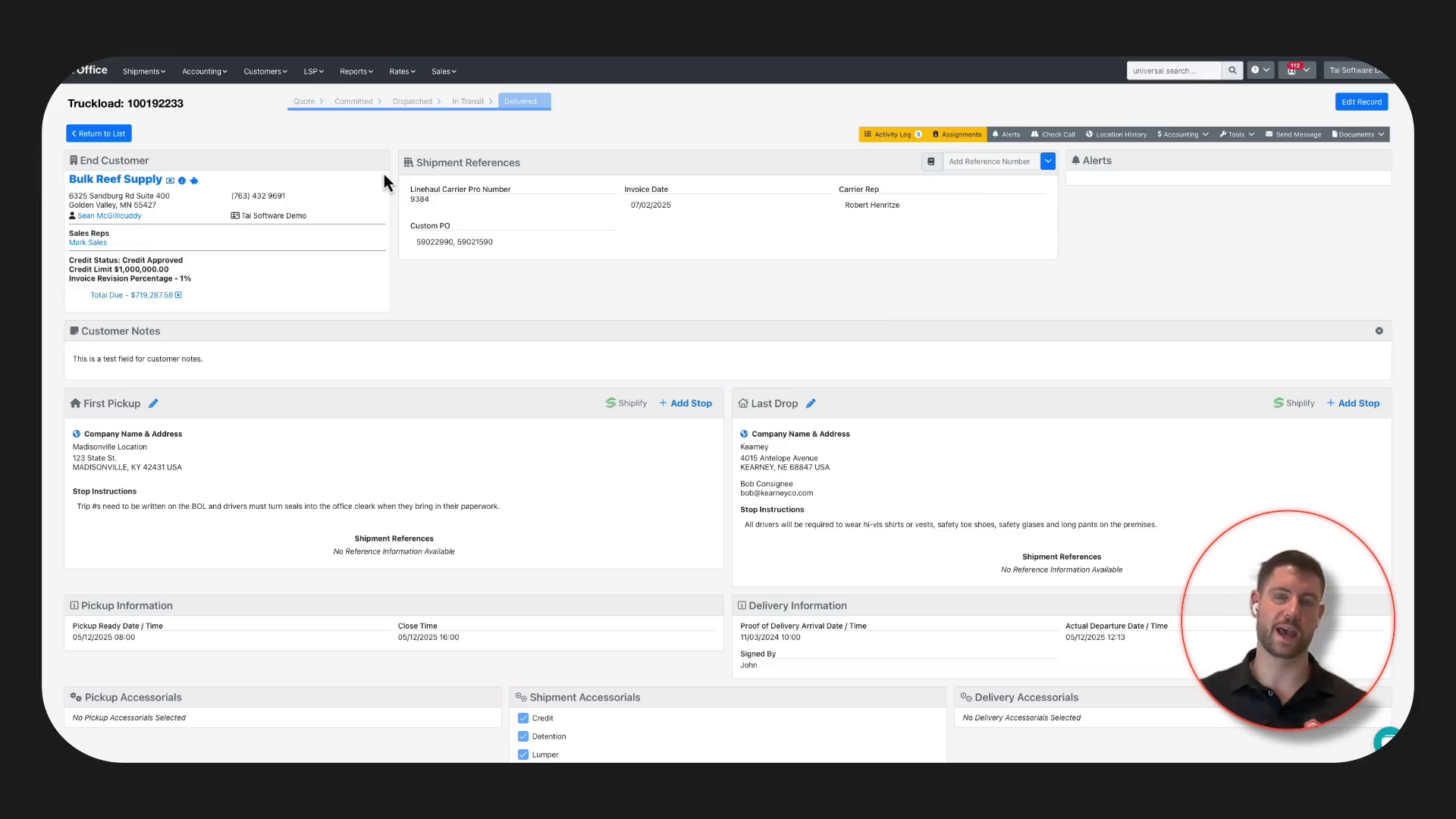
- Navigate to the Tools section.
- Open the Accounting tab to view all invoice revisions and credits associated with the shipment.
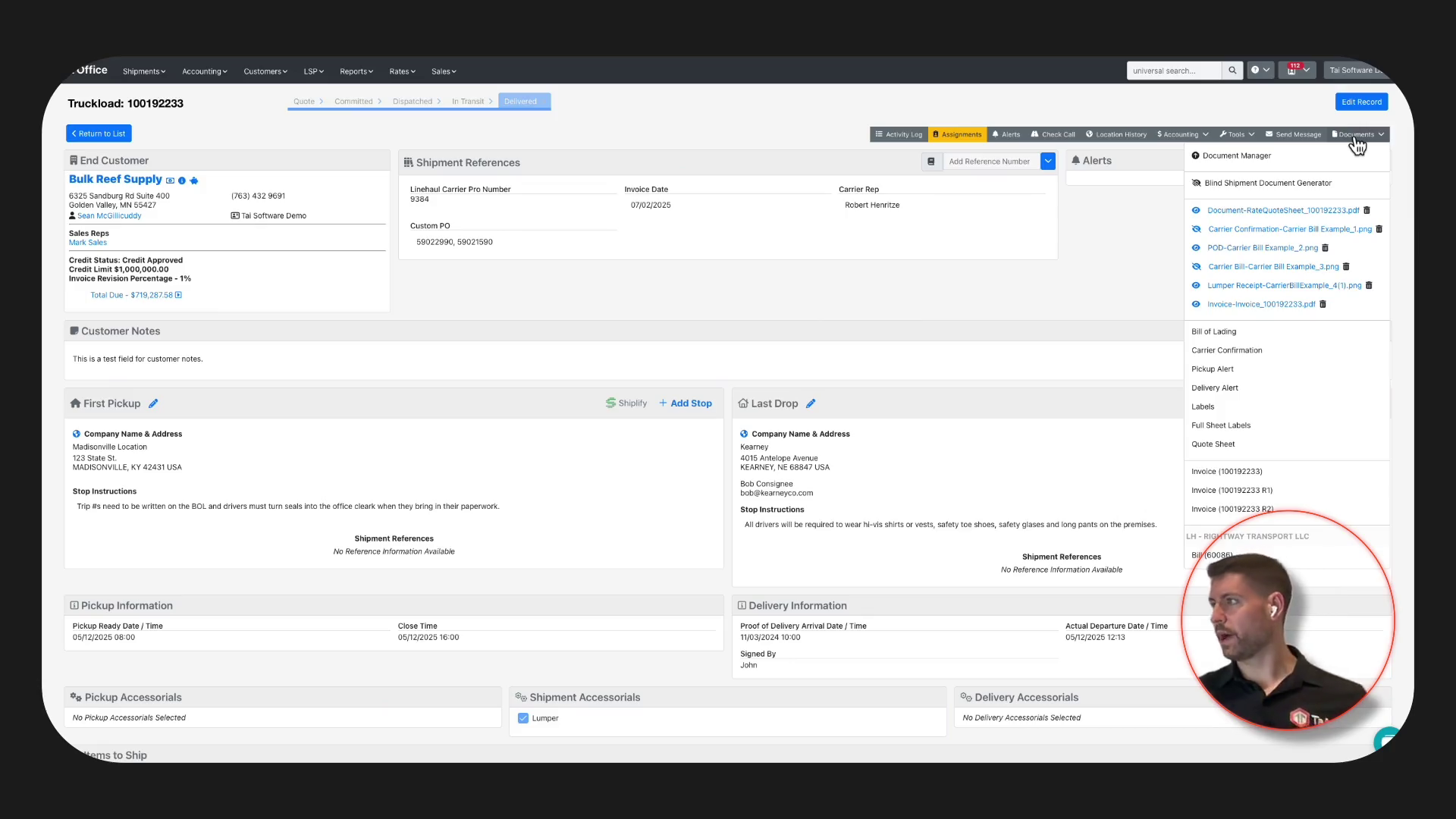
- Invoice templates, including credit memos, are available under the Documents tab. Here you can:
- Locate and generate credit memos (e.g., the -$100 credit issued).
- Access and send these documents to customers as required.
Managing Disputes
- The system allows you to log and track invoice disputes efficiently.
- All communication and status updates related to the dispute are recorded.
- If a credit is issued as a resolution to a dispute, it should be processed as described above.
Write-Offs and GL Accounting
There may be cases where an invoice is only partially paid or a dispute remains unresolved. In such cases, write-offs can be managed via your chart of accounts:
- Create a Write-Off Account:
-
Within the chart of accounts, set up a dedicated write-off bank account.
-
Receive Payment to Write-Off:
- For longstanding unpaid invoices, select the write-off account when receiving payment.
-
This ensures visibility into organizational write-offs and helps track unresolved balances.
-
Configure GL Accounting Settings:
- Under GL settings, map accounts and define rules for syncing data from the AR system to your accounting software.
- This supports accurate financial reporting and reconciliation.
Additional Resources
- For further information on invoice modifications, credit management, and GL account configuration, refer to the knowledge base.
- The support team is available to assist with any questions or advanced configurations.
Key Points
- Credits are entered as negative amounts and tracked as separate charge lines.
- Credit memos can be generated and shared with customers.
- All changes and credits are logged for audit and reconciliation purposes.
- Write-offs are managed through dedicated GL accounts for better financial visibility.
- Use the knowledge base and support team for additional guidance.
This process ensures accurate handling of credits, disputes, and write-offs, contributing to a streamlined AR workflow.