![TAI_LOGO_CMYK Option 1.2-03.jpg]](https://learn.tai-software.com/hs-fs/hubfs/TAI_LOGO_CMYK%20Option%201.2-03.jpg?height=40&name=TAI_LOGO_CMYK%20Option%201.2-03.jpg)
Table of Contents
- Overview
- Endpoint Reference
- Step 1: Retrieve the Shipment Details
- Step 2: Build the Association Payload
- Step 3: Submit the Association Request
- Verifying the Result in the TMS
- Correcting an Association
Overview
On multi-stop shipments, each commodity needs to be tied to the specific stop where it's picked up and the specific stop where it's delivered. By default, when a shipment is created, all commodities are associated with the first pickup and the last drop. If your shipment has intermediate stops, you'll need to reassign individual commodities to the correct pickup and delivery stops.
The /PublicApi/Shipping/v2/ShipmentStopCommodity endpoint lets you update these associations programmatically, without opening the shipment in the Back Office.
This is the API equivalent of the Associate Commodities to Stops modal. If you'd rather make these changes manually inside the TMS, see the Transit Leg to Stop Association article.
Endpoint Reference
Body Params (per object)
- shipmentCommodityId (int32, required) — The commodity you want to associate. Value must be between 1 and 2147483647.
- pickupStopId (int32) — The
shipmentStopIdwhere this commodity is picked up. - deliveryStopId (int32) — The
shipmentStopIdwhere this commodity is delivered.
Note: The endpoint accepts an array, so you can update the associations for multiple commodities in a single request.
Step 1: Retrieve the Shipment Details
Before you can build the association payload, you need three values: the shipmentCommodityId for each commodity, and the shipmentStopId for the pickup and delivery stops. Get these by calling the Get Shipment endpoint.
curl --request GET \
    --url https://www.taicloud.net/PublicApi/Shipping/v2/Shipments/{shipmentId} \
    --header 'accept: application/json' \
    --header 'x-api-key: YOUR_API_KEY'
The response includes a stops array and a commodities array.
- Each stop object includes a shipmentStopId, along with
shipmentStopPickupCommoditiesandshipmentStopDeliveryCommodities— these show which commodities are currently associated with that stop. - By default, all commodities are listed under
shipmentStopPickupCommoditieson the first pickup stop, and undershipmentStopDeliveryCommoditieson the last drop stop.
Example: a 3-stop shipment
In this example, all 6 commodities (36855295–36855300) start out associated with pickup stop 54216764 and delivery stop 54216766 — the default first pickup / last drop behavior.
Step 2: Build the Association Payload
Once you have the shipmentCommodityId values and the shipmentStopId values for the correct pickup and delivery stops, build an array with one object per commodity you want to reassign.
Example: Move commodity 36855296 and commodity 36855297 off the last drop so they deliver at the 1st Drop stop instead:
[
  {
    "shipmentCommodityId": 36855296,
    "pickupStopId": 54216764,
    "deliveryStopId": 54216765
  },
  {
    "shipmentCommodityId": 36855297,
    "pickupStopId": 54216764,
    "deliveryStopId": 54216765
  }
]
Note: You only need to include commodities whose association is changing. Commodities you don't include will keep their current pickup/delivery stop.
Step 3: Submit the Association Request
Send the payload as a PUT request to the ShipmentStopCommodity endpoint:
curl --request PUT \
    --url https://www.taicloud.net/PublicApi/Shipping/v2/ShipmentStopCommodity \
    --header 'accept: application/json' \
    --header 'content-type: application/json' \
    --header 'x-api-key: YOUR_API_KEY' \
    --data '
[
  {
    "shipmentCommodityId": 36855296,
    "pickupStopId": 54216764,
    "deliveryStopId": 54216765
  },
  {
    "shipmentCommodityId": 36855297,
    "pickupStopId": 54216764,
    "deliveryStopId": 54216765
  }
]'
On success, the endpoint returns 200 with the associations you submitted:
[
  {
    "shipmentCommodityId": 36855296,
    "pickupStopId": 54216764,
    "deliveryStopId": 54216765
  },
  {
    "shipmentCommodityId": 36855297,
    "pickupStopId": 54216764,
    "deliveryStopId": 54216765
  }
]
Verifying the Result in the TMS
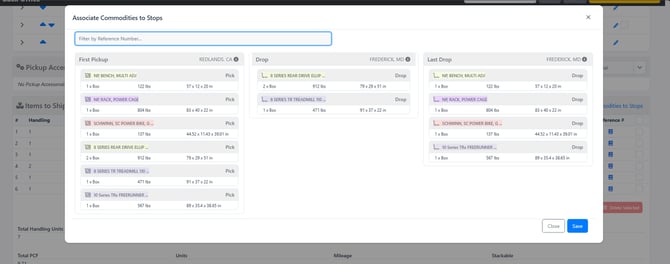
Once the request succeeds, the new associations are immediately reflected in the shipment's Associate Commodities to Stops modal in the Back Office — you'll see the reassigned commodities listed under their new stop.
Correcting an Association
If you submit an association with the wrong pickupStopId or deliveryStopId, you don't need to undo anything first — just submit the same shipmentCommodityId again with the corrected stop IDs. The new request overwrites the previous association.
Example: You meant to deliver commodity 36855297 at the 1st Drop (54216765), but submitted deliveryStopId: 54216766 (Last Drop) by mistake. To fix it, resend the same commodity with the correct deliveryStopId:
[
  {
    "shipmentCommodityId": 36855297,
    "pickupStopId": 54216764,
    "deliveryStopId": 54216765
  }
]
The endpoint applies the corrected association the same way as any other request — no cancellation step required.