![TAI_LOGO_CMYK Option 1.2-03.jpg]](https://learn.tai-software.com/hs-fs/hubfs/TAI_LOGO_CMYK%20Option%201.2-03.jpg?height=40&name=TAI_LOGO_CMYK%20Option%201.2-03.jpg)
How to Access It
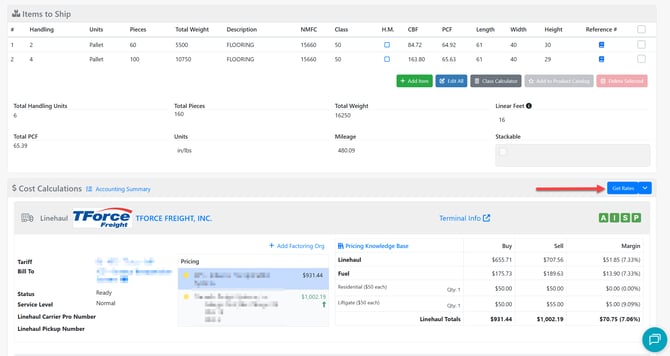
From the Shipment Detail page, go to the Cost Calculations section and click Get Rates. This opens the Shipment Rate Comparison page for that shipment.
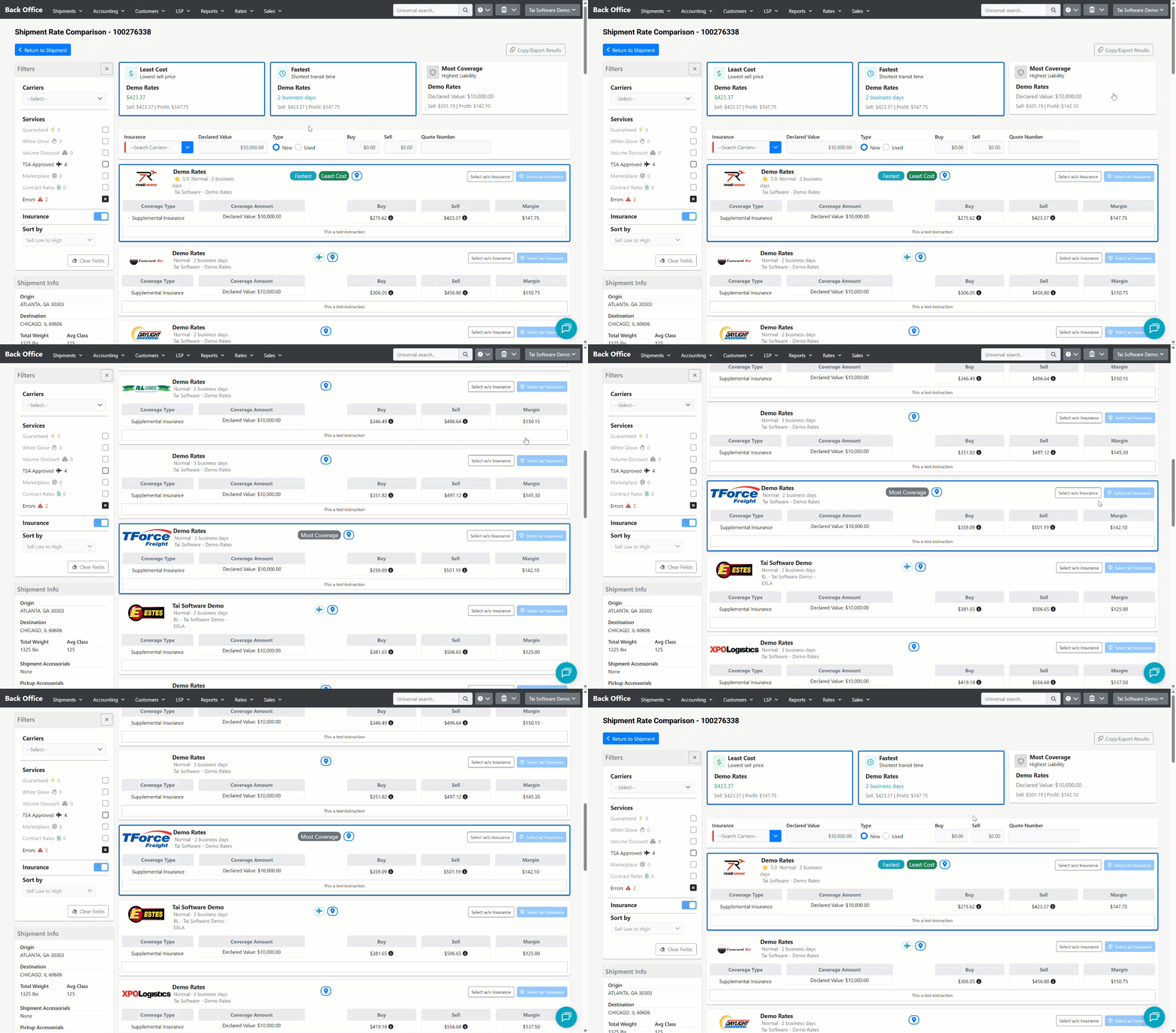
Page layout
The page is divided into two main areas:
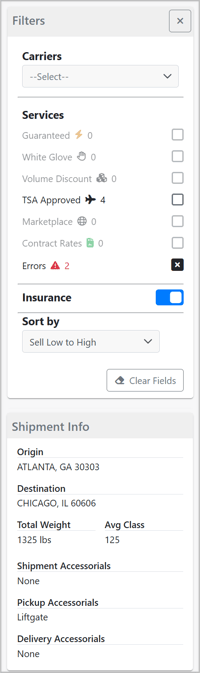
- Left sidebar — Filters and Shipment Info panel
- Main area — Top summary cards and the full list of carrier quotes
Top summary cards
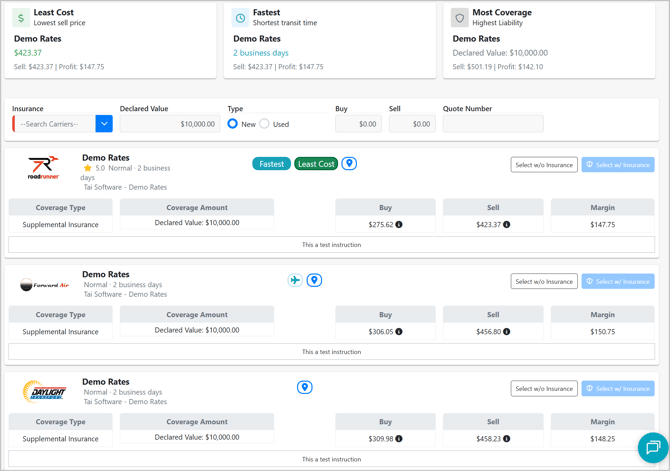
Three cards appear at the top of the rate list, each highlighting a different standout option from the results returned:
| Card | What it shows |
|---|---|
| Least Cost | The quote with the lowest sell price. |
| Fastest | The quote with the shortest transit time. |
| Most Coverage | The quote with the highest liability coverage amount. |
Clicking any summary card scrolls to and highlights that quote in the list below.
Filters
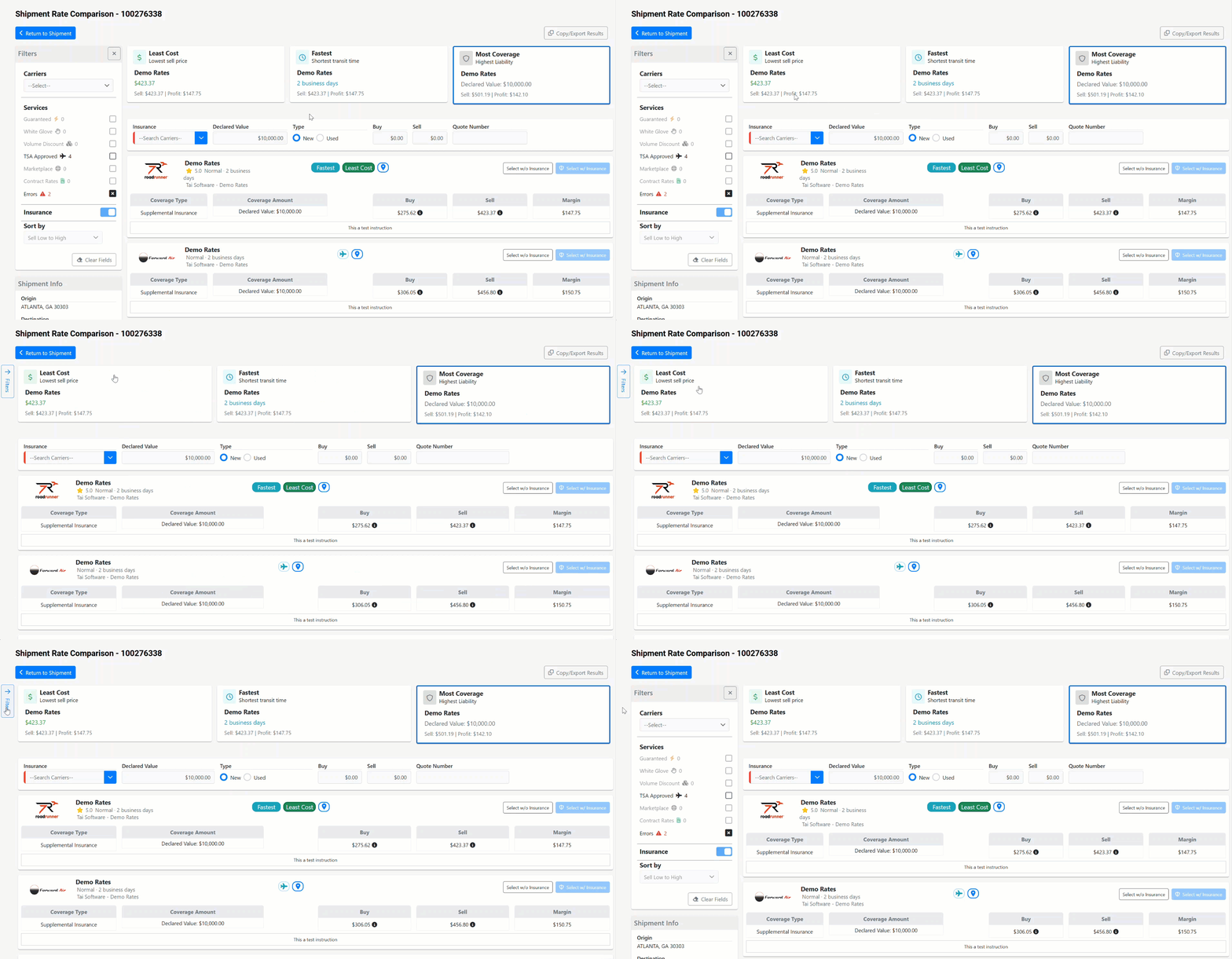
Use the left sidebar to narrow the quote list. Click the X on the sidebar header to collapse it; click Filters to expand it again.
Carriers
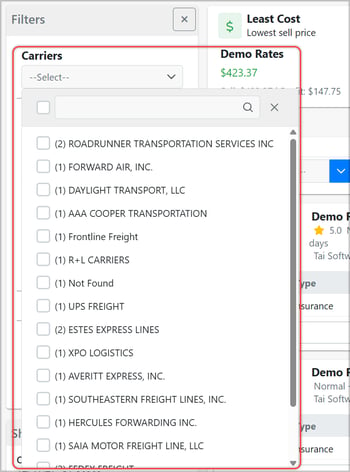
Select one or more carrier names to show only their rates. Each option shows the count of quotes available for that carrier.
Services
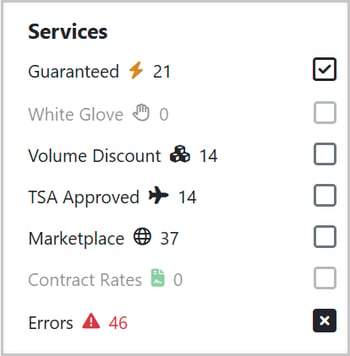
These are the available service filters to refine the available quotes based on your shipment’s specific requirements:
| Service | Icon | What it means |
|---|---|---|
| Guaranteed | ⚡ | Carrier guarantees on-time delivery. |
| White Glove |  |
Includes final-mile white glove delivery. |
| Volume Discount |  |
Volume-based pricing is available. |
| TSA Approved | ✈️ | Carrier is TSA compliant for air-eligible freight. |
| Marketplace | 🌐 | Rate is from a marketplace seller. |
| Contract Rates | 📄 | Rate is tied to a contracted pricing agreement. |
| Errors | ⚠ | Carriers that returned an error during rating. |
Each service filter is a three-state toggle:
- Click once to show only quotes with that service.

- Click again to exclude quotes with that service.

- Click a third time to clear the filter.

Insurance
Toggle on/off to include or not include supplemental insurance pricing in the Buy, Sell, and Margin columns across all quotes. When turned on, the insurance configuration form appears above the quote list.
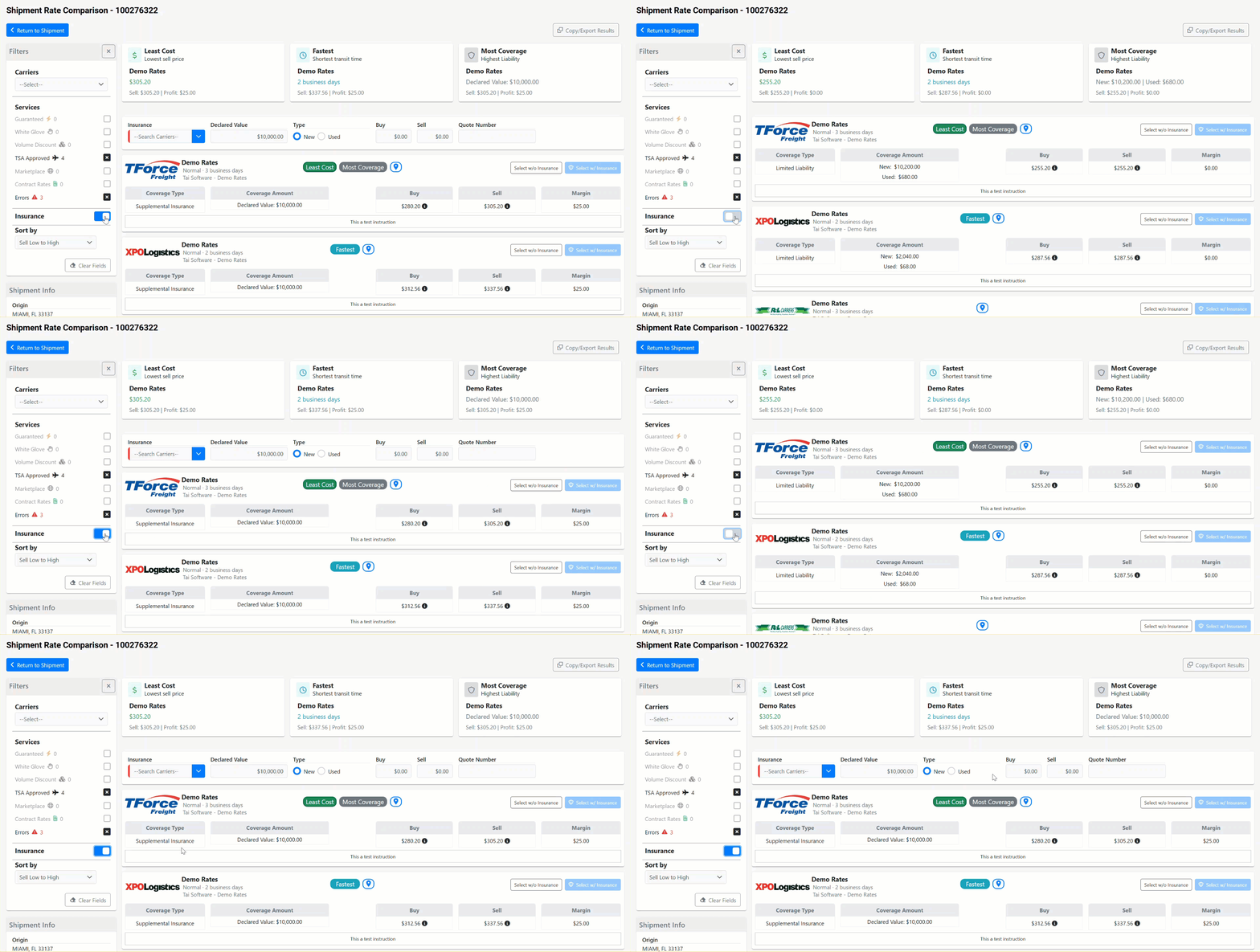
Note: Supplemental Insurance is enabled by default.
Sort by/Clear Fields
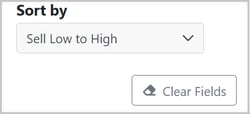
- Sell Low to High (default)
- Transit Time Fast to Slow
- Resets all filters to their defaults.
Quote cards
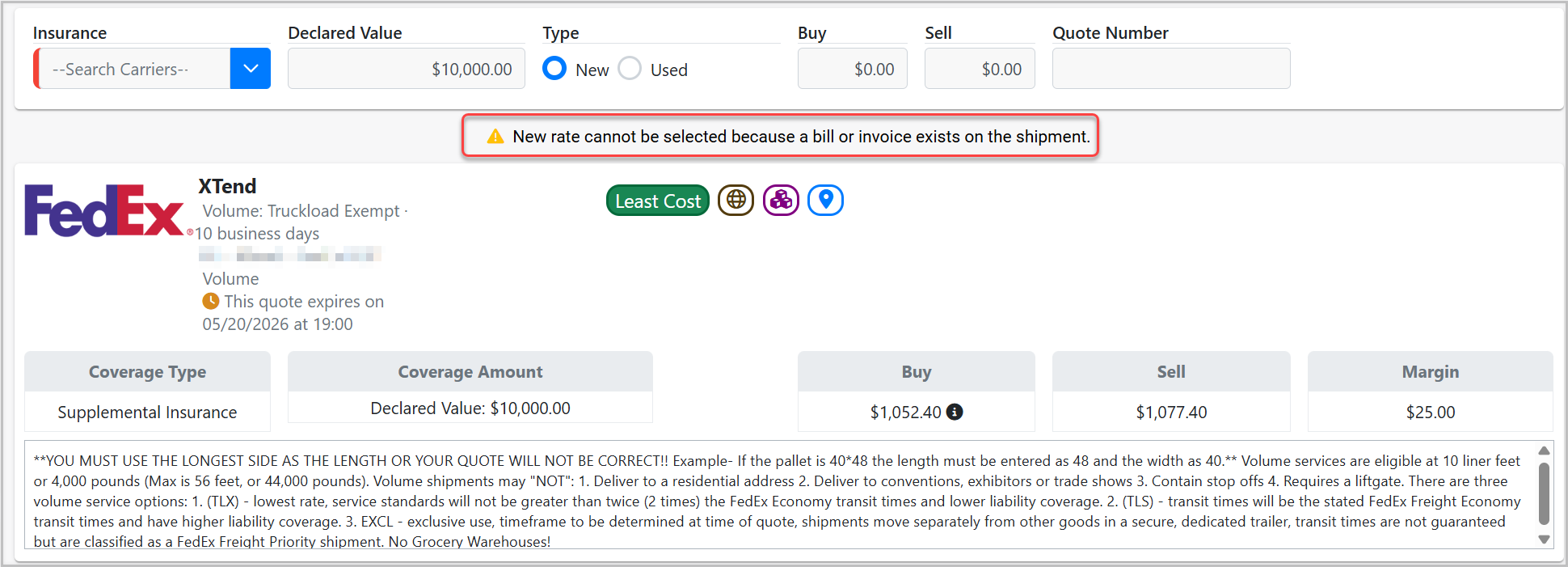
Each rate returned appears as a card showing:
- Carrier logo (or "Contracted Rate" label for contract rates)
- Tariff name and service level
- Transit time in business days
- Quote expiration date, if the rate has a time limit
- Service badges indicating special characteristics: Least Cost, Fastest, Most Coverage, Contracted Rate, Guaranteed, TSA Approved, Marketplace, Volume Discount, Final Mile
- Terminal Info — click the map pin icon to view terminal location
- Scale Rates — click the abacus icon to view scale pricing in a new tab (available on select carriers)

Pricing columns
| Column | Description |
|---|---|
| Coverage Type | "Supplemental Insurance" when insurance is enabled; "Limited Liability" when it is off. |
| Coverage Amount | Declared value (when insurance is on) or New/Used carrier liability (when insurance is off). |
| Buy | Your cost from the carrier, including insurance if enabled. |
| Sell | The price to your customer, including insurance if enabled. |
| Margin | Sell minus Buy. |

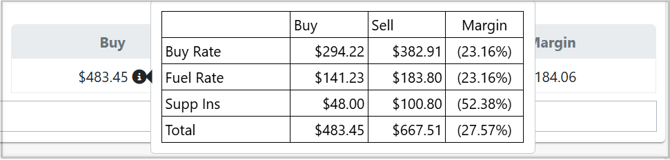
Hover the info icon next to any price to see a full pricing breakdown. Carrier comments appear at the bottom of each card and may include service notes, restrictions, or size and capacity requirements.
Supplemental Insurance
When the Insurance toggle is on, a configuration form appears above the quote list. Fill in the details to include insurance pricing across all quotes simultaneously.
| Field | What to enter |
|---|---|
| New / Used | The condition of the commodity being shipped. |
| Declared Value | The insured value of the shipment. |
| Deductible | The deductible amount for the coverage. |
| Commodity | The type of goods being shipped. |
| Insurance Carrier | The insurer handling the coverage. |
| Buy / Sell | The insurance cost to you and the price you charge your customer. |

Contract Rates
Contract rates appear at the top of the list, before standard carrier rates. They are identified by the Contracted Rate badge and label.
Pairing behavior
When a mix of contract and regular rates is returned, selecting a contract rate stages it — meaning it will be paired with the regular rate you select next. A banner on the staged contract card indicates it is pending.
- Select a regular rate to complete the pairing.
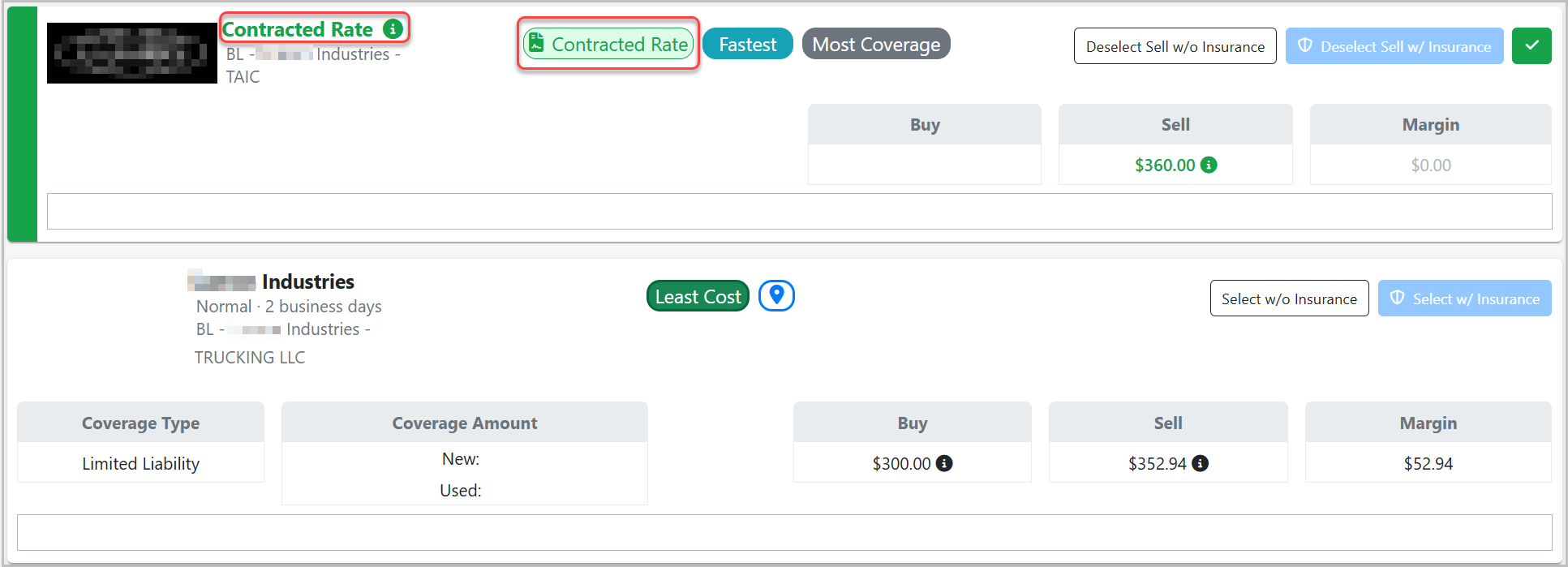
- Or click the green checkmark button on the contract card to commit the contract rate on its own without pairing it to a regular rate.

When only contract rates are returned with no regular rates in the response, the pairing step is skipped and the contract rate is committed directly.
Selecting a rate
Each quote card has two selection buttons:
- Select w/o Insurance — Applies the carrier rate without supplemental insurance.
- Select w/ Insurance — Applies the carrier rate and adds insurance based on the values in the insurance form.

After selecting a rate, the system saves the following to the shipment and returns you to the Shipment Detail page:
- Carrier and tariff
- Buy and sell linehaul amounts
- Fuel surcharge (buy and sell)
- Transit days
- Quote and reference numbers
- Accessorial pricing returned by the carrier
- Delivery carrier and pricing (if a final-mile leg is included)
If the shipment already has an active bill or invoice, a warning appears: "New rate cannot be selected because a bill or invoice exists on the shipment." The select buttons are disabled until the bill or invoice is removed.
Copy / Export results
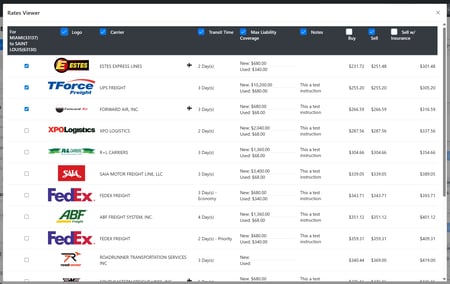
Click Copy/Export Results in the top-right corner to open the Rates Viewer. From there you can:
- Toggle which columns are visible — carrier, transit time, coverage, Buy, Sell, Margin, and more.
-
After you are ready to copy or export the results, click on Ready for Copy/Export
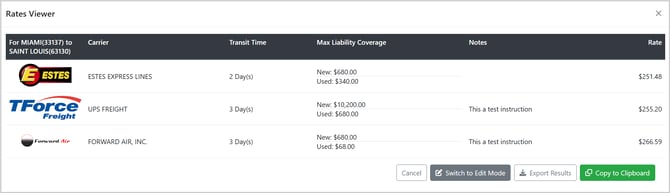
- From there, you will be able to:
- Export the visible rates to Excel.
- Copy to Clipboard
- Switch to Edit mode if you want to add another rate or modify which details are included in your export.
The export reflects only the quotes currently visible after filters are applied.
Rate expiration
Rates are valid for 17 minutes from the time they are loaded. After expiration:
- All quotes are cleared from the page.
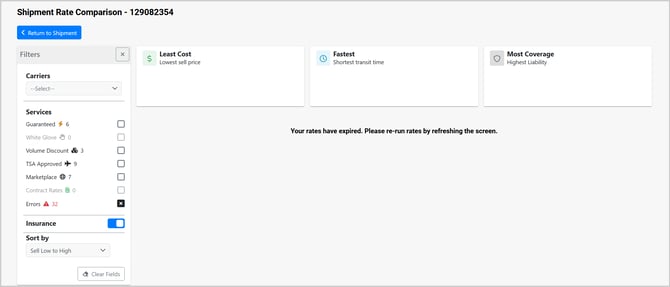
- A message is displayed: "Your rates have expired. Please re-run rates by refreshing the screen."
- Refresh the page to generate a new set of rates.