![TAI_LOGO_CMYK Option 1.2-03.jpg]](https://learn.tai-software.com/hs-fs/hubfs/TAI_LOGO_CMYK%20Option%201.2-03.jpg?height=40&name=TAI_LOGO_CMYK%20Option%201.2-03.jpg)
Tai's commission sync process posts approved commissions to QuickBooks Online as Vendor Bills and Bill Payments — it does not post into the QuickBooks Payroll module. If you pay your sales reps' commissions through QuickBooks Payroll (because they're W-2 employees), the two methods will record the same commission twice unless you choose one path and turn off the other.
- Tai syncs commissions the same way it syncs carrier bills: as Accounts Payable transactions against a Vendor.
- QuickBooks treats "Vendor" and "Employee" as separate, non-overlapping entity types — a sales rep can't be both under the same name in QuickBooks.
- Knowing which method you'll use before go-live prevents duplicate expense entries and the cleanup that comes with them.
Before you start — decide how you pay commissions
- Ask: do you pay sales rep commissions through QuickBooks Payroll (as part of a paycheck), or as a separate payment to the rep as a vendor? This determines which setup below applies to you.
- If your sales reps are W-2 employees and commissions run through payroll, use Option B below. If reps are paid commissions as a standalone payment (not through a paycheck), Tai's standard Vendor Bill sync (see the QuickBooks Sync article) works as-is.
Option A: Commissions paid as a standalone vendor payment
Where to go: Accounting > Accounting Sync in the TMS.
- No extra setup needed. Approve and sync commissions bills the same way you sync carrier bills — they'll post to QuickBooks as a Vendor Bill and Bill Payment.
Option B: Commissions paid through QuickBooks Payroll
Where to go: Accounting > Accounting Sync in the TMS
Payroll > Employees > Run Payroll in QuickBooks Online.
Tai's integration cannot post directly into the QuickBooks Payroll module — QuickBooks doesn't support a direct import into a payroll run for this. Instead:
- Approve the commission as usual in the TMS.
- Export the approved commission amounts (by sales rep and pay period) instead of letting them sync automatically.
- In QuickBooks Online, go to Payroll > Employees > Run Payroll, and select Commission only (or Bonus only) as the pay run type.
- Enter each rep's exported commission amount (from Tai) into that payroll run. This routes the payment through Payroll's tax withholding, correctly, for a W-2 employee.
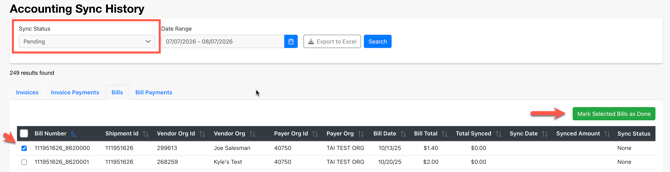
- Back in Tai, mark the corresponding commission record as Completed without pushing it to QuickBooks. This can be done by going to Accounting > Accounting Sync History > Select the "Pending" Sync Status option, Select the Sales Rep Bills > Mark as Complete.
- Reach out to your Onboarding Rep to have the system automatically mark approved commission bills as Complete daily to avoid this manual process once you are familiar wit the workflow.
Tips & best practices
- Make this decision before go-live — reclassifying reps or amending past QuickBooks entries after the fact is far more work than setting it up correctly once.
- If a sales rep is already set up as a QuickBooks Employee for payroll, don't let Tai's sync also try to create them as a Vendor — that will fail with a name conflict.
- Keep an exported record of each commission payment run through Payroll so your TMS and QuickBooks totals stay reconcilable.
Frequently asked questions
Can Tai import commission amounts directly into a QuickBooks Payroll run?
No. QuickBooks Online doesn't support importing pay-run amounts (like commission or bonus dollar figures) from an external file into a payroll run — that only supports bulk-importing employee setup data. You'll need to manually enter the exported commission amount for each rep into QuickBooks' Commission-only or Bonus-only payroll run.
Why does QuickBooks show a "Duplicate Name Exists" error when syncing a commission?
This happens when a sales rep already exists in QuickBooks as an Employee (for payroll) and Tai's sync tries to also create them as a Vendor for the same commission. QuickBooks doesn't allow the same name to exist as both entity types. If you're paying that rep's commissions through Payroll, use Option B above and mark the commission Synced without pushing it, instead of letting the automatic sync run.
Will this duplicate my commission expense in my books?
Only if both methods run for the same commission. Using Option B — entering the amount into Payroll and marking the TMS record Synced without pushing it — prevents the duplicate.
If something doesn't work- If a commission sync fails with a name-conflict error, check whether that sales rep already exists in QuickBooks as an Employee — that's the most common cause.
- If you're not sure whether your account is set up for Option A or Option B, contact support before approving further commissions, to avoid entries that need to be corrected later.
To learn more, see QuickBooks Sync.
Applies to: QuickBooks Online integration, Commissions · Last updated: 2026-07-07