![TAI_LOGO_CMYK Option 1.2-03.jpg]](https://learn.tai-software.com/hs-fs/hubfs/TAI_LOGO_CMYK%20Option%201.2-03.jpg?height=40&name=TAI_LOGO_CMYK%20Option%201.2-03.jpg)
What this does
WhatsApp messaging lets you send shipment updates, pickup and delivery confirmations, and general notifications to a contact's WhatsApp number directly from TMS.
- Message shippers, consignees, carriers, or any saved contact on a shipment without leaving TMS.
- Built-in opt-out support keeps you compliant with WhatsApp's messaging rules.
User Guide
Before you start: what you need to know
Right now, this feature sends through a shared Tai Software account, not a number tied to your own company. Your recipients will see the message coming from Tai Software, not from you directly.
Before you start: what you need first
The contact you want to message needs a WhatsApp number saved on their profile (customer staff, carrier contact), on the shipment stop (Shipper/Consignee), or in the Address Book, in the WhatsApp field.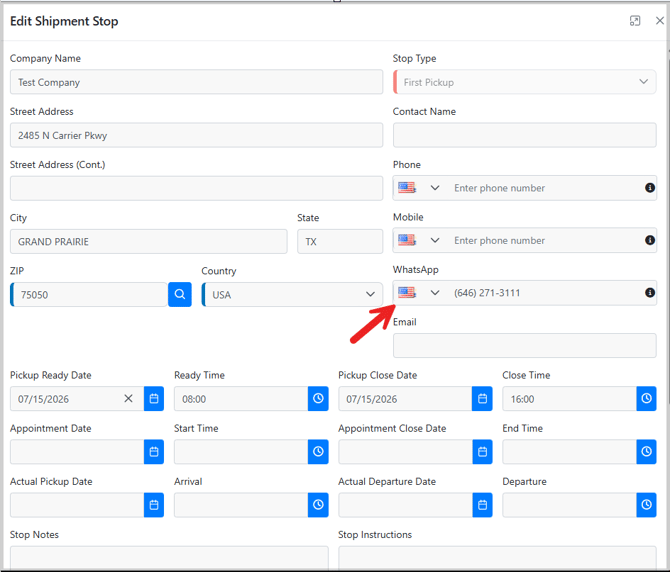
How to save a contact's WhatsApp number
Where you save the number depends on the type of contact:
- Shipment stop (Shipper/Consignee): on the shipment, open the Edit Shipment Stop modal and enter the number in the WhatsApp field.
- Customer staff: open their profile, edit it, and add the number to their contact info in the WhatsApp field.
- Carrier contact: go to the carrier's profile and add a contact with the number in the WhatsApp field.
- Main Organization or Customer profile: open the organization's or customer's profile, go to Edit Record, and add the number in the WhatsApp field.
- Any saved address: go to Customers -> Address Book, edit the address, and add the number to the WhatsApp field.
Wherever you save it, use the flag/country selector next to the field to set the correct country code. This is useful when messaging contacts internationally. Once saved, the number becomes available to select when sending a WhatsApp message on any shipment for this contact.
Note: The Shipment Importer template also includes Shipper WhatsApp and Consignee WhatsApp columns, so you can set these numbers at the same time you create the shipment.
How to send a WhatsApp message
Where to go: Open a shipment and click Send Message.
- In the To field, start typing the contact's name or role (Shipper, Consignee, Rep, Carrier, LSP). Any saved WhatsApp number for that contact appears as an option.
- Type your message and click Send Message.
- If this is the first time you're messaging this contact, or it's been a while, TMS automatically sends a short invite first, asking them to reply before your actual message can be delivered. See the "What happens on the recipient's end" section below.
Which number your message comes from
Right now, WhatsApp messages are sent from a shared Tai Software number, not a number tied to your own organization. This means the recipient sees the message coming from Tai Software rather than from your company directly.
Using message templates
Instead of typing a message from scratch, you can use a pre-written template.
- Templates come from LSP -> Content Templates, the same templates used for SMS, marked with a TEXT prefix.
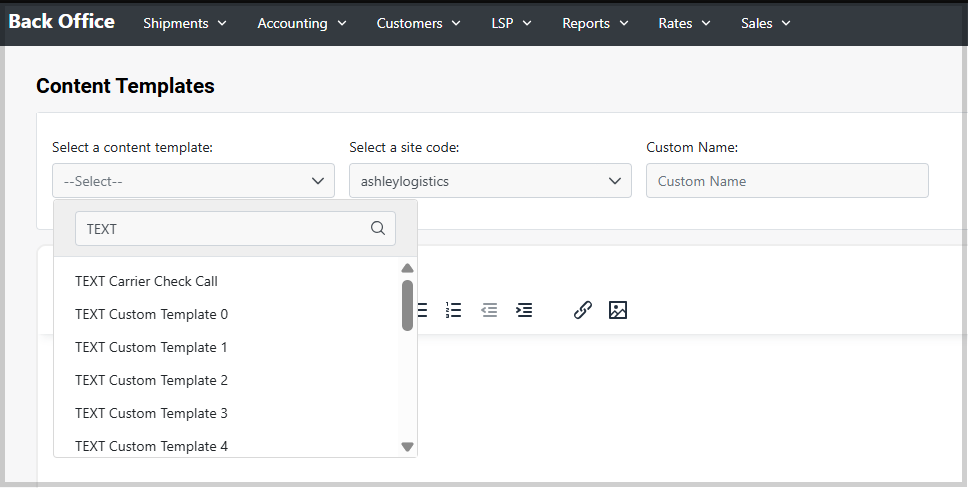
- In the Send Message modal, click Templates to see the available options for WhatsApp, then select one to add its content to your message.
Tip: always include the shipment ID tag in your templates, so the recipient knows exactly which shipment you're referring to.
What happens on the recipient's end
- Why there's an invite step: this is a WhatsApp platform rule, not something TMS adds on top. WhatsApp doesn't let a business send free-form content to someone it hasn't heard from recently, so it can't be used to send unsolicited messages. To get around that the first time you message someone (or after a long gap), TMS first sends a short, pre-approved invite asking them to reply. That reply is WhatsApp's way of confirming the recipient is engaged and wants to hear from you, and it's what unlocks your actual message. The invite reads something like: "Hello, our team has a shipment update to share with you on WhatsApp. Reply to this message to receive it. Reply STOP to opt out."
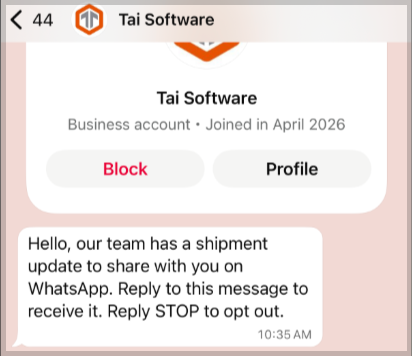
- If they reply to the invite: whatever message is currently waiting to be delivered to them goes out right away, no matter how long they took to reply. Even a short "hi" sent days later still works.
- If they never reply to the invite: the waiting message expires after about a week and is never delivered. It's genuinely lost, not just delayed. If you send that contact a new message after this happens, it also goes into a waiting state, behind the same still-unanswered invite. It does not trigger a second invite. Whenever they eventually do reply, only whatever message is still waiting at that moment gets delivered. Anything that already expired earlier is gone for good and would need to be sent again separately.
- Once they've replied, you have a 24-hour window from that reply to send further messages to them that go straight through with no waiting or invite needed. If a full 24 hours pass with no further reply from them, the window closes, and your next message goes back to waiting behind a new invite, the same as first contact.
- They only need to reply once to release whatever's waiting for them. There's no need for an ongoing back-and-forth conversation on their end, and they don't need to reply to every message individually, just to the invite whenever one is outstanding.
- What you'll see in TMS: you won't see whether or when they replied, and you won't see the content of any reply. What you will see is the message's own status changing once it's delivered (for example, from "Pending Recipient Reply" to sent), which tells you a reply happened, without showing you the reply itself.
A future update to TMS will bring recipient replies directly into the shipment's Activity Log, the same way SMS replies already work. Until then, if a recipient does reply, that reply is not visible to regular staff. Only IT members can currently check whether a reply came in.
Opting out of WhatsApp messages
A contact can stop receiving WhatsApp messages from you at any time by replying with an opt-out word.
- Opt-out words: STOP, STOPALL, UNSUBSCRIBE, CANCEL, END, or QUIT. Matching is not case-sensitive, so the reply may be sent in any capitalization.
- To opt back in: reply START at any time. Matching is not case-sensitive.
- Opting out isn't limited to the one shipment they were messaged about, or even to your organization alone. Right now, WhatsApp messages send from a shared Tai Software number, so opting out blocks that number entirely, across every organization sending from it, not just yours.
- If a contact opts out, you will not be able to send anything back to them until they reply START.
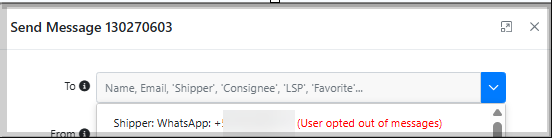
- To check a contact's status: open Send Message and select them. A red warning appears next to their name if they have opted out. This is the only place that indicator shows up; it does not appear on the contact's profile or in the Address Book.
Tips & best practices
- Always double-check the country code when saving a WhatsApp number. TMS only checks that the number is validly formatted; it cannot tell whether the wrong country was selected. If the number happens to be a real, valid number in that other country, the invite will go out to that unrelated number with no warning.
- If a contact doesn't reply to the initial invite, your message stays queued. It will go out automatically as soon as they reply.
Frequently asked questions
Why did my contact get a generic "reply to receive updates" message instead of my actual text?
This is expected for a first-time or long-inactive contact. WhatsApp requires them to reply before free-form content can be sent. Once they reply, your original message goes out automatically.
Can a contact opt out of WhatsApp messages?
Yes. If they reply STOP, or a similar opt-out word, in any capitalization, TMS stops sending them WhatsApp messages and shows this clearly the next time you try to message them. They can reply START at any time, in any capitalization, to opt back in.
Does opting out of WhatsApp also stop SMS or email to that contact?
No. WhatsApp opt-out is separate from SMS and email, and only affects WhatsApp messages to that contact. SMS has its own separate opt-out flow with its own keywords and automated replies.
Why does my message show as "Pending Recipient Reply"?
This means TMS sent the initial invite and is waiting for the contact to reply before your message can be delivered. No action is needed. It resolves automatically once they respond.
Can I send a WhatsApp message to a number I haven't saved anywhere?
No. The To field only shows numbers already saved on a contact for that shipment. Save the number on the Shipper, Consignee, Carrier, or Address Book contact first.
Where can I see the WhatsApp messages sent during a specific time period?
Go to Shipments -> Communication Log, then filter by Message Type: WhatsApp and set your date range. This shows every WhatsApp message matching that type and date range, along with its delivery status.