![TAI_LOGO_CMYK Option 1.2-03.jpg]](https://learn.tai-software.com/hs-fs/hubfs/TAI_LOGO_CMYK%20Option%201.2-03.jpg?height=40&name=TAI_LOGO_CMYK%20Option%201.2-03.jpg)
Business Objective
- Prevent inbound carrier invoices and automated documents from being lost when they cannot be automatically linked to an existing shipment in the TMS.
- Give operations and accounting teams a single queue to review, match, or discard documents that arrive from EDI, OCR, or integration partners without a valid shipment identifier.
- Reduce AP processing delays by letting users reconcile documents to the correct shipment or, when no shipment exists, generate a new shipment from the document’s own metadata in a few clicks.
- Preserve a clean audit trail by recording the original document, the action taken (matched, ignored, created), and the resulting shipment ID.
User Guide
Accessing the page
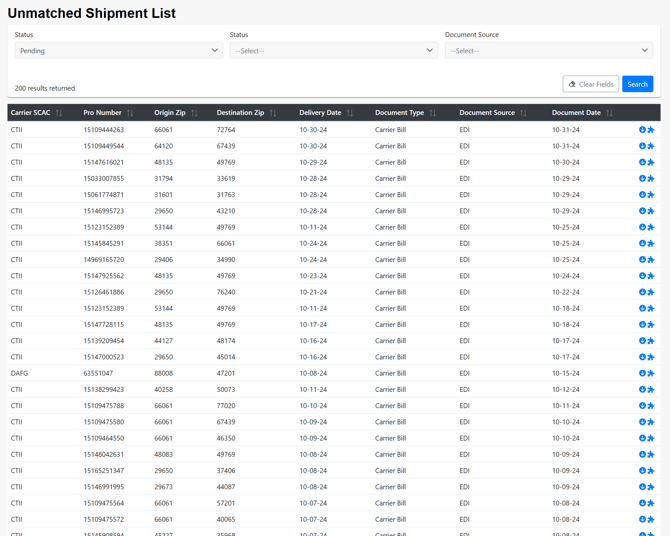
Go to Accounting and select Unmatched Shipments. The page lists documents that arrived through inbound channels (for example, EDI 210 files or document processor OCR) but could not be automatically associated with a shipment.
Filters
- Document Status (Pending, Complete, Ignored)
- Document Type
- Document Source
The queue returns the 200 most recent documents matching the filters, ordered by document date descending.
Actions available per record
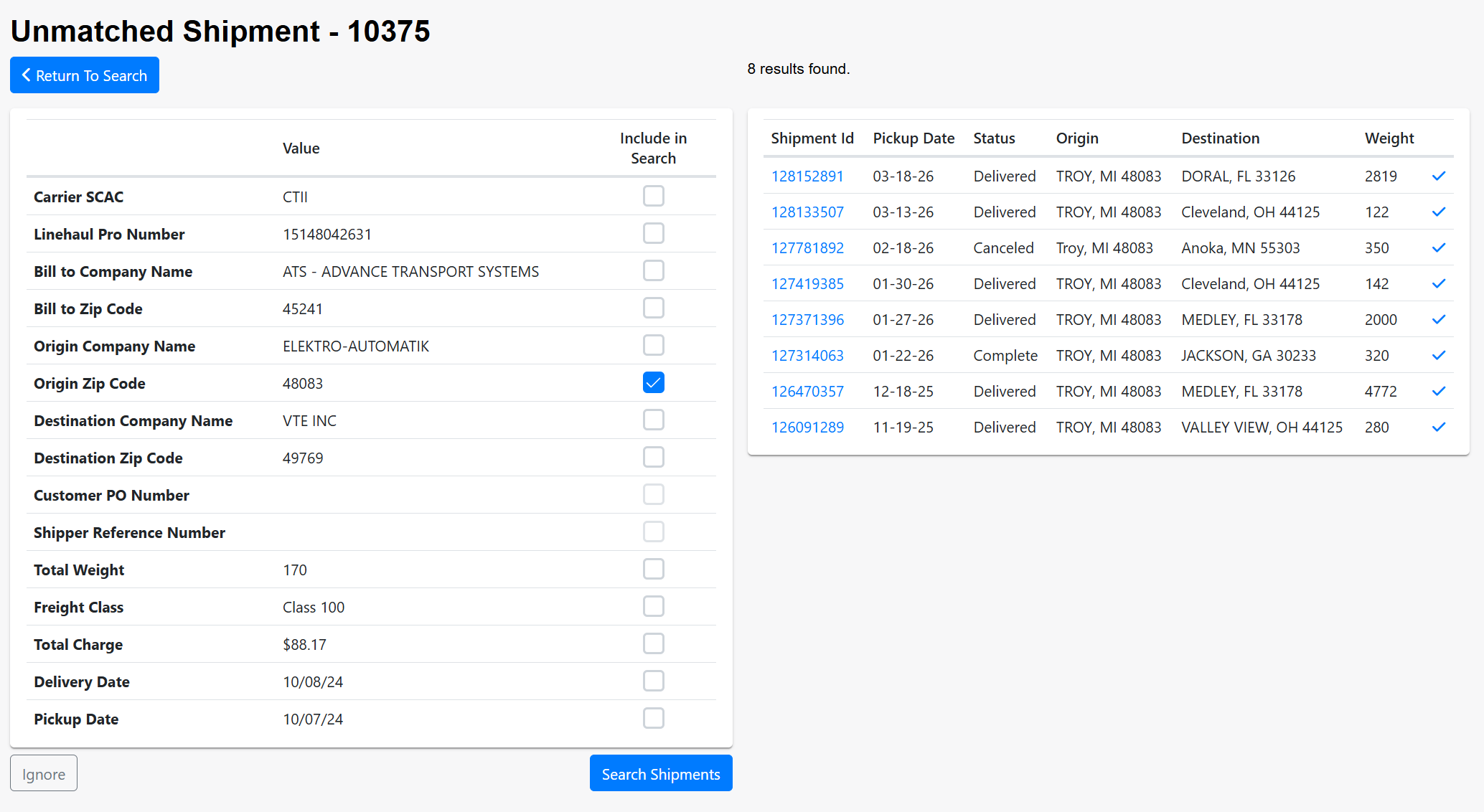
- Match to Existing Shipment. Open the record and search the TMS for a matching shipment using any combination of Bill-To company, Bill-To ZIP, carrier SCAC, origin ZIP, origin company, destination ZIP, destination company, weight, customer PO, shipper reference, linehaul Pro number, freight class, total charge, pickup date, or delivery date. The search returns up to 20 candidate shipments ordered by most recently created. Select the correct shipment and confirm the match. The system immediately attempts to auto-approve the carrier bill on that shipment and writes a note to its activity log.
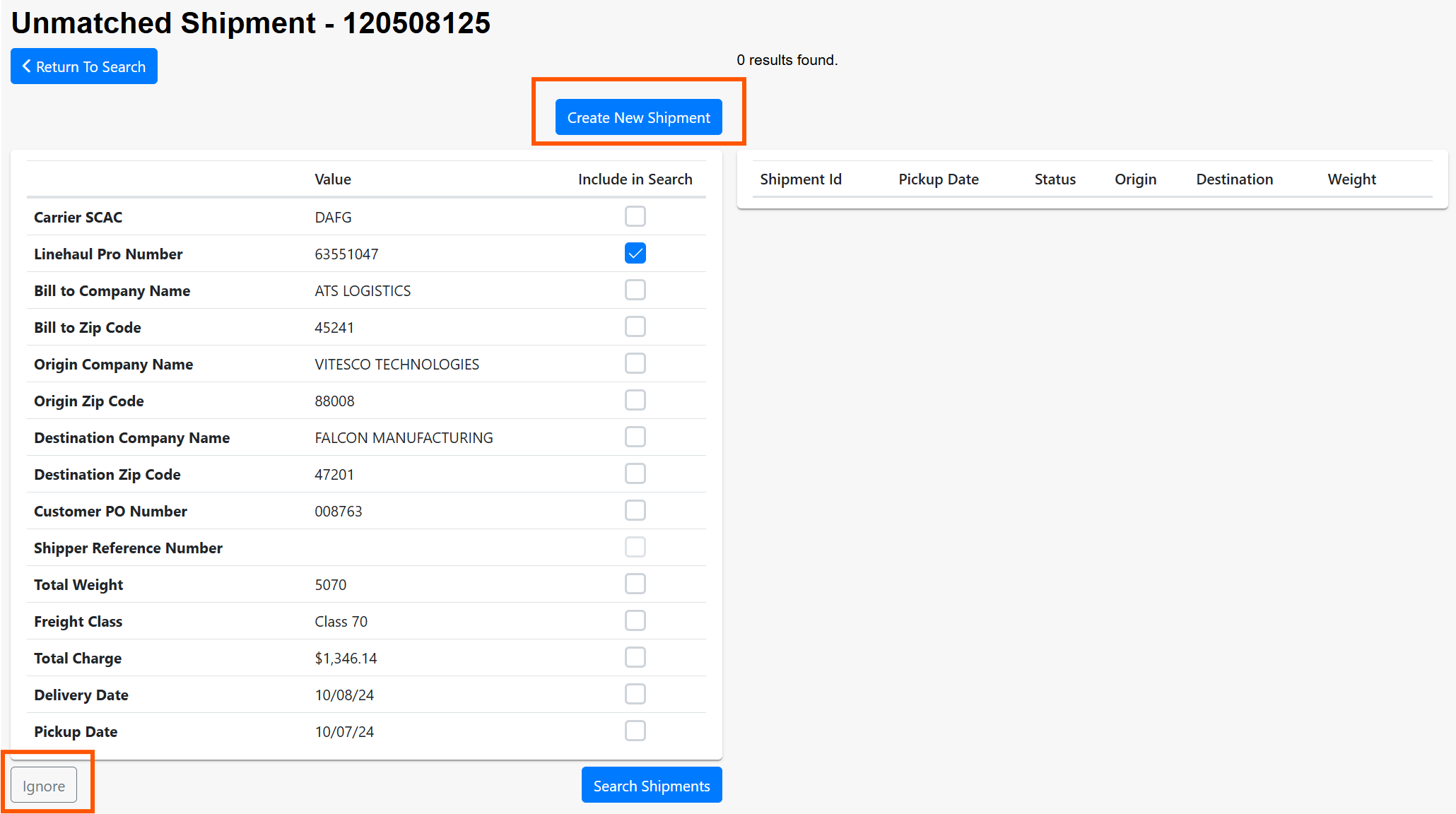
- Create New Shipment. When no matching shipment exists, create one directly from the document. The system builds an LTL shipment using the document’s origin/destination addresses, pickup and delivery dates, reference numbers, freight class, and weight. The net amount due is broken into a linehaul charge and a fuel charge (when a fuel line is present on the document) and applied as a spot-quote bill.
- Ignore. Mark the record as Ignored if it is a duplicate, out of scope, or should not be processed. Ignored records remain visible for auditing.
What happens after matching
- The matched shipment’s carrier bill is auto-approved when it passes validation, or sent to the Billing Variance Report when it does not.
- The unmatched record is moved to Complete status and is linked to the actual Shipment ID for future reference.
Technical Information
- The Unmatched Shipments queue is populated automatically by inbound integrations (EDI parsers, document processor, and similar). Each record stores the raw metadata and a reference to the source file.
- Matching runs the same bill auto-approve pipeline used elsewhere in the system. Failure reasons appear on the bill’s automation log and in the shipment activity log.
- Creating a new shipment from an unmatched record always produces an LTL shipment in Delivered status with a single linehaul leg. The amount is split into linehaul and fuel only; all other accessorials will need to be added manually if required.
- The customer staff on the generated shipment is resolved by looking up prior shipments with the same origin/destination ZIP and company, then falling back to a customer match on origin or destination company name, then to a broker-level staff record.
Troubleshooting checklist when matching or creation fails:
- Confirm the carrier SCAC on the document exists as a Carrier Master in the TMS.
- Confirm the user has access to the accounting organization on the record.
- When creating a new shipment fails with “Customer staff not found,” verify that a customer organization exists with a name close to the origin or destination company on the document.
- Review the bill automation log on the matched shipment to see the rejection reason if the bill did not auto-approve after matching.