![TAI_LOGO_CMYK Option 1.2-03.jpg]](https://learn.tai-software.com/hs-fs/hubfs/TAI_LOGO_CMYK%20Option%201.2-03.jpg?height=40&name=TAI_LOGO_CMYK%20Option%201.2-03.jpg)
What this does
Final Mile carriers often need their own Bill-To address, separate from the shipment's usual Tariff- or Broker-level billing. Now, each transit leg can carry its own Bill-To, the party responsible for paying that leg's freight charges, instead of relying on one Bill-To for the whole shipment. This makes sure each leg's Bill of Lading (BOL) always shows the correct billing party, especially for Final Mile legs that need their own.
- Set a Bill-To directly on a transit leg to override its default.
- If you don't set one, the leg falls back to its Tariff's Bill-To, or your organization's default Bill To address if the leg has no Tariff.
- Available on every transit leg type except Insurance and TONU (Truck Order Not Used) legs.
- The House BOL (used to display all stops from the shipment in the same BOL) always uses the linehaul leg's Bill-To, keeping multi-leg shipments consistent.
How to view a transit leg's current Bill-To
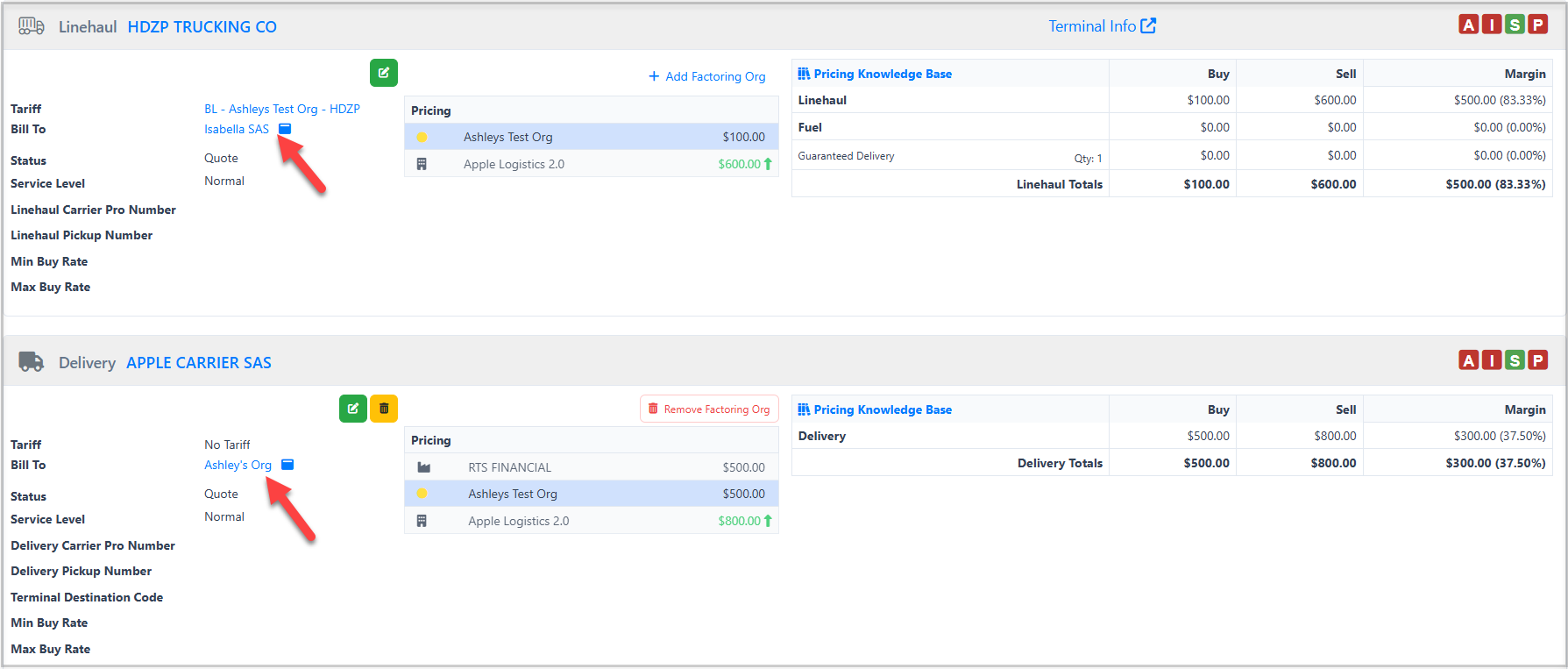
Where to go: Open the shipment and scroll down to the Cost Calculations section, this is where every Transit Leg card lives. You'll see it directly on the Shipment Details page, or in the Edit Pricing or Edit Record views.
- Each leg card shows a "Bill To" line under the Tariff, this is the currently effective billing party for that leg.
- If no custom Bill-To has been set, this line shows "Set Bill To" (or "Set Default Bill To" on the linehaul leg) until you configure one.
- Click the Bill To link to open its details, a Source label at the top tells you where the value is currently coming from: your own override, the leg's Tariff, or your organization's default address.
How to set or change a transit leg's Bill-To
Where to go: On the Transit Leg card, click the "Bill To" link (or "Set Bill To" if none is configured yet).
- Fill in all fields for the party you want billed for this leg: Company Name, Street Address 1, City, State, Zip Code, and Country. All of these are required to save; Street Address Line 2 is the only optional field.
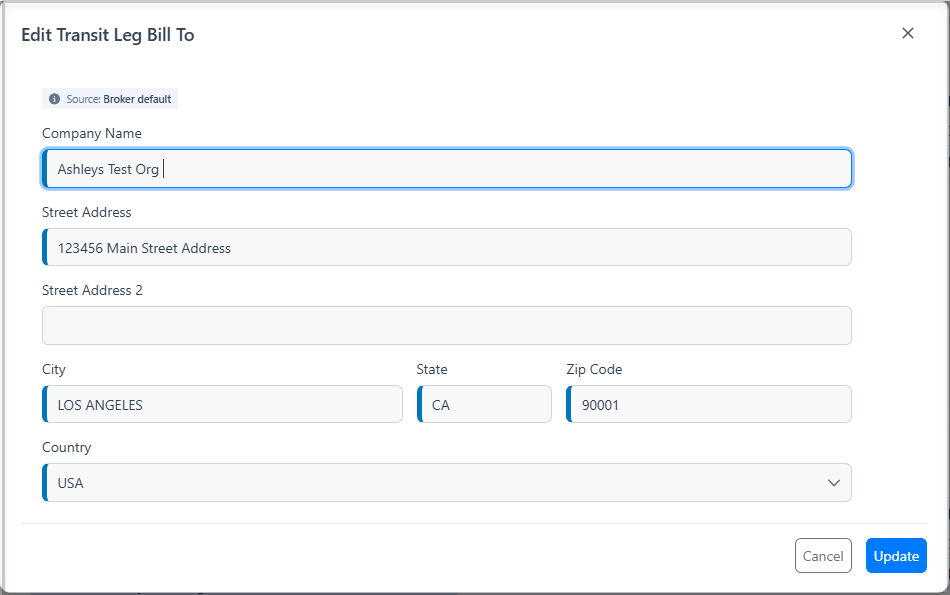
- Click Update to save. You'll see a confirmation message, and the leg card updates to show the new value.
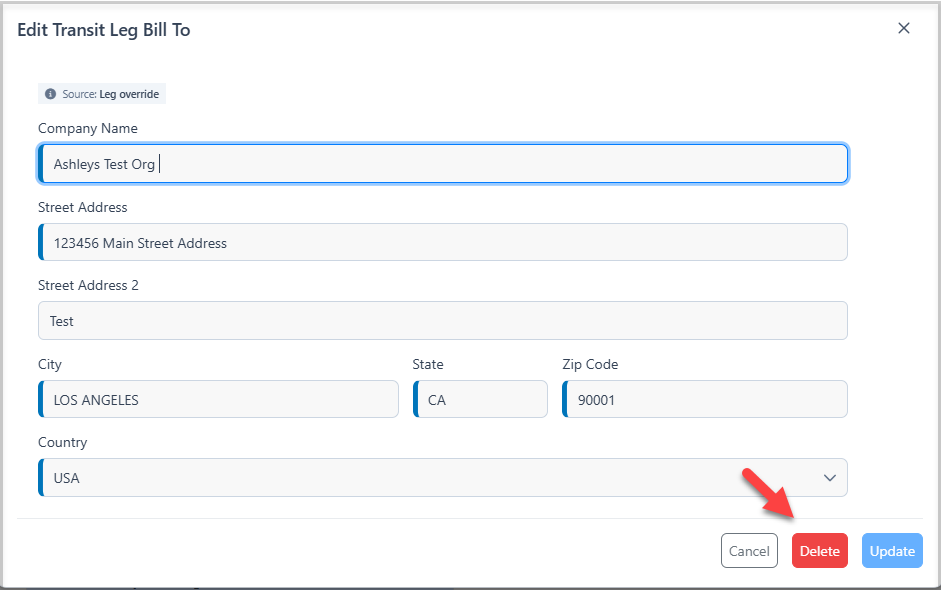
- To remove a custom Bill-To and go back to the automatic default, open the same field and click Delete, then confirm. The leg falls back to its Tariff's Bill-To, or your organization's default Bill To address if there's no Tariff.
What does the "Source" label in the Bill To modal mean?
The Source label tells you exactly which tier the shown Bill-To value is coming from:
- Leg override: a Bill-To was set directly on this transit leg, taking priority over everything else.
- Tariff: no leg override is set, so the value comes from the Tariff assigned to this leg.
- Broker default : no leg override or Tariff Bill-To exists, so the value falls back to your organization's own default Bill To address
Tips & best practices
- Set a custom Bill-To when a leg needs to bill someone different from its Tariff or your organization's default, otherwise, leave it to resolve automatically.
- Double-check the address after saving by generating the leg's BOL, this confirms exactly what your carrier or customer will see on the document.
- This field isn't available on Insurance or TONU (Truck Order Not Used) legs.
Frequently asked questions
Why does my transit leg's Bill-To show a different company than I expected?
The Bill-To is resolved automatically unless you've set a custom one: first it checks for a value you've entered directly on the leg, then the Tariff assigned to that leg, and finally your organization's own default Bill To address. If a Tariff was recently changed on the leg, the Bill-To may have updated along with it.
If I change the Bill-To on one leg, does it affect the shipment's other legs?
No. Each transit leg resolves its own Bill-To independently, changing one leg's billing party never changes another leg's.
Which document reflects my leg-level Bill-To changes?
Any BOL generated for that specific leg will use its resolved Bill-To, this applies to legs that have their own dedicated BOL. The House BOL (used to display all stops from the shipment in the same BOL) always uses the linehaul leg's Bill-To specifically, not any other leg's.
Why does my BOL show an account number for one leg but not another?
An account number only appears when the leg's Bill-To comes from its Tariff and that Tariff has an account number configured. If you've set a custom Bill-To on the leg, or it's using your organization's default address, no account number will appear, that's expected.