![TAI_LOGO_CMYK Option 1.2-03.jpg]](https://learn.tai-software.com/hs-fs/hubfs/TAI_LOGO_CMYK%20Option%201.2-03.jpg?height=40&name=TAI_LOGO_CMYK%20Option%201.2-03.jpg)
⭐ Early Access Program
The Track and Trace AI Agent is available to all Tai customers. Activation is done through an Early Access Program — a guided onboarding process where the Tai team works directly with you to get the Agent live. Full self-service availability is coming soon.
What it does
The Track and Trace AI Agent is an autonomous AI voice agent built into Tai TMS and powered by CloneOps. It proactively calls drivers, captures real-time location and ETA updates, and logs everything directly into the shipment record — with no manual steps required.
Once configured, the Agent will:
- Call drivers automatically on active shipments on a schedule you define — 24/7, including after hours
- Capture location, ETA, delivery outcome, and any issues reported during the call, then log them directly into the load record
- Automatically advance shipment status — from Dispatched to In Transit, and from In Transit to Delivered — and adjust appointment times as conditions change
- Resolve the check call alert and repeat the process the following day
When your team needs to act on a specific shipment right away, calls can also be triggered manually at any time from within Tai.
Before you get started
Your Tai support team handles all technical configuration. Before they can complete setup, have the following ready:
| What you need | Details |
|---|---|
| Phone number for outbound calls | The number drivers will see when the Agent calls. This can be your existing business number or a new number provisioned by Tai. |
| Phone number validation | If you are using your own number, Tai will walk you through a brief validation step — either a phone call or SMS confirmation — to verify the number before it goes live. |
Once setup is complete, Tai will provide guidance on configuring your Workflow Automation schedules. That part is yours to set up in Tai — see the Setting Up Your Workflow Automations section below.
Optional integration source settings
After setup is complete, your Tai administrator can configure additional integration source settings to customize how the Agent behaves. These are optional and not required for the Agent to function. Contact your Tai representative if you need help enabling or adjusting any of them.
blockedStatuses
Prevents the Agent from automatically updating the shipment to one or more specific statuses. Use this when you want the Agent to gather information on a call but not advance the shipment status on its own.
Set the value to a specific status name, a comma-separated list of statuses, or All to block status updates entirely regardless of what the driver reports.
Available status values: Quote, Committed, Ready, Sent, Dispatched, In Transit, Out for Delivery, Delivered.
callRecipient
Directs the Agent to call the carrier dispatcher instead of the driver. When this setting is configured, the Agent looks up the Carrier Dispatcher Phone Number reference number on the shipment and calls that number instead of the Driver Cell Phone Number.
Use this when your operation routes check calls through dispatchers rather than directly to drivers.
Value: shipment.shipmentReferenceNumbers[referenceType="Carrier Dispatcher Phone Number"].value
How the automated check call cycle works
| Step | What happens | Details |
|---|---|---|
| 1 | Shipment triggers the call | At your scheduled time, Tai identifies active shipments that need a check call and sends the shipment details to the AI Agent. |
| 2 | AI Agent calls the driver | The Agent places an automated phone call to the driver's number on file and gathers location updates, delays, and status information. |
| 3 | Results come back to Tai | Once the call is complete, all captured updates — notes, location, status changes — are pushed directly back into the shipment record. |
| 4 | Alert is resolved | The AI Agent Call alert on the shipment is automatically resolved, signaling that the check call cycle for that day is complete. |
| 5 | Cycle repeats the next day | The following day, the automation detects the resolved alert and triggers a fresh check call — keeping your tracking up to date automatically. |
Setting up your Workflow Automations
After Tai completes the integration setup, you configure four Workflow Automation schedules in Tai. Navigate to Settings → Workflow Automations to create them.
The four workflows work together as a system. Workflows 1 and 2 handle when calls are placed. Workflows 3 and 4 manage the On Track alert state based on what the Agent reports back.
Workflow 1 — Initial Call
Picks up active Truckload shipments that have never received an AI Agent Call and triggers the first call.
| Setting | Value |
|---|---|
| Trigger | Shipment Scheduler |
| Frequency | Weekly — Monday, Tuesday, Wednesday, Thursday, Friday |
| Time of Day | 08:00 PST (or your preferred time) |
| Filters | |
| Shipment Type Filter | Contains: Truckload |
| Status Filter | Contains: Dispatched, In Transit, Out for Delivery |
| Alert Filter | Does Not Contain: AI Agent Call |
| Resolved Alert Filter | Does Not Contain: AI Agent Call |
| Action | |
| Action | Call AI Agent — select your Track and Trace AI Agent Integration Source from the dropdown |
Workflow 2 — Follow-Up Calls
Picks up shipments that were called on a previous day and triggers a fresh follow-up call. The Resolved Alert date filter ensures the same shipment is never called twice on the same day.
| Setting | Value |
|---|---|
| Trigger | Shipment Scheduler |
| Frequency | Weekly — Monday, Tuesday, Wednesday, Thursday, Friday |
| Time of Day | 08:00 PST (same time as Workflow 1) |
| Filters | |
| Shipment Type Filter | Contains: Truckload |
| Status Filter | Contains: Dispatched, In Transit, Out for Delivery |
| Resolved Alert Filter | AI Agent Call — Less Than or Equal to: Yesterday |
| Action | |
| Action | Call AI Agent — select your Track and Trace AI Agent Integration Source from the dropdown |
Important: The Resolved Alert filter on Workflow 2 must be set to Less Than or Equal to: Yesterday. Do not set it to "Today" — that would cause shipments to be called twice on the same day.
Workflow 3 — On Track
When the AI Agent completes a call and the AI Agent Call alert is resolved, this workflow adds an On Track alert to the shipment — confirming the Agent got a positive update with no exceptions reported.
| Setting | Value |
|---|---|
| Trigger | Shipment Alert is Resolved |
| Filters | |
| Original Alert Filter | Contains: AI Agent Call |
| Alert Filter | Does Not Contain: AI Agent Call |
| Alert Filter | Does Not Contain: Shipment Exception |
| Action | |
| Action | Add Alert — On Track |
The “On Track” alert can be any custom alert. If “On Track” does not fit your operation, you can create and label this alert in whatever way best matches your workflow.
Workflow 4 — Clear On Track
If a Shipment Exception alert is added after the On Track alert is set, this workflow automatically resolves the On Track alert — reflecting that the shipment is no longer exception-free.
| Setting | Value |
|---|---|
| Trigger | Shipment Alert is Added |
| Filters | |
| Original Alert Filter | Does Not Contain: Shipment Exception |
| Alert Filter | Contains: Shipment Exception |
| Action | |
| Action | Resolve Alert — On Track |
Triggering a check call manually
Your team can trigger a check call on demand at any time — useful for urgent shipments or exceptions.
From a shipment record
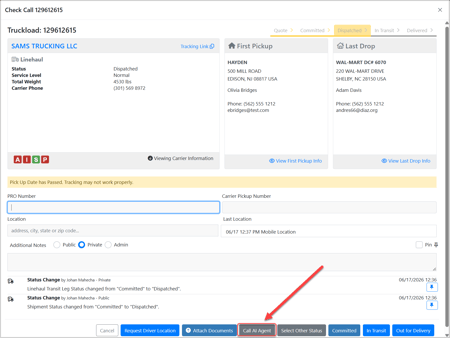
- Open the shipment in Tai TMS.
- Open the Check Call panel.
- Click Call AI Agent at the bottom of the modal.
From Shipment Search (multiple shipments)
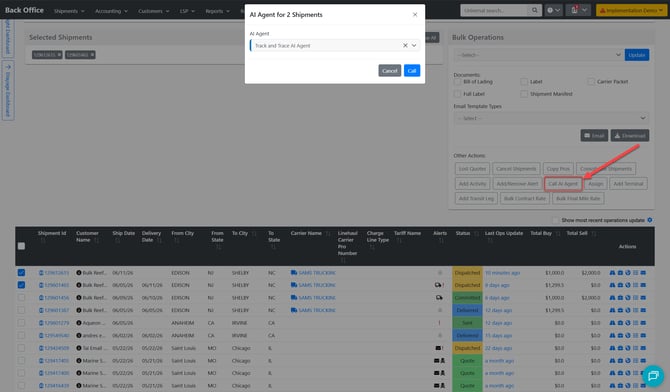
- Go to Shipment Search and select one or more shipments.
- Open Bulk Operations.
- Select Call AI Agent and confirm.
From the Company Loadboard (multiple shipments)
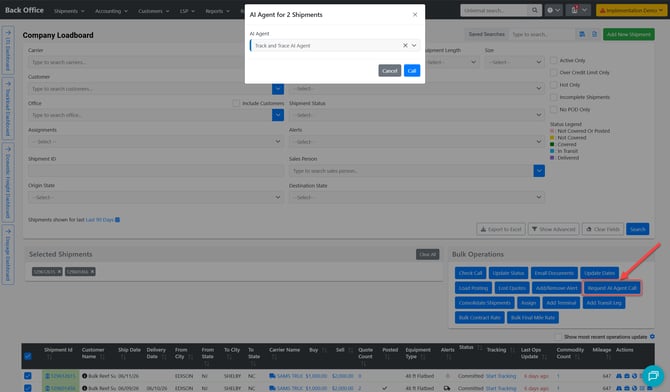
- Navigate to the Company Loadboard.
- Select one or more shipments using Bulk Operations.
- Choose Request AI Agent Call → Call
Manual calls are only available on shipments whose organization is linked to a configured Integration Source. If you do not see the Call AI Agent option, contact your Tai administrator to verify the integration is active for your organization.
What to expect after a call
Successful calls
- An AI Agent Call alert appears on the shipment and is managed automatically — you do not need to create or resolve it manually.
- Call notes are added to the shipment activity log.
- If the driver provides a pickup or delivery time, those are logged to the shipment details automatically.
- If the driver confirms pickup or delivery, the shipment status transitions accordingly (Dispatched → In Transit, or In Transit → Delivered).
- If the Agent is able to determine the driver's ETA, a Driver ETA stop reference number is automatically added to the relevant stop — the first pickup if the shipment is in Dispatched status, or the last drop if it is In Transit or beyond.
- The alert stays open until the agent finishes processing and pushes the results back into Tai, at which point it resolves automatically.
- If no exceptions are reported, the On Track alert is added to the shipment.
- If a Shipment Exception is subsequently added, the On Track alert is automatically resolved.
The Track and Trace AI Agent currently supports single-stop shipments only. Multi-stop shipments are not supported at this time.
Failed calls and voicemail
- Missing or invalid phone number — If the call cannot be placed due to a missing or invalid driver phone number, a Shipment Exception is triggered, and the carrier rep is assigned for action. The activity log includes a note indicating why the call didn't go through.
- Voicemail — If the call goes to voicemail, a Shipment Exception alert is triggered, and the carrier rep is assigned for follow-up. The AI Agent Call alert also remains active alongside the exception, giving two clear signals that the call was unanswered. The activity log reflects this as well. You can use Workflow Automation to automatically retrigger the call if needed.
Activity log prefixes
Every call creates an activity log entry with a prefix in the summary, making it easy to search from either the shipment record or the Shipment Activity page. Use these to quickly see how many calls were successful, which went to voicemail, and which failed:
| Prefix | What it means |
|---|---|
| AI Check Call: | Call completed successfully — driver answered and provided an update. |
| AI Check Call Unanswered: | Call went to voicemail — no live response from the driver. |
| AI Check Call Failed: | Call could not be placed — phone number is missing or invalid. |
Required shipment fields
The following fields must be populated on the shipment before a call is triggered:
| Field | Requirement | Notes |
|---|---|---|
| Driver Cell Phone Number | Mandatory | The Agent cannot place a call without this. Enter it in the Driver Cell Phone Number field under Shipment References. |
| Pickup Ready Date or Appointment Date | Mandatory | Used to determine timing context for the call. |
| Delivery Estimated Date or Appointment Date | Mandatory | Used to determine timing context for the call. |
| Driver Name | Recommended | Helps the Agent address the driver by name during the call. Enter it in the Driver Name field under Shipment References. |
Troubleshooting
| Symptom | Likely cause | What to do |
|---|---|---|
| "Call AI Agent" option is not visible | The shipment's organization is not linked to a Track and Trace AI Agent Integration Source | Contact your Tai administrator to verify the Integration Source is configured and linked to your organization. |
| Shipments are being called more than once per day | Workflow 2 filter is misconfigured | The Resolved Alert filter on Workflow 2 must be set to Less Than or Equal to: Yesterday. Review and correct the filter configuration. |