![TAI_LOGO_CMYK Option 1.2-03.jpg]](https://learn.tai-software.com/hs-fs/hubfs/TAI_LOGO_CMYK%20Option%201.2-03.jpg?height=40&name=TAI_LOGO_CMYK%20Option%201.2-03.jpg)
Overview
SMS text messaging lets brokers send shipment updates (pickup confirmations, delivery alerts, and logistics messages) directly to carrier contacts, customer contacts, and any mobile number on a shipment, without leaving TMS. Messages are sent from a registered business phone number, not a personal cell, and every message is logged automatically for traceability.
- Reach carriers and customers on any mobile phone. No app required on the recipient's end.
- All messages are logged in the Communication Log and Activity Log for a full audit trail.
- Recipients who reply STOP are automatically opted out. TMS blocks future messages to protect your organization from compliance violations.
- Messages come from a consistent, registered business number, which improves delivery rates and builds recipient trust.
User Guide
Setup process
Complete 10DLC registration (done by your organization's admin).
1. Go to My Organization → 10DLC Compliance → click Register for 10DLC.
This registers your organization with The Campaign Registry (TCR) so that dedicated phone numbers can be assigned to your organization. Approval typically takes between 5 business days and 3 weeks.

2. Get your organization's phone numbers activated (done by IT Support).
Once your registration is Approved, contact IT Support to have phone numbers activated for your organization. Having your own dedicated numbers means recipients always see a consistent, recognizable number from your organization when you text them — which builds trust and improves delivery. We recommend having at least 1 phone number activated, however, you can have more if needed.. TMS automatically distributes messages across your numbers so you do not need to manage this manually. Contact IT Support if you need additional numbers activated in the future.
Note: Activating your phone numbers has no cost.
3. Add mobile numbers to your contacts and drivers (done by you).
Add a mobile number to any carrier contact, customer contact, or other recipient profile in TMS. Without a mobile number on the profile, that contact will not appear as an SMS option in Send Message. See How to add a mobile number to a contact or driver profile below.
If SMS is not working or your organization does not yet have its own number: Check My Organization → 10DLC Compliance to see your registration status. If registration is Approved but you still cannot send SMS from your organization's number, contact IT Support. Your organization may not have phone numbers activated yet.
What to expect during 10DLC registration
- 10DLC registration is a US carrier compliance requirement for business SMS. Approval typically takes between 5 business days and 3 weeks depending on TCR review volume.
- Once submitted, the representative listed on the registration will receive a confirmation email from Twilio. TMS will show Pending Review while the campaign is under review. No further action is needed until the status updates.
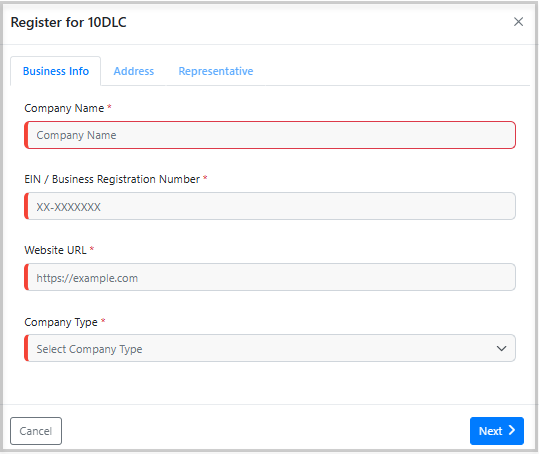
- When you click Register for 10DLC, a form opens with three tabs. Fields may be pre-filled from your organization's profile. Review each tab and complete any blank required fields before clicking Submit Registration on the final tab.
- Business Info tab:
- Company Name (required) — your legal company name.
- EIN / Business Registration Number (required) — your federal tax ID in XX-XXXXXXX format.
- Website URL (required) — your registered business website, including https:// (e.g. https://yourcompany.com).
- Company Type (required) — select one: Private, Public, Non-Profit, or Government. If you select Public, additional fields will appear (such as stock exchange and ticker symbol). Complete all required fields before proceeding.
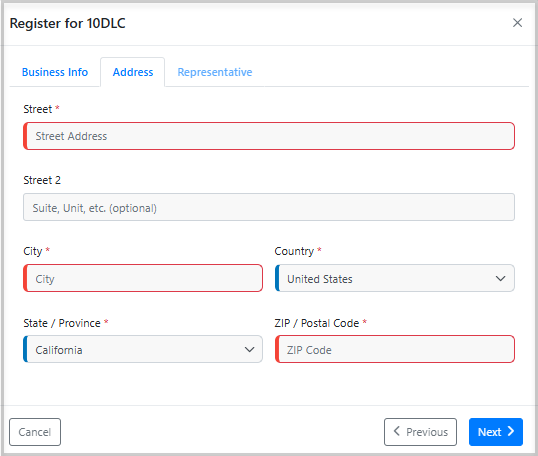
Address tab:
- Street (required) — your business street address.
- Street 2 (optional) — suite or unit number, if applicable.
- City (required) — select from the dropdown.
- State (required) — select from the dropdown.
- ZIP / Postal Code (required)
- Country (required) — select from the dropdown.
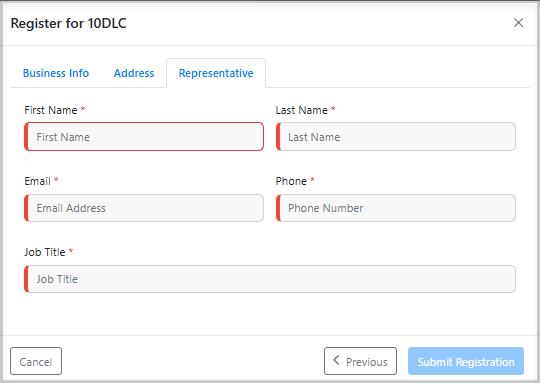
Representative tab:
- First Name (required) — first name of the person responsible for this registration at your company.
- Last Name (required)
- Email (required) — their business email address.
- Phone (required) — their direct phone number.
- Job Title (required)
- If your registration is stuck in Pending Review for more than 10 business days, contact IT Support. They can check the status with Twilio and resubmit if needed.
- If your status shows Registration Failed, TMS will display a short description of the rejection reason and allow you to resubmit directly from the 10DLC Compliance page. If you are unsure how to resolve the issue, or if the rejection reason mentions privacy policy, campaign content, or anything unrelated to your business data, contact IT Support for help. They can review the rejection reason and may be able to get it resolved.

Refresh Status

The Refresh Status button lets you manually trigger an on-demand status update. The system checks for status updates automatically in the background, but you can use this button at any time to pull the latest status immediately. This is especially useful if your campaign was rejected and a support member worked internally to resolve it. Clicking Refresh Status will grab the updated approval right away without waiting for the next automatic check.
SMS Status Column
On the System Phone Numbers page (under LSP -> Organization Settings), each phone number shows an SMS column with a status of Enabled or Disabled.
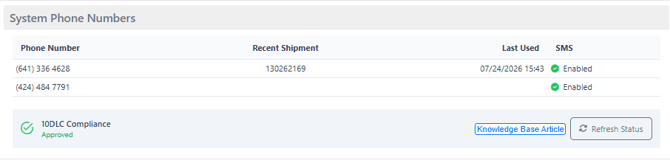
- Enabled: this number's 10DLC registration has been Approved. It's ready to send and receive SMS.
- Disabled: 10DLC registration for this number isn't Approved yet, whether that's because it's still Pending, was Rejected, or hasn't been submitted. SMS won't work from this number until registration is Approved.
If a number shows Disabled and you expected it to be ready, check its 10DLC registration status and click Refresh Status to pull the latest result.
How to add a mobile number to a contact profile
For customer contacts:
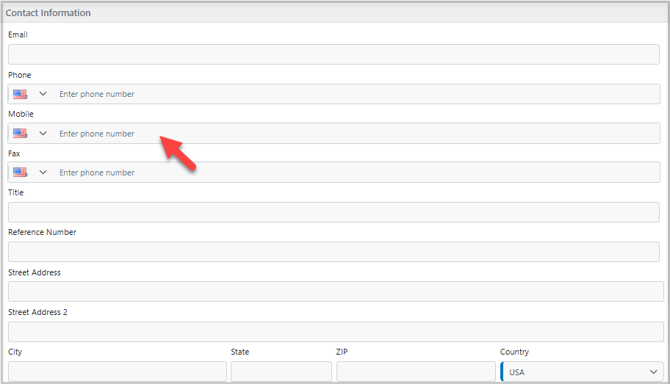
Back Office → Customers → [Customer name] → Staff → [Contact name] → Edit Record → Contact Information → Mobile field.
For carrier contacts:
LSP → Carrier List → [Carrier name] → Contacts → click the pencil icon next to the contact → Mobile field.
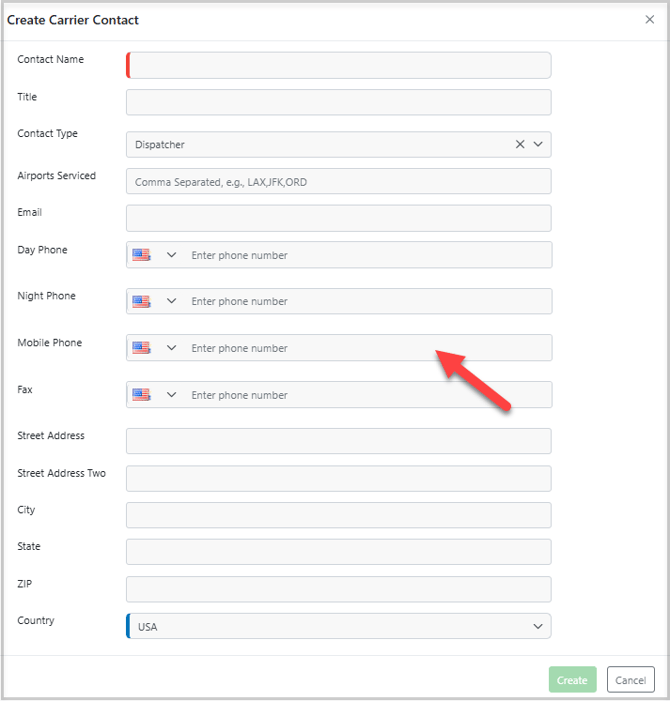
- Enter the mobile number in the Mobile field. US numbers are supported.
- Once saved, the contact will appear in the Send Message To dropdown with their phone number shown in parentheses.
- Do not enter landline numbers in the Mobile field. Text delivery will fail silently.
How to send an SMS from a shipment
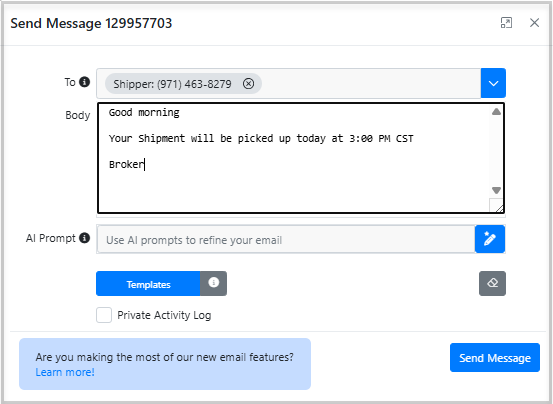
Where to go: Open any active shipment → click Send Message (envelope icon).
- In the To field, type a name or select from the dropdown. Any customer contact, carrier contact, or stop contact that has a mobile number saved will appear in the list.
- Type your message in the Body field.
- Click Send Message. The message is sent immediately and logged in both the Communication Log and the Activity Log.
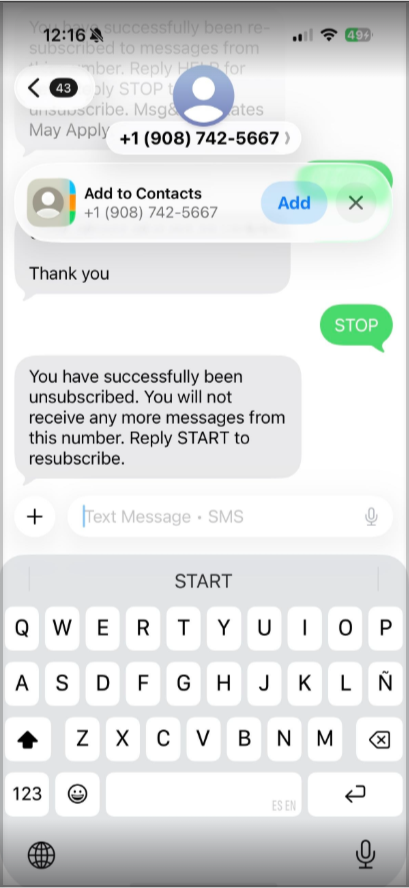
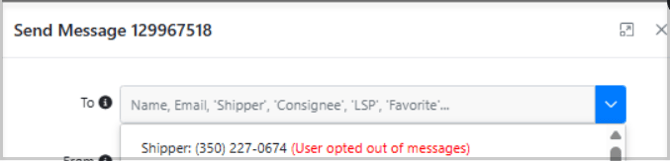
- If the recipient has previously replied STOP, the message will not be delivered. The Communication Log will show Blocked - Recipient Opted Out as the reason. See the FAQ section below for next steps
- Recipients can reply directly to your message. Inbound replies are logged in the shipment's Activity Log as a "Private Text Message" entry. Check there to see the full two-way conversation.
Tips and best practices
- Always include the shipment ID in the message body. Example: "Your shipment 129962942 has been picked up and is en route." Recipients often handle multiple loads. The shipment number helps them immediately identify which one you mean.
- TMS includes SMS templates you can use and customize for common updates. Go to LSP → Content Templates to find and edit them based on your organization's needs. This saves time and keeps your messaging consistent across your team.
How to check the Comunication Log
Where to go: Shipments → dropdown menu → Communication Log.
- Use the Message Type filter and select Text Message to view only SMS records.
- Each row shows: Message Type, Sender (the org phone number the message was sent from), Recipient (the contact's mobile number), Send Date, Created Date, and Status. Click the blue info icon on the right of any row to see the full message details.
- Success — the message was delivered.
- Blocked - Recipient Opted Out — the recipient previously replied STOP. The message was not sent. See the FAQ for next steps.
- Text Failed to Send — delivery failed. Common causes: the number is invalid or cannot receive SMS. Verify the mobile number saved for that contact.
- The Activity Log also records each SMS as a "Text Message" entry with the full message body, recipient number, and timestamp.

How STOP, START, and HELP work
- Any recipient can opt out by replying STOP, CANCEL, END, QUIT, UNSUBSCRIBE, REVOKE, or STOPALL at any time. When they do, they automatically receive a confirmation: "You have successfully been unsubscribed. You will not receive any more messages from this number. Reply START to resubscribe."
- Once opted out, TMS blocks all future SMS to that number across all shipments. The Communication Log will show Blocked - Recipient Opted Out on any blocked send attempt.
- To resume: the recipient must reply START from their phone. Once they do, messaging resumes automatically.
- Opt-outs apply to your entire organization, not just the specific shipment or sender number the STOP was sent to.
- If a recipient replies HELP or INFO, they automatically receive: "Reply STOP to unsubscribe. Msg&Data Rates May Apply." This is handled automatically. No action is required from you and it will not appear in TMS logs.
How to contact IT Support to activate a phone number
- SMS requires at least one registered business phone number assigned to your organization. This is activated and managed by IT Support. It is not something individual users can set up.
- Contact IT Support to request a phone number activation. Once activated, the number appears under My Organization → System Phone Numbers.
- If your organization has multiple phone numbers, TMS distributes outbound messages across them automatically. You do not need to select a sender number manually.
Frequently asked questions
Why can't I see a mobile number option in the Send Message To field?
The contact or driver does not have a mobile number saved on their profile. Add it in their profile under the Mobile field. Once saved, the SMS option appears immediately in the dropdown.
Can I send an SMS to a number that is not saved on a contact profile?
Yes, you can type a phone number directly in the To field (e.g. +13215550123) even if it does not match any contact. The message will be delivered if the number is a valid US mobile. Note that messages sent this way are still logged in the Communication Log and Activity Log, but the recipient will not be linked to a contact record. We recommend saving mobile numbers on contact profiles for easier tracking and reuse.
The Communication Log shows "Blocked - Recipient Opted Out" — what do I do?
The recipient previously replied STOP and is opted out. You cannot override this. It is a carrier compliance requirement. Ask the recipient to reply START from their phone, and messaging will resume automatically. There is no way to re-enable SMS for a recipient without their action.
Can I send SMS to international numbers?
US mobile numbers are supported. Other international numbers may fail to deliver. Contact IT Support if you need to communicate with recipients outside the US.
Why is my 10DLC status still showing Pending Review?
TCR registration typically takes between 5 business days and 3 weeks. If the status has not updated after that time, contact IT Support. They can check the status and resubmit if TCR rejected the campaign.
Do recipients see a personal phone number when I send them a text?
No. All SMS is sent from your organization's registered business phone number(s), not any personal number. Recipients see your organization's business number as the sender.
A carrier replied to my message — where can I see their reply?
Inbound replies from recipients are logged in the shipment's Activity Log as a "Private Text Message" entry. Check the Activity Log for the shipment to see the full back-and-forth conversation.
If something doesn't work
- Check the Communication Log for the status of the message. Success, Blocked, or Failed indicates what happened.
- If status is Text Failed to Send: verify the mobile number on the contact's profile is a valid US mobile number, not a landline.
- If status is Blocked - Recipient Opted Out: the recipient needs to reply START from their phone.
- If SMS does not appear as an option in Send Message at all: contact IT Support. Your organization's phone number or 10DLC registration may not be set up yet.
- If your 10DLC status has been Pending Review for more than 10 business days: contact IT Support.
- If your 10DLC status shows Registration Failed: TMS will show a short description of the rejection reason and allow you to resubmit directly. Contact IT Support if you need help resolving the issue.