![TAI_LOGO_CMYK Option 1.2-03.jpg]](https://learn.tai-software.com/hs-fs/hubfs/TAI_LOGO_CMYK%20Option%201.2-03.jpg?height=40&name=TAI_LOGO_CMYK%20Option%201.2-03.jpg)
What this does
Shipment Stop Alerts let you attach an alert to one stop on a shipment (a pickup, a delivery, or an intermediate stop) instead of the whole shipment. Each stop keeps its own active and resolved alerts, so on a multi-stop load you can see exactly which location needs attention.
- Scope alerts to the exact stop where they are needed, not the whole shipment.
- Track resolution per stop, active and resolved alerts are shown separately at each stop.
- Let customers see stop alerts on their pickup and delivery stops in the customer portal.
- Automate stop alert creation and resolution using Workflow Automation.
- Report on stop alerts across all shipments using Custom Reports.
Before you start — what you need first
An admin must enable Is Stop for each alert type you want to use for stops. No alert types are set up as stop alerts by default.
How to configure stop alert types
Where to go: Back Office → LSP → Shipment Alerts.
- Each alert type has an Is Stop checkbox. Enable this to make the alert available for use as a stop-level alert.
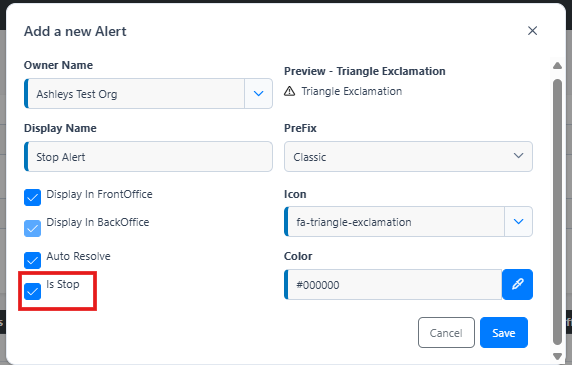
- Alert types with Is Stop unchecked remain available as shipment-level alerts only, they will not appear in the stop alert selector.
- You can have the same alert type serve as both a shipment-level and a stop-level alert by enabling Is Stop.
- Display In FrontOffice controls whether customers can see the alert on a stop in the customer portal.
- Only alert types marked Manual can be resolved, reactivated, or deleted from the Stop Alerts window. Other types can still be added and resolved by Workflow Automation.
- To see which alert types are stop alerts, use the Is Stop filter or column on the Shipment Alerts list.
How to add a stop alert in the Shipment Detail
Where to go: Back Office → Shipments → open a shipment → scroll to the stops grid.
-
On shipments with three or more stops, each stop row has a Stop Alerts column. On two-stop shipments, each stop card has a Stop Alerts section at the bottom. Click the bell icon to open the Stop Alerts window for that stop.

- The window shows a preview of the stop (address, contact, and scheduled and actual dates), so you can confirm you have the right stop. From there, use the dropdown or the + icon to select and add a stop alert type. Only alert types with Is Stop enabled appear in the selector. Active alerts show their created date. For manual alert types, you'll also see a resolve check and a trash icon to delete it. Resolved alerts are also shown in the modal for reference.
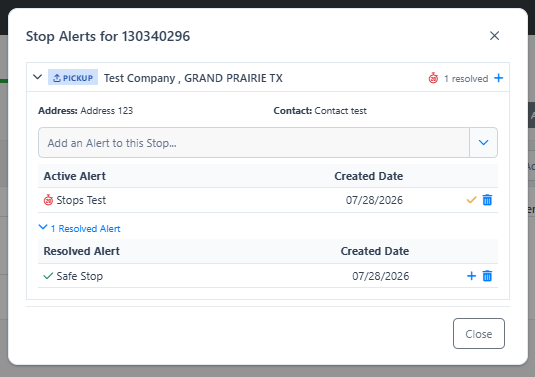
- Alternatively, click the pencil icon on a stop to open the Edit Stop modal. A stop alerts section is available at the bottom of that modal, where you can add or manage alerts the same way.
- You can add multiple stop alerts to the same stop.
- Every add, resolve, reactivate, and delete is recorded in the shipment's Activity Log with the stop type and company, visible to your staff only.
Note: Only active alerts are shown in the stop card on the stops grid. Resolved alerts are not visible there, to see them, click the bell icon or the pencil icon on the stop and look for the resolved alerts section inside the modal.
How to resolve a stop alert in your shipment
Where to go: Back Office → Shipments → open a shipment → stops grid.
- Via the bell icon: Click the bell icon on the stop with the active alert. In the modal, find the active alert, it shows the creation date alongside a resolve check and a trash icon. Click the resolve check to mark it as resolved.
- Via the pencil icon: Click the pencil icon on the stop to open the Edit Stop modal. Scroll to the bottom to find the stop alerts section. Locate the active alert and select the resolve option next to it.
- The alert moves to the resolved list and stays in the stop's history. Click + next to a resolved alert to reactivate it.
- The resolve check appears only on manual alert types. If you don't see it, see if something doesn't work below.
How to view stop alerts in the Front Office (customers)
Where to go: Front Office → Shipments → open a shipment → scroll to the Origin or Destination stop card.
- Each stop card shows a Stop Alerts section listing that stop's alerts.
- Only alert types with Display In FrontOffice turned on are shown to customers.
- Stop alerts appear on the Origin and Destination cards. Alerts on intermediate stops aren't shown in the customer portal.
- Active alerts are shown with a colored icon and the alert name.
- Resolved alerts are shown with a greyed icon and a RESOLVED badge.
- The Front Office view is read-only. Customers cannot add or resolve stop alerts.
- In the Shipments list, use the column customization option to add the Stop Alerts column to the grid. This lets you see at a glance which shipments have active stop alerts without opening each one individually. The Stop Alerts column can also be exported to Excel.
Applies to: The updated customer portal only. Stop alert visibility in the Front Office is available in the new version of the customer portal, it is not available in the legacy Front Office.
How to view stop alerts in the Back Office Shipment Search and Company Loadboard
Shipment Search — Where to go: Back Office → Shipments → Shipment Search.
Company Loadboard — Where to go: Back Office → Shipments → Company Loadboard.
- Use the column customization option to add the Stop Alerts column to the grid. The column shows an icon for shipments that have active stop alerts on any stop.
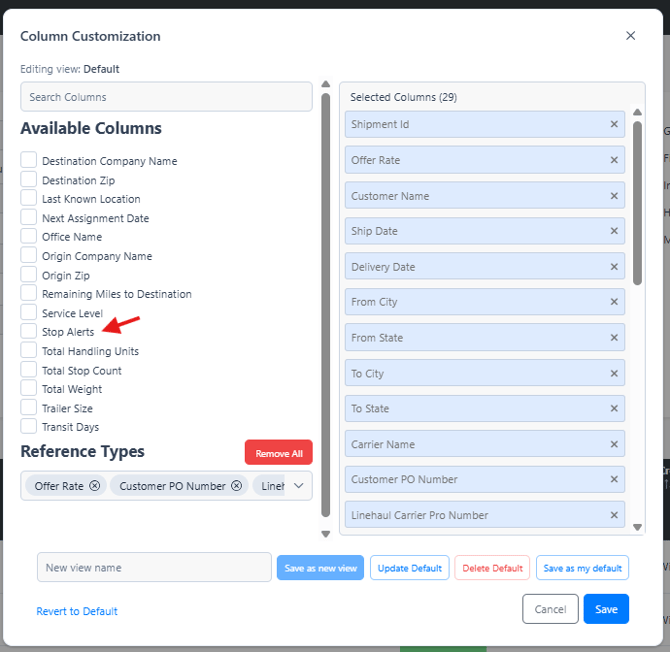
- Click on the bell icon or the active alert icon on a row to open the stop alert modal and manage alerts for that shipment's stops.
- Use the Alerts field in the search filters to find shipments that have a specific stop alert active.
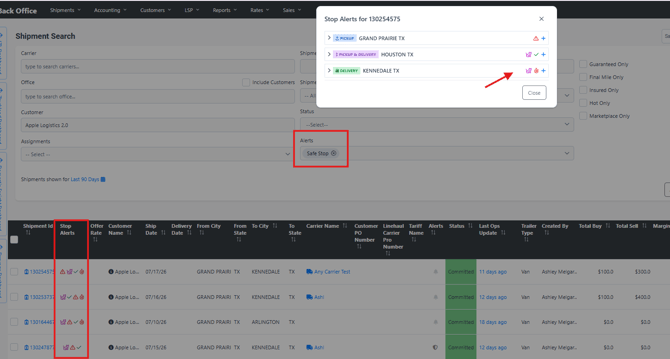
- The existing Alerts column shows shipment-level alerts only. Stop alerts appear in the Stop Alerts column.
- The Stop Alerts column is included when you export to Excel — alert names appear as comma-separated text in the exported file.
How to use stop alerts in Workflow Automation
Where to go: Back Office → LSP → Workflow Automation → create or edit a workflow.
- Triggers: In Subscriber Type, choose Shipment Stop Alert Added or Shipment Stop Alert Resolved.
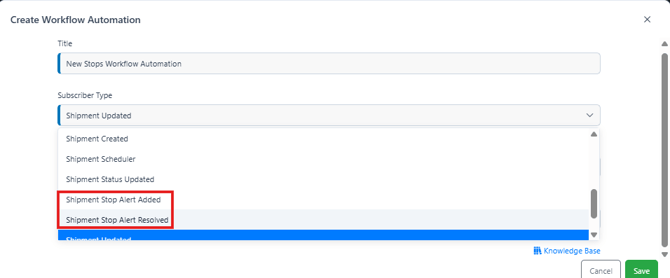
- Stop alerts fire only these two triggers. They don't fire Shipment Alert Added or Shipment Alert Resolved, and the shipment-level Alert Filter doesn't see them. Use the stop filters instead.
- The stop filters and stop actions work only with the two stop triggers. A workflow that combines them with another trigger can't be saved.
- Each workflow run acts on one current stop. It starts as the stop where the alert was added or resolved, and moves forward each time Advance To Next Stop runs.
- Filters: Narrow the trigger by stop type using the Stop Type Filter (First Pickup, Last Drop, Pick, Drop, Both; you can select more than one) or by alert type using the Stop Alert Filter.
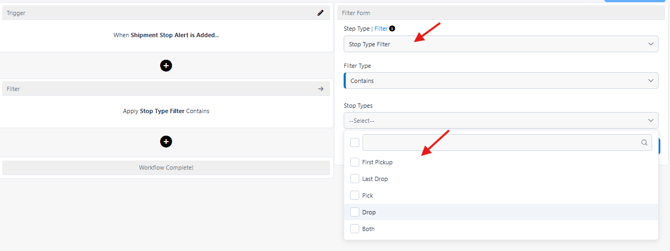
The Stop Alert Filter checks for the named alert on the stop at the time the workflow fires, including the alert just added as the trigger. Use it when you want a workflow to fire only when a specific alert type is added, not any alert.
The filter supports two modes: Contains: the workflow fires only if the named alert is present on the stop; Does Not Contain: the workflow fires only if the named alert is absent from the stop
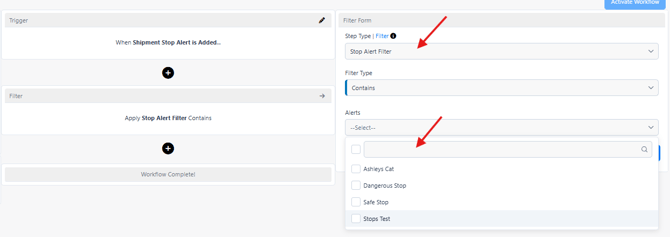
- For the Shipment Stop Alert Resolved trigger, use the Resolved Stop Alert Filter instead, the Stop Alert Filter only sees active alerts and will always block the WFA when the trigger is Resolved.You can also limit the Resolved Stop Alert Filter to alerts resolved on/before or on/after a date (Today, Yesterday, or 3, 7, 15, or 30 days ago).
Note: The Resolved Stop Alert Filter evaluates all resolved alerts on the stop's history, not only the alert that just triggered the workflow. If a stop has a named alert that was resolved in a prior event, that alert is still included in the evaluation. For example, if a stop already has "Alert A" in its resolved history and you resolve "Alert B," a Does Not Contain "Alert A" filter will still fail. - Actions: Use Add Shipment Stop Alert to add an alert to the current stop, Resolve Shipment Stop Alert to resolve an alert on the current stop, and Advance To Next Stop to move the workflow's focus to the next stop in the route before taking further action. If there's no next stop, the remaining stop actions in that run are skipped and a note is added to the shipment's Activity Log.
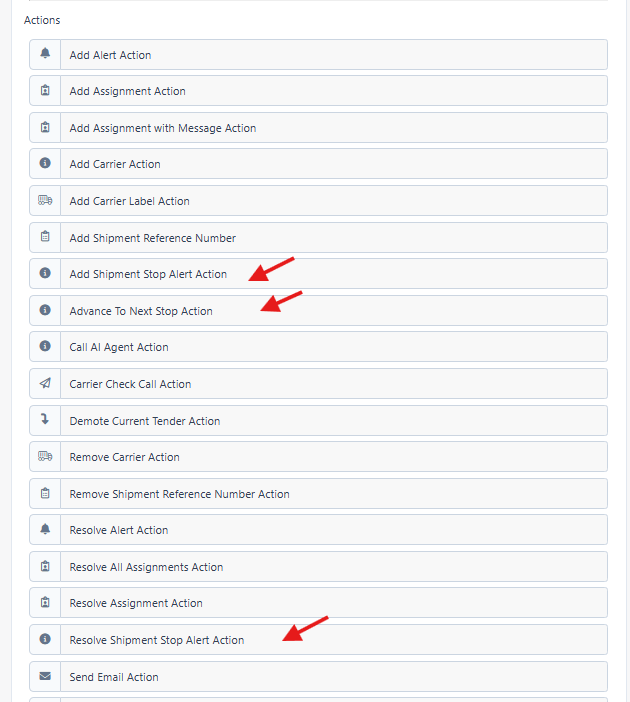
- Combining Advance To Next Stop with Add Shipment Stop Alert lets you propagate an alert forward: resolve on the current stop, advance, then add to the next stop in a single workflow run.
How to report on stop alerts
Where to go: Back Office → Reports → Custom Reports.
- In each stop section of the field picker (Origin Location, Destination Location, and Additional Stop 1–5 Information), select Shipment Stop Alerts - Active or Shipment Stop Alerts - Resolved, for example "Origin Shipment Stop Alerts - Active."
- Each column lists alert names comma-separated when multiple alerts exist on a stop.
-
Report data refreshes when you re-run or save the report.
How to manage stop alerts through the Public API
If your organization integrates with TMS through the Public API, stop alerts can be added, resolved, and retrieved programmatically, in addition to using the Back Office.
- Add one or more alerts to a specific stop. Only alert types with Is Stop turned on are accepted
- Resolve one or more alerts on a specific stop.
- Retrieve all alerts, active and resolved, for a specific stop.
- Alerts added or resolved through the Public API trigger Workflow Automations the same way alerts added in the Back Office do.
Note: Only broker-level API access can add or resolve stop alerts. This matches the Front Office, where customers can view stop alerts but cannot add or resolve them.
For endpoint details, see the Public API reference: Create Shipment Stop Alert, Resolve Shipment Stop Alert, and Get Shipment Stop Alerts.
Example: flag a late pickup and warn the next stop
- Your admin creates an alert type called Driver Late and turns on Is Stop and Manual.
- They build a workflow: Subscriber Type Shipment Stop Alert Added → Stop Alert Filter Contains Driver Late → Advance To Next Stop → Add Shipment Stop Alert: Driver Late.
- On a three-stop load, your dispatcher adds Driver Late to the First Pickup. The workflow adds Driver Late to the next stop, so the team handling that stop sees the delay without opening the first one.
- When the pickup clears, resolve the alert there. A second workflow on Shipment Stop Alert Resolved can resolve it down the route the same way.
Tips & best practices
-
We recommend a short, dedicated set of stop alert types (for example, delay, access issue, appointment needed) so your team and your customers read them the same way.
-
Turn on Display In FrontOffice only for alerts you want customers to see.
-
Use Stop Type Filter so a workflow acts only on the stops it was built for.
Frequently asked questions
What is the difference between a stop alert and a shipment alert?
A shipment alert applies to the entire shipment. A stop alert is attached to a specific stop, a pickup, delivery, or intermediate location, and is visible in the context of that stop only. Both types can be active on the same shipment at the same time.
Can I use the same alert type for both shipment-level and stop-level alerts?
Yes. Enable the Is Stop flag on any alert type to make it available as a stop-level alert. The flag does not remove it from the shipment-level alert selector.
Can customers add or resolve stop alerts from the Front Office?
No. The Front Office stop alert view is read-only. Only Back Office staff can add or resolve stop alerts.
Do stop alerts update in the Front Office automatically?
Yes. Stop alerts added or resolved in the Back Office are reflected in the Front Office shipment detail page.
Can a Workflow Automation move a stop alert from one stop to the next?
Yes. Use a chain of Resolve Shipment Stop Alert, Advance To Next Stop, and Add Shipment Stop Alert actions in a single workflow. When the workflow fires, it resolves the alert on the current stop, advances to the next stop, and adds the alert there, — all in one run.
Why can't I see an alert type in the stop alert selector?
The stop alert selector only shows alert types with the Is Stop flag enabled. Contact your admin to enable the flag on the alert type you need.
Why did my stop alert disappear from the Alerts column?
The Alerts column shows shipment-level alerts only. Add the Stop Alerts column to see stop alerts.
Can customers see every stop alert?
No. Customers see stop alerts only for alert types with Display In FrontOffice turned on, and only on the Origin and Destination stops.
If something doesn't work
- I can't find my alert type when adding a stop alert: it needs Is Stop turned on (Back Office → LSP → Shipment Alerts).
- I don't see the resolve check or trash icon on a stop alert: that alert type isn't marked Manual. Ask your admin, or resolve it with a workflow.
-
My customer can't see a stop alert: check that the alert type has Display In FrontOffice turned on, that the alert is on the Origin or Destination stop, and that the customer uses the updated customer portal.
-
A stop alert isn't in the Alerts column: that's expected. Use the Stop Alerts column.
-
My workflow didn't run: make sure its Subscriber Type is Shipment Stop Alert Added or Resolved, not the shipment-level alert triggers. For Resolved workflows, use Resolved Stop Alert Filter, not Stop Alert Filter.
-
Still stuck? Contact Tai Support with the shipment ID, the stop, and the alert type.
To learn more, see Shipment Alerts Management, Workflow Automation - Triggers Reference, Filters Reference, and Actions Reference.