![TAI_LOGO_CMYK Option 1.2-03.jpg]](https://learn.tai-software.com/hs-fs/hubfs/TAI_LOGO_CMYK%20Option%201.2-03.jpg?height=40&name=TAI_LOGO_CMYK%20Option%201.2-03.jpg)
Saved Views let you save a set of grid columns under a name, pick it from a list to apply it instantly, and set one as your personal default. You can also attach a view to a saved search, so choosing that search restores both its filters and its columns at the same time. Saved Views build on the Customize Columns (gear icon) tool you already use — they just make a column layout named, reusable, and shareable with a saved search.
- Keep more than one column layout — for example an "Ops" layout and a "Billing" layout — and switch between them in one click.
- Set a personal default that loads automatically when you open the page.
- Link a view to a saved search so the right filters and the right columns come up together.
- Columns apply in place — the grid updates without a full page reload.
Before you start — what you need first
- Saved Views are on the back-office domestic Shipment Search page (Shipments → Shipment Search). Company Loadboard, Truckload, and International search work as they do today; Saved Views is not on those pages yet.
- Saved Views are personal to your login, the same as saved searches.
- You do not need to set anything up first: your existing column choices carry over as a starting default view.
How to save a column layout as a view
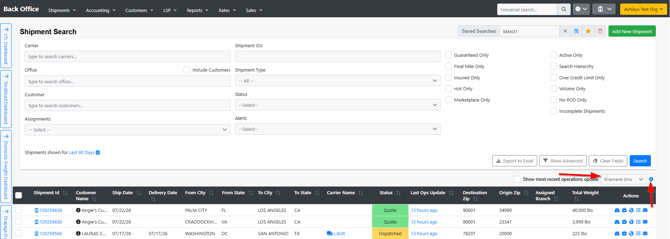
Where to go: On Shipments → Shipment Search, click the gear icon to open Customize Columns.
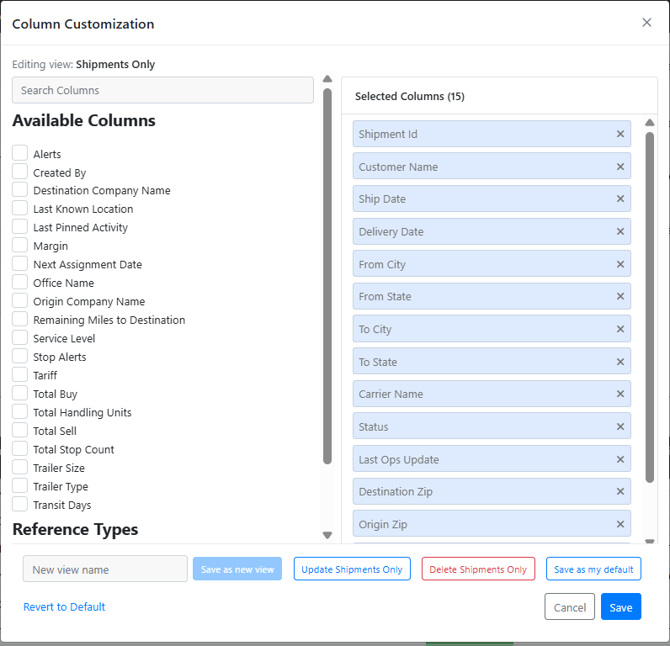
- Add, remove, and reorder columns the way you always have (check a column to add it; click the X to remove it; drag to reorder).
- Choose Save as new view… and enter a name when prompted. The layout is saved and appears in the view picker.
- Choose Update " " to save your changes back to the view you are on.
- Choose Save as my default to make the current layout the one that loads automatically. Only one view can be your default at a time — setting a new default replaces the old one.
- Names must be filled in and unique — a blank name, or a name that already exists (regardless of capitalization), is rejected and nothing is saved.
How to switch between views
Where to go: Use the view picker in the toolbar, next to the gear icon.
- Pick a view from the list and its columns apply immediately, in place — the page does not reload and your search results stay put.
- Switching from one view to another swaps the columns each time; the picker shows which view is active.
How to set or change your default view
Where to go: Open Customize Columns (gear icon) on the view you want as your default.
- Choose Save as my default. That view now loads automatically whenever you open Shipment Search with nothing else selected.
- If you have never set a default, the system uses its standard default layout.
How to delete a view
Where to go: Open Customize Columns (gear icon) and choose the delete option for the view.
- You are asked to confirm; the message notes that the grid will fall back to your default view.
- On confirm, a success message appears and the view is removed from the picker. Any saved search that pointed at the deleted view simply falls back to your default — nothing breaks.
How to link a view to a saved search
Where to go: In the saved-search save/edit panel (the Saved Searches control at the top of Shipment Search).
- Use the View dropdown to choose how columns behave when this search is selected:
- (none) — selecting the search leaves your current columns as they are.
- (use my default) — selecting the search applies your default view.
- A named view — selecting the search applies that view's columns.
- Only views for this same grid are offered in the dropdown.
- The linked view's name is shown on the saved search, so you know what you will get before you pick it.
- Because the search stores a reference to the view (not a copy), editing the view later updates every saved search that points at it.
Tips & best practices
- Create a small number of purpose-named views ("Ops View," "Billing View") rather than many near-duplicates — they are easier to pick from.
- Set the layout you use most as your default so it loads automatically.
- Link your most-used saved searches to a view so filters and columns always come up together.
- Sorting is independent of columns: your sort order comes from the saved search and is not changed when you switch column views.
What happens to my current columns the first time I use Saved Views?
Nothing is lost. Your existing column choices become a view named "Default" and are set as your default, so the page looks the same until you decide to change it.
Does picking a view reload the page?
No. Columns apply in place — the grid re-renders without a full page reload and your results stay on screen.
What if I select a saved search that isn't linked to a view?
Your current columns stay as they are. Only searches linked to a named view or to "(use my default)" change your columns.
What happens if a view linked to a search is deleted?
The search falls back to your default view. It does not error.
Can I share a view with my team?
Not yet — views and saved searches are personal to your login today. Team-shared views are a possible future enhancement.
Is this available on Company Loadboard, Truckload, or International search?
Not yet. Saved Views are on the domestic Shipment Search page first; other pages are planned follow-ups. Those pages keep working exactly as they do today.
If something doesn't work- If you don't see the view picker or the Save-as-view actions, confirm you are on Shipments → Shipment Search — Saved Views is not on Company Loadboard, Truckload, or International search yet. Refresh the page once if it still doesn't appear.
- If you added a column in Customize Columns, clicked Save, and the grid didn't show it, refresh the page — the column is saved even if it doesn't appear right away. You can also use Save as new view, which applies the layout immediately.
- If a saved search didn't change your columns, check its View setting — "(none)" intentionally leaves columns unchanged.
- If you tried to save and it silently did nothing, check your connection and try again, then confirm the item shows up in your list before relying on it.
- If it still isn't right, contact TAI Support with the page URL and the name of the view or search you were working with.