![TAI_LOGO_CMYK Option 1.2-03.jpg]](https://learn.tai-software.com/hs-fs/hubfs/TAI_LOGO_CMYK%20Option%201.2-03.jpg?height=40&name=TAI_LOGO_CMYK%20Option%201.2-03.jpg)
What this does
When you approve or pay a carrier's bill, something has to decide the name and address the payment actually goes out under.
Remit To Source is that setting on every LSP carrier, pick one of four sources, and that's the name and address TMS uses on the Bill, in Approve Bills, and when the payment syncs to QuickBooks.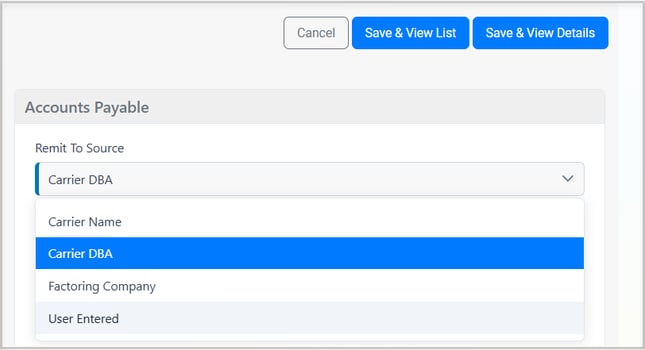
Before this existed, a carrier's payee was decided implicitly, with nothing on the carrier's profile telling you which name would actually be used. Brokers whose carrier's DBA differed from who actually got paid, for example, DBA "Safety Pepper LLC," pay-to "Evans Logistics" ended up with the wrong name on the bill.
Remit To Source makes that choice explicit, visible, and auditable.
- See at a glance which name and address a bill will use before you approve it.
- Factored carriers are paid to their factoring company automatically, no manual lookups.
- A manual override (User Entered) for the carriers that don't fit a standard pattern.
- Every change is logged to the carrier's Activity Log, with who changed it and when.
User Guide
Before you start — what you need first
- You need an existing LSP carrier record, Remit To Source isn't a standalone setting.
- To use Factoring Company as the source, the carrier needs a factoring company linked first. If it isn't linked yet, you'll set that up as part of the steps below.
The four Remit To Source options
Where to go: LSP menu→ LSP Carriers → open a carrier → Edit Record → Accounts Payable panel → Remit To Source dropdown.
| Option | Pays to | Updates automatically? |
|---|---|---|
| Carrier Name | The carrier's legal name and mailing address on file. | Yes — recalculated every time, from the carrier's master record. |
| Carrier DBA | The carrier's DBA name and its own address on file. | Yes — same as Carrier Name, but from the DBA fields. |
| Factoring Company | The linked factoring organization's name and Bill to Information address. | Yes — recalculated from the linked factoring company's record. Disabled until a factoring company is linked. |
| User Entered | A name and address you type in yourself. | No, not on its own, it never recalculates from the carrier's master record or a factoring company the way the other three do. It only changes when someone actually edits it: manually on this screen, through the Public API or through an onboarding integration (Highway, MyCarrierPackets, RMIS) that's set to overwrite your carrier data |
Note: Carrier Name and Carrier DBA aren't fields you edit from this panel. Both come from the carrier's Master Carrier record in TMS, the same record that's populated from Carrier Details when the carrier is first added. Selecting Carrier Name or Carrier DBA as the Remit To Source just tells TMS which of those two already-on-file values to use as the payee; it doesn't give you a way to change the name or DBA itself from here.
How to select and use Factoring Company
Where to go: Accounts Payable panel → Remit To Source → Factoring Company.
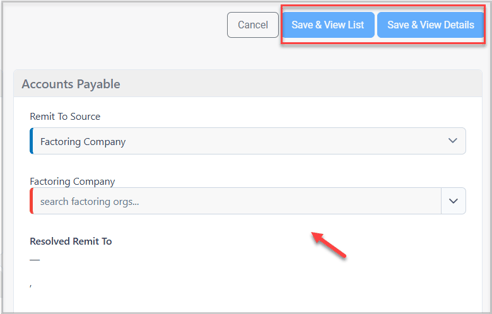
- Choose the linked factoring company from the dropdown that appears. This is mandatory Save stays disabled until you've actually selected a company, even though Remit To Source is already set to Factoring Company.
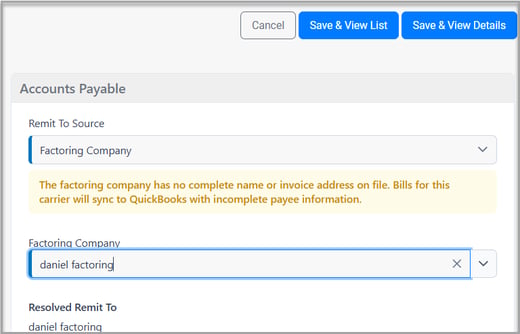
- If that company's invoice address isn't fully filled in, you'll see a non-blocking warning, it doesn't stop you from saving the carrier, but the resolved payee won't have a complete address until the factoring company's address is finished.
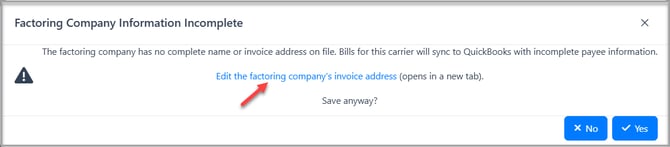
- If you proceed with selecting a Factoring company with Incomplete address, before saving, there will be a warning .This warning also includes a link to the factoring company for you to complete the address. If your user doesn't have permission to edit that factoring company, you'll see a message asking you to contact your TMS admin instead.
How to select and use User Entered
Where to go: Accounts Payable panel → Remit To Source → User Entered.
- Fill in Company Name and the full address fields that appear.
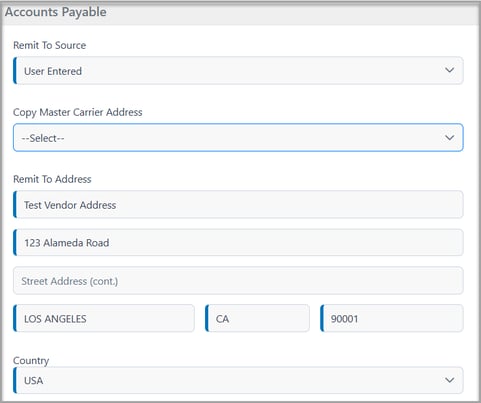
- All five fields are required — Company Name, Street Address, City, State, Zip and Save stays disabled until every one is filled in. This prevents an incomplete payee from ever being saved by accident.
- Once saved, this name and address stays exactly as typed, it's never overwritten by changes to the carrier's master record or its linked factoring company.
Switching away from User Entered asks you to confirm first, and the confirmation message tells you exactly what's at stake: your typed name and address are only kept if you switch back to User Entered before saving. If you switch to another source and save the carrier, that typed name and address is permanently replaced, there's no going back to retrieve it afterward, even if you later switch back to User Entered.
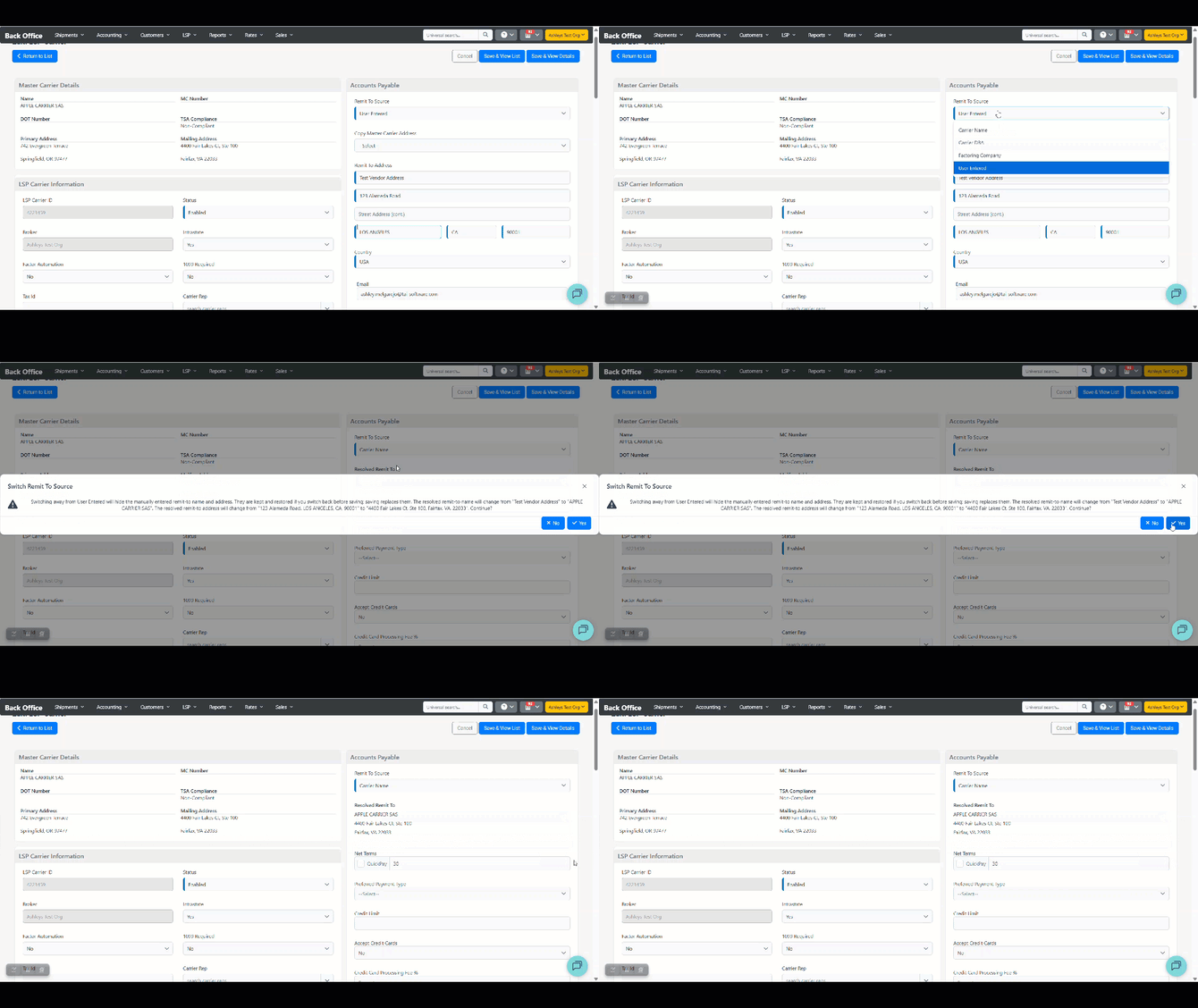
Here's why: TMS only keeps one name and address on file for the carrier remit to at a time. It doesn't keep a backup copy of what you typed for User Entered off to the side. So once you save with a different source selected, that one stored value is gone, switching back later just gives you a blank form.
And this isn't only about using the dropdown yourself. The same thing happens any time something else changes the Remit To Source away from User Entered and saves the carrier, a manual edit, the Public API or an onboarding integration (Highway, MyCarrierPackets, RMIS) setting the carrier to Factoring Company. However the switch happens, your old User Entered data doesn't survive it.
What happens if you select Carrier DBA and there's no DBA on file
You can select Carrier DBA as the Remit To Source even if the carrier doesn't have a DBA name or address on file yet, this does not block Save, unlike User Entered. Right before you save, you'll see a warning telling you the carrier has no DBA on file.
You don't need to worry about this resolving to nothing: while there's no DBA on file, TMS uses the carrier's legal name and address instead, the same as if you'd picked Carrier Name. And because Carrier DBA is a derived source, it keeps checking the carrier's Master Carrier record every time it's read, not just at the moment you select it. So if a DBA name and address get added to the carrier later, through Carrier Details, an Internal connection the TMS integrates with, the resolved Remit To Source picks it up automatically. You don't need to come back and re-save or re-select anything for it to take effect.
But keep this in mind: that automatic update also flows through to your QuickBooks sync and your Bill documents, not just this screen. If a DBA gets added down the line, the payee on future bills and syncs will change to that DBA name and address, even though nothing changed on your end. Make sure you're comfortable with that possibility before confirming the warning and saving Carrier DBA without one currently on file. 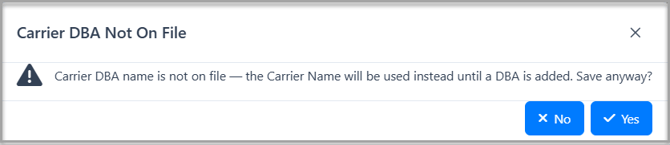
Messages or scenarios you might see
- Save is disabled on User Entered: one of the five required fields is still incomplete.
- A warning under Factoring Company with a link to "complete the invoice address": the linked factoring company's address isn't fully filled in, this does not block saving the carrier.
- A validation warning naming missing data on Carrier Name or Carrier DBA: the carrier's master record has no name or address to resolve for that source, you'll never see a silently blank field.
- "The carrier has no Mailing Address on file, so the Primary Address will be used instead": shown on Carrier Name/DBA when no Mailing Address exists — the Primary Address is used automatically.
- "No Vendor Address Found" in Approve Bills: the active source genuinely has no address to resolve anywhere, this is explicit messaging, not a blank field with no explanation.
Vendor logic
On your shipments, you won't have any change regarding the Vendor. Choosing Carrier Name, Carrier DBA, or User Entered does not change who the Vendor is on a shipment's Bill, the Vendor is always the carrier itself. These three options only change which name and address show up for that same carrier Vendor.
The one option that's genuinely different is Factoring Company: when a carrier's bill is paid through a factoring company, the Vendor on that Bill becomes the factoring company instead of the carrier. It's the only Remit To Source option that changes which entity is actually paid, not just how that entity's name and address look.
You'll see "Vendor" on several Back Office screens, Approve Bills, Pay Bills, Accounting Sync, and Bill Payments, and it always follows the same logic: it matches the Carrier for Carrier Name, Carrier DBA, and User Entered, and the factoring company, when Factoring Company is the active source.
Most of these screens only show the Vendor, though; Approve Bills is the one that also shows a separate Carrier Name column alongside it, so you can tell the two apart at a glance, especially useful when a factoring company is involved.
Bill Payment Detail works the same way: it has its own Vendor field showing the resolved Remit To data, and a separate Carrier field showing the carrier itself. This split between Vendor and Carrier already existed before Remit To Source was added, it wasn't changed by this feature.
Bill Document
Bill document templates can include two separate sets of System Tags for the payee's name and address: the original Payable To tags, and the newer Remit To Source tags. Adding Remit To Source didn't change Payable To at all, it just introduced a separate, additional set of tags added alongside it, so you can choose which one your template uses, use both or combine them.
- Payable To always looks up the carrier's own legal name from its Master Carrier record, it doesn't check Remit To Source at all. Its address logic didn't change when Remit To Source was added either: it picks between the carrier's own address on file and whatever's stored in the Remit To Address field, on its own, independently of which Remit To Source is actually selected, which is exactly why it can end up matching the Remit To address, like in the examples below.
- Remit To Source tags look up whichever source is currently active on the carrier, Carrier Name, Carrier DBA, Factoring Company, or User Entered, and print exactly that resolved name and address, the same value shown in the Remit To / Factoring Company field on the carrier's own profile.
Here's some examples of what that actually looks like on two real Bills:
| Carrier NATHAN TRANS INC set to Carrier DBA ("NS TRUCKING") | Carrier CARE & CARE INC set to User Entered ("Care System Corp") |
|---|---|
| Payable To: NATHAN TRANS INC (Carrier Name) 9904 Gold Dust Dr Bakersfield, CA 93311 Remit To: NS TRUCKING (Carrier DBA) 9904 Gold Dust Dr Bakersfield, CA 93311 |
Payable To: CARE & CARE INC (Carrier Name) 400 White Horse Pike Haddon Heights, NJ 08035 Remit To: Care System Corp (User Entered) 400 White Horse Pike Haddon Heights, NJ 08035 |
In both examples, the name is different between the two tags — Payable To always shows the carrier's legal name (NATHAN TRANS INC, CARE & CARE INC), while Remit To shows the name that source actually resolves to (the DBA, or the typed User Entered name). The address happens to match in both cases here, since it's the same address either way for these carriers — that won't always be true for every carrier, since Payable To's address doesn't check Remit To Source either.
If you want your Bill to always reflect the exact Remit To Source the carrier has selected, use the Remit To Source tags. If you specifically need the carrier's legal name regardless of Remit To Source, Payable To is the one to use. You're not limited to one or the other, both sets of tags can be added to the same Bill document template together, like in the examples above.
Note: The Remit To Source tags reflects the carrier's current Remit To Source, every time it's viewed or printed, it's not locked to whatever was set when the Bill was first created. If you change a carrier's Remit To Source after a Bill already exists, reopening or reprinting that Bill will show the updated Remit To data, not the data from when it was created.
How this shows up in QuickBooks
Vendor logic
When a carrier uses Carrier Name, Carrier DBA, or User Entered, the Bill syncs to QuickBooks under the carrier's own Vendor. When Remit To Source is Factoring Company, the Bill syncs under the factoring company's Vendor instead.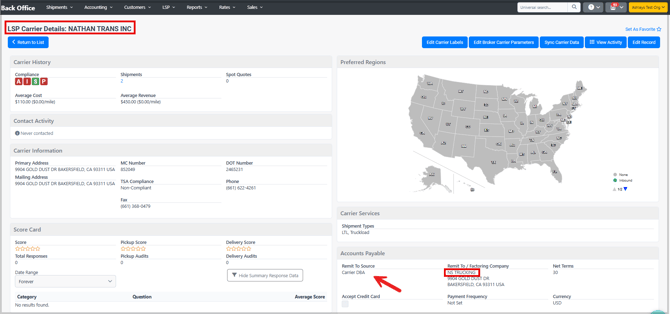
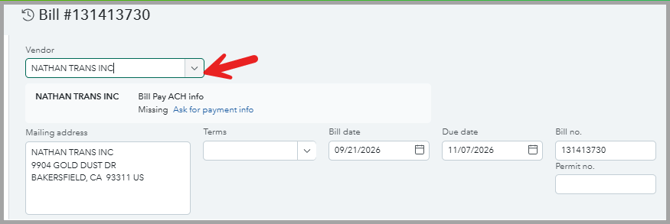
Print to check logic
For a carrier synced under its own Vendor (Carrier Name, Carrier DBA, or User Entered), the name and address that go on the actual check follow whichever Remit To Source is active, in QuickBooks' Print on Check field. So when a carrier is set to Carrier DBA or User Entered, the Print on Check name shows the company name set up there. When it's set to Carrier Name, the check carries the carrier's exact name and mailing address, same as shown in the carrier's Remit To.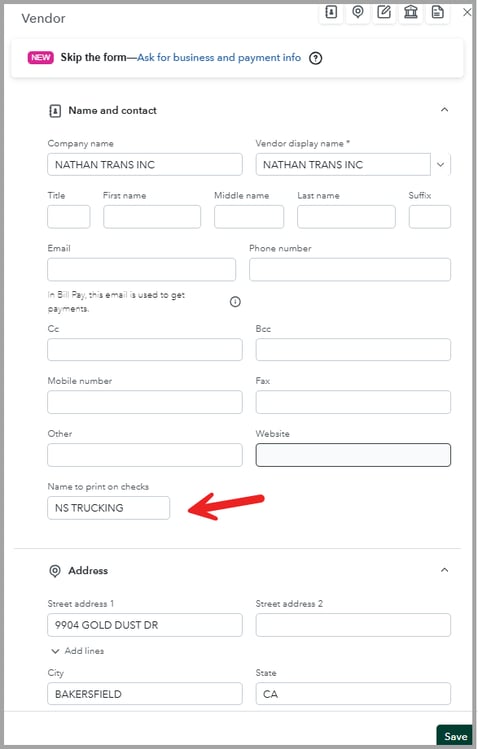
If you change Remit To Source after a Bill has already synced:
- Any Bill Payment you record and sync afterward picks up whichever Remit To Source is active at that moment, so a payment synced after the change prints to the new source, even if the original Bill synced under the old one.
- The Bill transaction that already synced to QuickBooks isn't automatically resent just because Remit To Source changed afterward, it stays as it was. If you specifically resync that Bill, it picks up whatever Remit To Source is active at that time.
- Either way, the next time anything for that carrier syncs, the Print on Check name and address refresh to the current Remit To Source, so your next printed check reflects the update even if the original Bill transaction doesn't.
Setting and viewing Remit To Source through the Public API
Viewing a carrier
These endpoints return a carrier's current Remit To Source and resolved payee:
GET PublicApi/Carriers/v2/Carriers/{carrierId}— by LSP Carrier IdGET PublicApi/Carriers/v2/Carriers/Master/{carrierMasterId}— by Master Carrier IdGET PublicApi/Carriers/v2/Carriers/Dot/{dotNumber}— by DOT Number
Creating a carrier (POST)
When you create a carrier through POST PublicApi/Carriers/v2/Carriers, the remitPaymentAddress you send sets the Remit To Source for that new carrier:
- Send a
remitPaymentAddresswith real data (a company name or any address field filled in) → the carrier is set to User Entered with that data. - Send it blank (present, but every field empty except Country) → the carrier is set to Carrier Name.
remitPaymentAddress is a required field on every Create call, even when you don't intend to set a payee — sending it present but blank is how you get Carrier Name instead of an error.
Factoring Company can't be set this way: the Create payload has no field for linking a Factoring Organization, so a carrier created through the Public API can only come out as User Entered or Carrier Name. If you need Factoring Company, link it afterward on the carrier's Edit Record screen.
Updating a carrier (PUT)
PUT PublicApi/Carriers/v2/Carriers can move a carrier onto User Entered, but it can never move a carrier off of it — and it can't link or unlink a Factoring Organization either:
- Send a
remitPaymentAddresswith real data → the carrier is set to User Entered with that data, even if it was previously Carrier Name or Carrier DBA. - Send it blank on a carrier that's already User Entered → the Remit To Source stays User Entered, it does not fall back to Carrier Name — it just overwrites the existing payee data with blank, leaving the carrier pointed at an empty payee.
- Send it blank on a carrier that's on Carrier Name or Carrier DBA → nothing changes. Updating an unrelated field, like Net Terms, works exactly as you'd expect and doesn't touch Remit To Source.
Important: a blank remitPaymentAddress is never a safe way to "clear" or "reset" a payee through an Update call — if the carrier is on User Entered, always send its complete, current payee data every time, since the API won't warn you if it's incomplete and won't move the carrier back to Carrier Name for you. Sending it blank leaves the carrier's Edit Record screen showing "Remit To Address is incomplete. Complete it to save this carrier," something the UI itself never lets you save into directly. And since the Public API can't move a carrier off User Entered at all, getting it back to Carrier Name, Carrier DBA, or Factoring Company has to be done manually on that same Edit Record screen.
Setting Remit To Source through Carrier Import
This feature also lets you set Remit To Source through Carrier Import. The Import template adds these columns: Remit To Source, Remit To Name, Remit To Street Address, Remit To Street Address 2, Remit To City, Remit To State, Remit To Zip Code, and Factoring Company Id.
What to keep in mind, and the fallbacks:
- Always download a fresh template from the Import screen right before building your file.
- Filling in the Remit To Source column directly sets that value on the row.
- Leaving the Remit To Source column blank falls back the same way a new carrier does: a Factoring Company Id → Factoring Company; no Id but a Remit To Name or address filled in → User Entered; nothing filled in at all → Carrier Name.
- Setting Remit To Source to Factoring Company without a Factoring Company Id doesn't fail the row, Import falls back to the Remit To Name/Address columns instead, and resolves the carrier to User Entered using that data.
How third-party onboarding integrations affect Remit To Source
Applies to: carriers onboarded or synced through Highway, MyCarrierPackets, or RMIS.
Each integration's own Integration Source record has a setting that controls whether it's allowed to overwrite your existing data, or only fill in what's missing. Check and set these based on whether you want to keep data you've entered manually, or let the integration manage it:
- Highway — a single Overwrite setting (True/False). True replaces your existing carrier data with whatever Highway sends; False only adds new data and leaves what's already there untouched.
- MyCarrierPackets — an Overwrite setting for the carrier's contact and address data, plus a separate AddOrUpdateFactoring setting that controls whether MyCarrierPackets is allowed to add or update the linked factoring company.
- RMIS — an AddOrUpdateFactoring setting that controls whether RMIS is allowed to add or update the linked factoring company. RMIS does not have a separate address-overwrite setting.
When an integration is allowed to add or update factoring and a factor is present in the data it receives, Remit To Source is automatically set to Factoring Company as part of that same onboarding event — you can always change it manually afterward.
Recommendation: if you manage remit-to or factoring data manually and don't want an integration to overwrite it, turn off that integration's Overwrite / add-factoring setting.
Tips & best practices
- Check Remit To Source any time a carrier's DBA, factoring arrangement, or payment details change, a derived source (Carrier Name, Carrier DBA, Factoring Company) updates itself, but it's worth confirming the resolved address still looks right.
- Before building an Import file with Remit To Source columns, re-download the template, don't reuse an older file, even one that worked before.
- If you're integrating through the Public API,
remitPaymentAddressis required on every Update call, even when you're only changing something unrelated like Net Terms. If the carrier is on Carrier Name or Carrier DBA, sending it blank (empty fields, Country still filled in) is safe and has no effect. But if the carrier is on User Entered and you don't want to touch its payee, you have to send its complete, current Company Name and address every time, sending it blank wipes the existing data instead of leaving it alone. - Use the carrier's Activity Log to see exactly who changed Remit To Source and when, if a payment ever goes somewhere unexpected.
Frequently asked questions
What happens if I switch a carrier away from User Entered and then switch back?
It depends on whether you've saved in between. Switch back to User Entered before saving, and your typed name and address come right back exactly as you entered them. But once you save the carrier on a different source, that typed name and address is permanently replaced, switching back to User Entered later starts you with a blank form, not your old data.
Why is the Factoring Company option grayed out on my carrier?
Factoring Company only becomes available once a factoring company is actually linked to that carrier. Link one first, and the option opens up.
Does changing a carrier's legal name or DBA update Remit To Source automatically?
Yes, if the carrier is set to Carrier Name or Carrier DBA, the resolved payee name and address update automatically whenever the carrier's master record changes. User Entered never updates automatically, it only changes when you edit it yourself or if you use a carrier onboarding integartion.
What happens if an onboarding integration sends factoring data but I've turned off its Overwrite setting?
With Overwrite off, the integration adds new data where something is missing but won't replace what's already on file, so an existing factoring link or remit address you've set manually stays as it is.
If something doesn't work
- If Save stays disabled on User Entered, check that all five fields — Company Name, Street Address, City, State, Zip — are filled in.
- If a bill shows the wrong payee name or address, check the carrier's Remit To Source setting and its Activity Log to see what it's set to and who last changed it.
- If an Import file with Remit To Source columns gets rejected, re-download the current template from the Import screen and rebuild your file from it.
- If you still can't get the right payee to show up, contact Tai Support with the carrier's name and the shipment or bill in question.