![TAI_LOGO_CMYK Option 1.2-03.jpg]](https://learn.tai-software.com/hs-fs/hubfs/TAI_LOGO_CMYK%20Option%201.2-03.jpg?height=40&name=TAI_LOGO_CMYK%20Option%201.2-03.jpg)
What this does
Two situations were common and used to mean contacting Support:
(1) a marketplace seller left stranded on a shipment that no longer needs them, for example after its type changed, and (2) a seller who was swapped out of a shipment and needs to reconnect as a TONU leg, but has no way to do it themselves.
Marketplace Seller Requests fixes both: as a buyer, you can send a request to add or remove a marketplace seller on your shipment, and the seller approves or rejects it before anything changes.
You can also receive and respond to requests a seller sends you. It's available on any shipment type, as long as you and the other organization already have an approved marketplace relationship on file.
It's important to note that this does not replace the rating process. It's meant to help you manage the visibility between sellers and buyers when the workflow demands it, like the scenarios described above.
- Remove a marketplace seller that's stranded on your shipment, without re-rating.
- Add back a seller who was originally meant to move the shipment but ended up being replaced, when a TONU charge applies to that original seller, this is how you add them back.
- Approve or reject requests a seller sends you, to join your shipment or to be removed from it.
User Guide
Before you start — what you need first
- You and the other organization must already have an active marketplace relationship on file. Set this up under LSP → Marketplace Seller List — both sides need to show Approved/Active before you can request each other directly.

- You'll need the "TMS Site Admin" permission on your account to see these options, and your organization must be flagged as a Marketplace Buyer.
Note: If you don't see the "Marketplace" menu or the Approval Requests page at all, ask your admin to check both.
Where to find these new options
This feature introduces two new options, in two different places, that let you manage these requests:
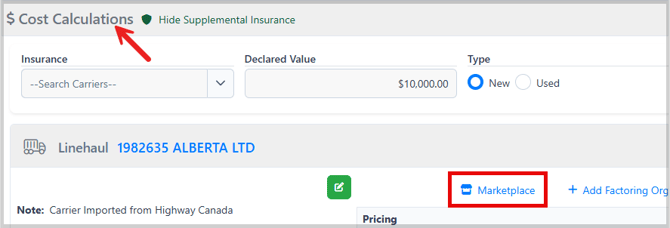
- The "Marketplace" menu is a new dropdown on the shipment detail page, located on the Linehaul leg (and on any TONU leg) under Cost Calculations. Use it to add or remove a marketplace seller, or request a TONU leg, directly from the shipment you're working on.
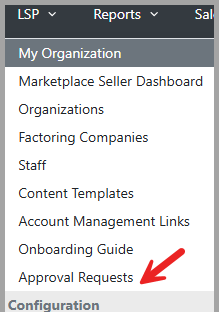
- The "Approval Requests" page is a new page under LSP. Use it to track every request you've sent or received, across all your shipments, in one place.
Notifications
Every request sends an email when it's submitted, accepted, rejected, or cancelled — to both organizations' configured Alert Email, not just whoever needs to act next. Each event is also recorded on the shipment's Activity Log, visible to both parties. While a request is pending, the Linehaul leg's "Marketplace" icon shows a small badge, so you always know where to check.
How to add a marketplace seller to your shipment
This option is meant for marketplace buyers that need to request the addition of a seller to a Linehaul leg.
Where to go: Open the shipment, go to its Linehaul leg under Cost Calculations, and click the "Marketplace" menu.
Step by step:
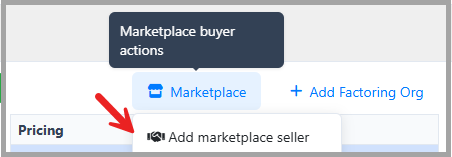
- Click the "Marketplace" icon (Marketplace buyer actions) and select Add marketplace seller. This option only appears when the leg doesn't already have a seller.
- A modal appears to select a seller from the dropdown — only sellers you already have an approved relationship with will appear.
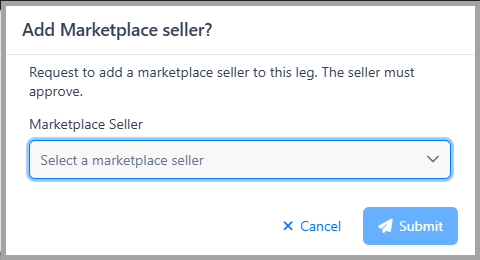
- Once you select the seller, click Submit. You'll see a confirmation that your request was sent.
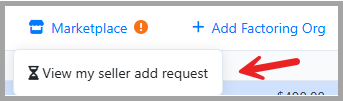
- The "Marketplace" menu itself now shows a warning badge confirming a request is pending. Click the menu again and select Review the request to see a summary of what you submitted. The seller must accept before anything changes on the shipment.
- This sends an email from the requestor to both the buyer and the seller, indicating the action initiated — in this case, a cross-org approval request.
How to accept a seller addition request
This step is meant to accept a request initiated by a seller, asking to add that seller to your shipment.
Where to go: LSP → Approval Requests, or the shipment's Cost Calculations section.
Step by step:
- Find the incoming request from the seller asking to join your shipment.
- Click Accept to approve it, or Reject to decline.
- Once accepted, the seller is added to the Linehaul leg at your current rate with no added margin.
- This sends an email from the requestor to both the buyer and the seller, indicating the action initiated, in this case a cross-org approval request that has been accepted.

How to accept a seller removal request
This step is meant to accept a request initiated by a seller, asking to remove themselves from your shipment.
Where to go: LSP → Approval Requests.
Note: This request can also be seen from the shipment's own Cost Calculations section, since you already have access to that shipment.
Step by step:
- Find the incoming request from the seller asking to be removed from your shipment.
- Click Accept to approve it, or Reject to decline.
- Once accepted, the seller's organization and pricing are removed from the Linehaul leg entirely — your own pricing is untouched.
- This sends an email from the requestor to both the buyer and the seller, indicating the action initiated, in this case a cross-org approval request that has been accepted.

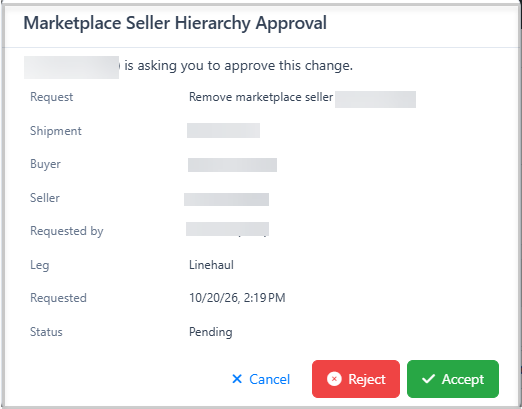
You can also manage this directly from the shipment detail: once the request comes in, the leg's 'Marketplace' menu shows a badge — click it to open the request. This will be your view when the seller has requested their own removal — you'll see Accept and Reject options.
How to add a different seller within a TONU leg
Where to go: Open the shipment's Linehaul leg, click the "Marketplace" menu, and click Request a TONU leg.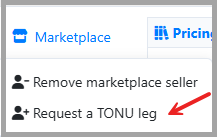
- Select the new seller and enter the TONU fee you've agreed on.
- Submit the request. The new seller must accept before the TONU leg is created.
- Once accepted, a new leg appears on the shipment for the new seller, separate from the original Linehaul leg — your original pricing isn't touched.
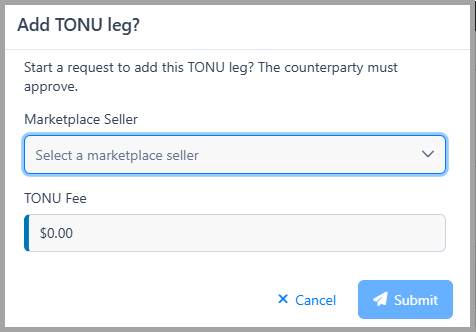
Note: The pricing you enter will be your buy amount, and will also be set as the seller's sell amount, which means the seller will see this exact figure. You can edit it afterward, but it's recommended to agree with the seller on the correct pricing beforehand.
The seller you select doesn't have to be different from your current Linehaul seller — the same seller can be active on both the Linehaul leg and a TONU leg on the same shipment.
Either you or the seller can assign the carrier on the TONU leg, and each side searches from its own carrier network. Agree with the seller beforehand on which carrier will actually be used — the system doesn't check or restrict this.
How to remove a marketplace seller or a TONU leg
Where to go: Open the Linehaul leg's "Marketplace" menu and click Remove marketplace seller, 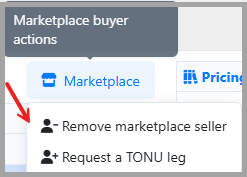
or open the TONU leg's "Marketplace" menu and click Request removal of TONU leg.
- Submit the request. The seller must approve it.
- Removing a marketplace seller isn't available once accounting has already started on that relationship (a bill has been created on your side, or a bill/invoice on the seller side) — this protects the records already in place.
- When that's the case, the option appears greyed out with a tooltip explaining why, rather than disappearing.
Example: The request's own detail view, opened from the leg's 'Marketplace' menu — shows the request type, shipment, buyer and seller, who requested it, the leg, and its current status. If you're the one who submitted it, you can also cancel it from here.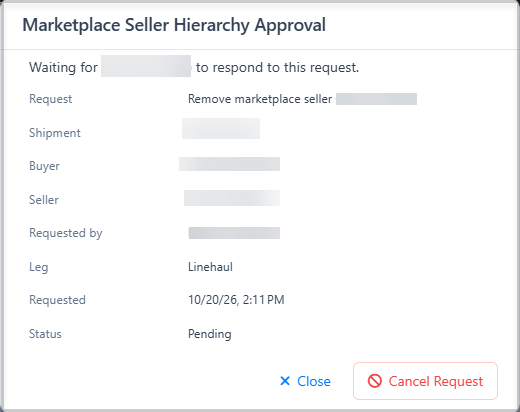
How to manage your pending and past requests
Where to go: LSP → Approval Requests.
- Filter by status (Pending, Approved, Rejected, Cancelled, or All) and by date range.
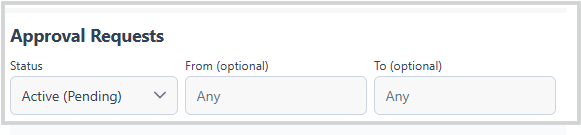
- Search by shipment number, buyer or seller name, direction, or the request type.
- If you started a request, you can Cancel it any time before the other party responds — either from this page or from the request's own detail view on the shipment.

- If someone sent you a request, you'll see Accept and Reject options here.

Common messages you might see
A few messages you might see, and what they mean:
- "You cannot remove a marketplace seller with created bills or invoices!" — removal is blocked because a Bill or Invoice already exists on this relationship, on your side or the seller's.
- "A TONU leg already exists for this shipment." — only one TONU leg can exist on a shipment at a time. This can happen even if you don't see a TONU leg from your own view — a different organization may have already created one.
- "Invalid operation: Marketplace seller already exists or leg not found." — a marketplace seller is already active on this leg, or someone else's request got there first. Refresh the page to see the leg's current state before trying again.
Frequently asked questions
Can I add a marketplace seller to a Truckload shipment?
Yes, Marketplace Seller Requests are available on any shipment type, not just LTL. The requirement is the approved marketplace relationship on file, not the shipment type.
What happens to pricing when a seller is added?
The new seller's rate starts exactly at your current rate, with no margin added yet. Either side can adjust their own margin independently once the request is accepted.
Can I have more than one marketplace seller on the same leg?
No, only one marketplace seller is active on a given Linehaul leg at a time. Use a TONU leg if you need to bring in a different seller alongside the original relationship.
Why don't I see "Add marketplace seller" on this leg?
The option only appears when all of these are true: the leg doesn't already have a seller (whether from a tariff or a previous Add), there's no Factoring Company on the leg, accounting hasn't already started on your own side (no bill created yet), and you have the "TMS Site Admin" permission with your organization flagged as a Marketplace Buyer. If any of these isn't met, the option simply won't appear — there's no error message, it just won't be there.
Why can't I remove the seller on my shipment?
If accounting has already started on that relationship — a Bill has been created on your side, and/or a Bill or Invoice on the seller's side — "Remove marketplace seller" appears greyed out, with a tooltip explaining why. There's no shipment-status restriction; this is the only thing that blocks a removal, regardless of the shipment's current status.
Note: an Invoice you've already sent to your own end customer, further down the chain, does NOT block this — only accounting on your own relationship with the seller counts.
Does the shipment's status affect whether I can submit these requests?
No. Add, Remove, and TONU requests can be submitted at any shipment status. The only thing that blocks a request is accounting already in progress on that relationship (see the previous question).
Can the same seller be active on both the Linehaul leg and a TONU leg?
Yes. A seller already active on the Linehaul leg can also be added via a TONU leg on the same shipment — the two are independent relationships, not mutually exclusive.
Will I still see Carrier Confirmation after a seller is added?
No. Once a marketplace seller is active on the leg, Carrier Confirmation visibility shifts to the seller, since they're the one now paying the carrier. You won't see those documents on that leg anymore.
I submitted a request but I don't see it — where did it go?
Check LSP → Approval Requests with the Status filter set to "Active (Pending)." If you still don't see it, try the Refresh button — the list doesn't update automatically while the page is open.
If something doesn't work
- Make sure you and your counterparty have an Approved/Active marketplace relationship on file.
- Confirm there's no accounting already started on the relationship (a bill or invoice) — this is the only thing that blocks these requests, regardless of shipment status.
- If a request seems stuck, check Approval Requests for its current status before trying again.
- If you still can't complete a request, contact Tai Support with your shipment number and the organization you're trying to connect with.