![TAI_LOGO_CMYK Option 1.2-03.jpg]](https://learn.tai-software.com/hs-fs/hubfs/TAI_LOGO_CMYK%20Option%201.2-03.jpg?height=40&name=TAI_LOGO_CMYK%20Option%201.2-03.jpg)
How to Duplicate a Shipment
Duplicating a shipment enables you to quickly create a copy of an existing shipment, saving you time and maintaining consistency when entering similar shipments.
Duplicating a Shipment
To duplicate a shipment:
-
Open the shipment you want to copy.
-
Click Tools > Duplicate.
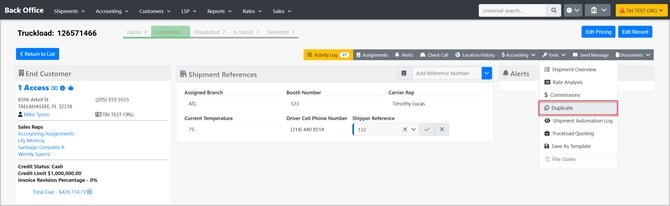
When you duplicate a shipment:
-
An exact copy of the current shipment is created.
-
The duplicated shipment is saved immediately.
-
You are taken directly to the Shipment Detail page of the new shipment.
-
A green confirmation message appears in the top-right corner to confirm the duplication was successful.
What Gets Copied
When a shipment is duplicated, the following information is carried over to the new shipment:
-
Shipment Type
-
Customer and Staff
-
Stops
-
Commodities
-
Legs
-
Carriers
-
Accessorials
Note: Some accessorials may not be visible in the Front Office (FO) or Back Office (BO) if they are configured as hidden. However, they can still appear on a duplicated shipment if they were previously added (for example, via the Add Charges option in the Back Office, which allows adding accessorials regardless of visibility settings).
What Is Not Copied
The following details are not included in the duplicated shipment and must be added manually if needed:
-
Reference Numbers
-
Pricing
-
Tariffs
-
Hierarchy outside of the current accounting level
-
Delivery Information
The duplicated shipment is saved immediately and does not include a review step. Any updates can be made by editing the shipment from the Shipment Detail page after duplication.
For more information, please contact our support team at support@tai-software.com.