![TAI_LOGO_CMYK Option 1.2-03.jpg]](https://learn.tai-software.com/hs-fs/hubfs/TAI_LOGO_CMYK%20Option%201.2-03.jpg?height=40&name=TAI_LOGO_CMYK%20Option%201.2-03.jpg)
Setup
To use Secure Rate Confirmations:
- The broker must have an active Highway integration
- The integration must have a source setting called secureRateCON, and the value must equal True.
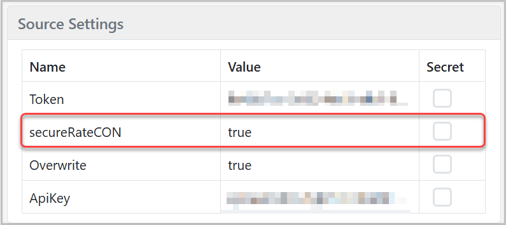
What your Highway integration source needs
The Secure Rate Con button only appears when your brokerage's Highway integration source is set up completely. Check these items first if the button is missing.
The integration source
- It is the Highway source in the Carrier Onboarding integration category.
- It is set up under your brokerage's own organization, the one your users work in.
- It shows no error status. If it shows Authentication Error, the button stays hidden until the Highway credentials are fixed.
Integration source settings
- ApiKey: the API key Highway issued to your brokerage. Required. Without it, the Secure Rate Con button does not appear, even when secureRateCON is True.
- secureRateCON: set to True. Required. Without it, carrier confirmations go out as standard email.
- EmailStaffId: the Tai staff user whose email is the sender for automatic SRCs sent by Workflow Automation. That user's email must exist as a user in Highway. Recommended for any brokerage that uses Workflow Automation.
Carrier and sender
- The carrier has a Highway Carrier ID in its broker carrier parameters. Without one, Tai sends the rate confirmation as a standard email instead. The carrier still receives it.
- The email address the SRC is sent from must exist as a user in Highway. For a manual send, that is the From address in Send Message. For a workflow, see "How to send an SRC from a workflow" below.
If SRC is not enabled, carrier confirmations will continue to be delivered via standard email attachments.
Setting Up SRC Configuration in Tai
Complete the following steps to configure SRCD in Tai:
1. Create a New User in Tai
Navigate to LSP → Users → Add New User and create a user with the following details:
- Name: Highway SRC
- Login: integrations{company_name}@gohighway.com
- Email: integrations{company_name}@gohighway.com
- Password: Any password of your choosing
- Organization: Match the Owner Organization configured in Load Lock
- Permissions: User Allowed Org Access
2. Generate a Public API Authentication Key
Navigate to LSP → Public Authentication Keys → Add Public Authentication Key. Complete the following fields:
- Organization: Select the appropriate LSP organization
- Staff User: Select the Highway SRC user created in the previous step
Click Save. A new authentication key will be generated automatically and displayed in the Authentication Key column.
3. Provide the Authentication Key to Highway
Send the generated authentication key to your Highway contact or load-solutions-team@gohighway.com. Once Highway has configured the authentication key within their system, SRC webhook updates, including signed rate confirmation PDFs, will begin flowing into Tai shortly thereafter.
Workflows
How to send a Secure Rate Confirmation manually
Where to go: Shipment Details → Send Message.
-
-
A broker opens a shipment and selects Send Message.
-
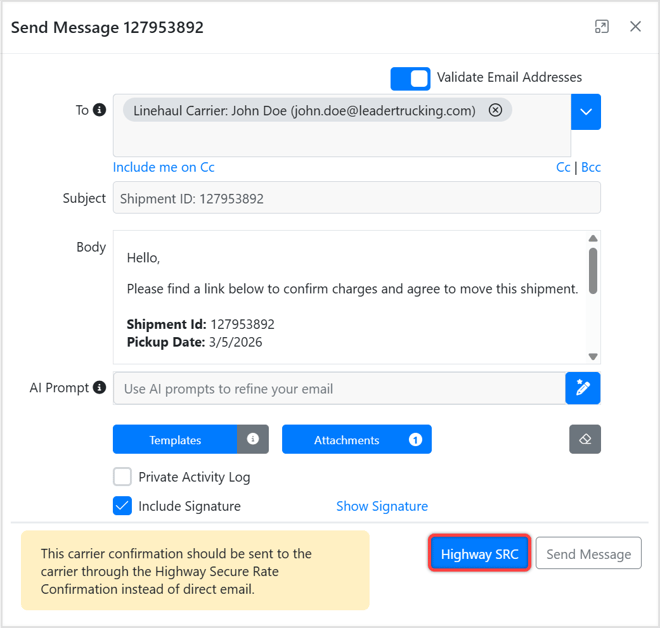
If a Carrier Confirmation is included and the broker has Highway SRC enabled:
-
The system prompts the broker to send the document via Highway Secure Rate Confirmation.
- The Secure Rate Con button appears under this specific workflow.
- Through this feature, the broker should not add the carrier email manually, because the rate confirmation is sent directly to Highway via API.
Follow these steps:
- Send Message
- Add Template > Carrier Confirmation
- Click the Secure Rate Con button
Who the SRC is sent from: the From address in Send Message. That email must exist as a user in your brokerage's Highway account. If it doesn't, the message closes with a red error, "The LSP Staff email address being used does not exist in Highway. Please ensure your email address is properly configured in Highway.", and nothing is sent. Add the user in Highway or change the From address, then send again.
If the broker wants to send the rate confirmation using the traditional email workflow instead of Highway SRC:
- Send Message
- Add Carrier Email
- Select carrier confirmation template
- Send Email
-
-
How SRC is sent automatically on a Book It Now booking
Where to go: No action needed in the TMS — this happens automatically when a carrier books a load through Highway Book It Now.
- When a carrier books an eligible load through Book It Now, the TMS sends the Secure Rate Confirmation to Highway on its own, using the same SRC path as the manual button.
- SRC is sent automatically only when the load qualifies: your brokerage has the Highway integration with SecureRateCon enabled, the load owner's email is configured on the integration source, and the carrier has a Highway Carrier ID in its broker carrier parameters.
- If any of those are missing, or if Highway can't accept the SRC, the TMS automatically falls back to the standard carrier-confirmation email — the carrier still gets a rate confirmation.
How to send an SRC from a workflow (Send Secure Rate Confirmation action)
Where to go: Back Office → LSP → Workflow Automation
-
Open or create a workflow
-
Add a step → Actions → Send Secure Rate Confirmation.
-
Add the Send Secure Rate Confirmation action to any workflow where you want the SRC to go out automatically. The action shows an envelope icon.
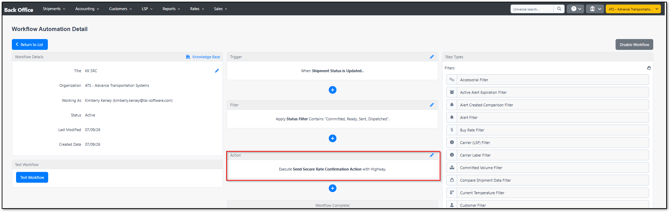
- There is nothing to configure — the action has no extra fields. Because the confirmation goes directly to Highway by API, you do not add a carrier email address.
- The step reads "Execute Send Secure Rate Confirmation Action with Highway" in the workflow builder.
- Who the SRC is sent from: a workflow has no person sending, so Tai picks the sender email in this order:
- First, the staff user set as EmailStaffId on your Highway integration source.
- If that setting is empty, or that user has no email, the workflow's Working As user.
- If neither has an email, the SRC is not sent. The shipment's Activity Log shows that the workflow failed to complete.
- The sender chosen must exist as a user in Highway. Running the workflow with Run Now uses the same order.
- The action only appears when the broker that owns the workflow has the Highway integration with Secure Rate Confirmations enabled. If you don't see it, SRC isn't enabled for that brokerage.
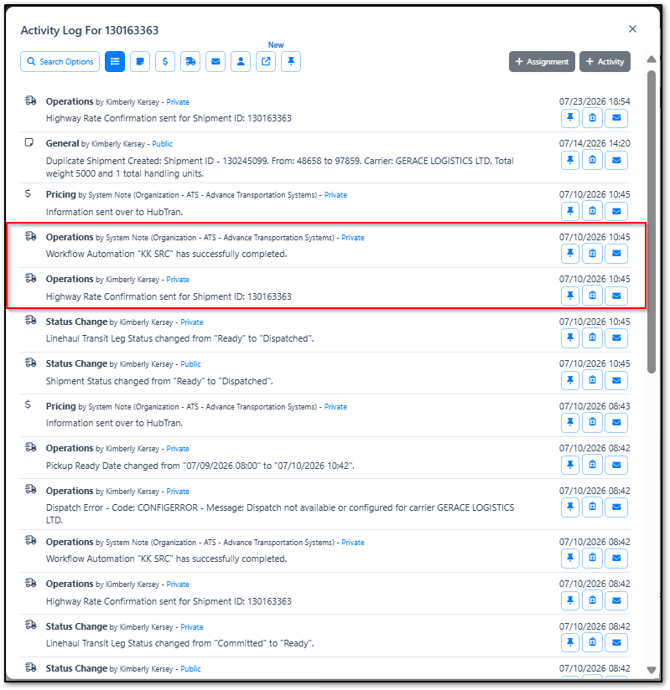
- Rate Confirmation Status Updates
- The TMS records important activity updates from Highway and logs them on the shipment.
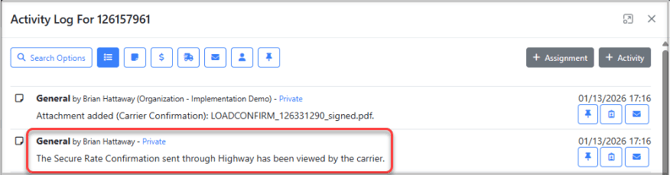
- Viewed
- The carrier has opened the rate confirmation.
- Activity Log: “The Secure Rate Confirmation sent through Highway has been viewed by the carrier.”
- No shipment status change
- Accepted
- The carrier accepted the rate confirmation.
- Activity Log: “The Secure Rate Confirmation sent through Highway has been accepted by the carrier.”
- Once accepted:
-
The signed rate confirmation is automatically downloaded
-
The document is attached to the shipment
-
Document type: Carrier Confirmation
-
Visibility: Private
- Shipment Status advances to Dispatched for Truckload, or Ready for all other shipment types
-
-
Note: Accepting a Secure Rate Confirmation through Highway does not populate driver, truck, or trailer information on the shipment. The acceptance webhook provided by Highway includes the acceptance status, activity history, timestamps, and the signed Rate Confirmation document, but it does not include equipment or driver details. If collecting driver, truck, and trailer information is required as part of the confirmation process, use the standard Rate Confirmation workflow instead.
- Rejected
- The carrier rejected the rate confirmation.
- Shipment status moves to Sent
- Activity Log: “The Secure Rate Confirmation sent through Highway has been rejected by the carrier. Please follow up with the carrier directly for next steps.”
- Cancelled / Not Delivered
- If the document could not be delivered to the carrier.
- Activity Log: “The Secure Rate Confirmation sent through Highway was not delivered to the carrier.”
-
No shipment status change
-
Supported Carrier Confirmation Types
Secure Rate Confirmation supports all carrier confirmation document types generated by the TMS.
Any carrier confirmation attached to the Send Message modal can be delivered through the Highway SRC workflow.
- What the Carrier Sees
- 1. Email Notification
- When a broker sends a rate confirmation, the carrier receives an email from Highway (hello@highway.com) notifying them that a new rate confirmation has been issued. The email identifies the broker by name and includes a "View Rate Confirmation" button to securely access the document.
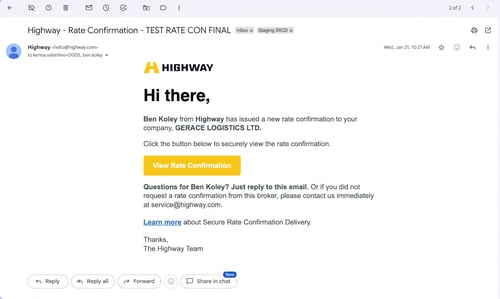
- When a broker sends a rate confirmation, the carrier receives an email from Highway (hello@highway.com) notifying them that a new rate confirmation has been issued. The email identifies the broker by name and includes a "View Rate Confirmation" button to securely access the document.
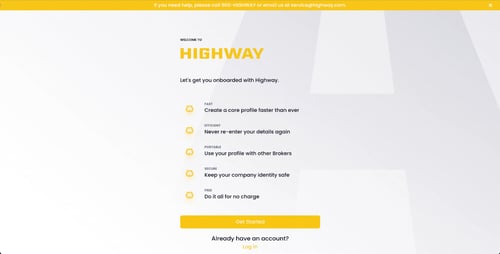
- 2. Account Setup (New Carriers)
- First-time carriers are taken to a Highway onboarding page. The platform highlights key benefits, fast profile creation, no repeated data entry, portability across brokers, identity security, and no cost, before prompting them to Get Started or Log In.
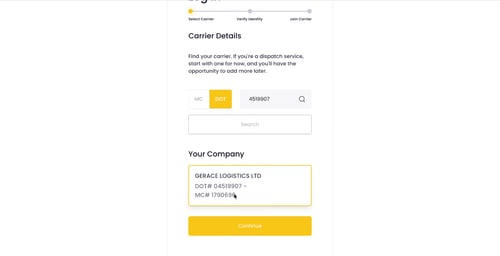
- 3. Carrier Lookup
- The carrier enters their DOT or MC number to find their company. Once their carrier profile is confirmed (showing company name, DOT#, and MC#), they click Continue.
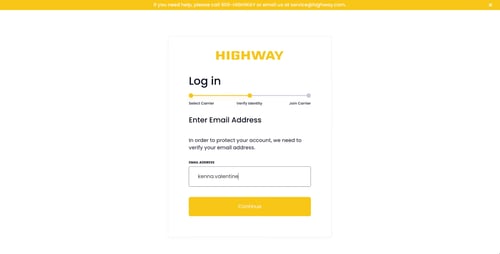
- 4. Identity Verification
- The carrier enters their email address to verify their identity before accessing the rate confirmation.
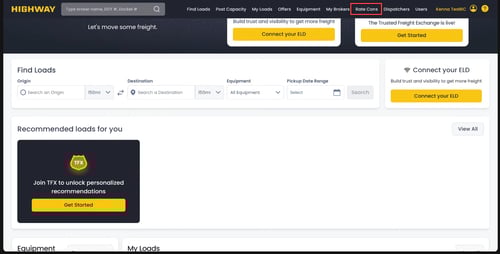
- 5. Rate Confirmations Dashboard
- After logging in, carriers land on the Highway platform and can navigate to Rate Cons in the top menu. The dashboard displays all rate confirmations organized by status: New, Viewed, Accepted, Cancelled, Rejected, and All.
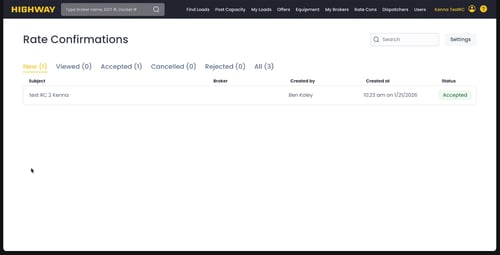
- 6. Viewing & Acting on a Rate Confirmation
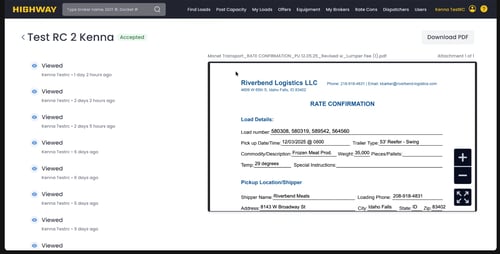
- Opening a rate confirmation displays the attached PDF document alongside a view history log showing each time the document was accessed. The carrier has two options:
- Accept Terms — to formally accept the rate confirmation
- Reject — to decline it
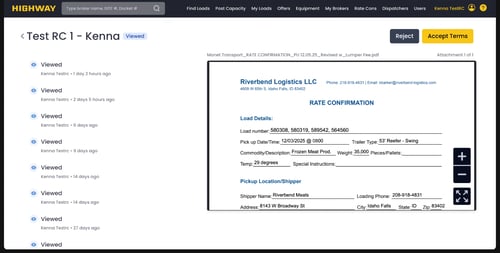
- Once accepted, the status updates to Accepted and the carrier can Download PDF for their records. The "Reject/Accept Terms" buttons are replaced by the download option.
- Frequently asked questions
- Do I still have to click "Highway SRC" if the load books through Book It Now?
- No. When an eligible load books through Book It Now, the SRC is sent automatically. The manual Send Message → Highway SRC path is still available for confirmations you send by hand.
- Why did the carrier get a normal email instead of a Highway secure link?
- The SRC couldn't be sent, so the TMS fell back to the standard carrier-confirmation email. Common reasons: SecureRateCon isn't enabled, the carrier has no Highway Carrier ID, the integration source is missing the load-owner email, or Highway returned an error. The carrier still receives a valid rate confirmation.
- Why did my shipment jump to Dispatched by itself?
- The carrier accepted the Secure Rate Confirmation. An accepted SRC advances the status to Dispatched (Truckload) or Ready (other types), mirroring the carrier confirmation portal. It will never move the status backward.
- The Send Secure Rate Confirmation action isn't in my Workflow Automation list — why?
- The action only appears for brokerages with the Highway integration and Secure Rate Confirmations enabled. If it's missing, SRC isn't enabled for that broker.
- Why don't I see the Secure Rate Con button?
- The button appears only when a Carrier Confirmation is attached in Send Message and your Highway integration source is fully set up: it has no error status, has an ApiKey, and has secureRateCON set to True. See "What your Highway integration source needs" above.
-
- The email the SRC was sent from isn't a user in your Highway account, so Highway rejected it and nothing was sent. Add that email as a user in Highway, or send from an address that already exists there.What does "The LSP Staff email address being used does not exist in Highway" mean?
- If something doesn't work
- Do I still have to click "Highway SRC" if the load books through Book It Now?
- Carrier got an email instead of a secure link: confirm SecureRateCon is enabled, the carrier has a Highway Carrier ID, and the load has an owner. The email fallback means the confirmation was still delivered.
- Shipment status didn't change after the carrier accepted: check that the shipment wasn't already past Dispatched — status only moves forward. The acceptance is still recorded in the Activity Log.
- No Secure Rate Con button: confirm a Carrier Confirmation is attached, and that your Highway integration source shows no error status, has an ApiKey, and has secureRateCON set to True.
- Red error when clicking Secure Rate Con: the sender email isn't a user in Highway. Add it in Highway, or change the From address, and send again.
- Still stuck: contact Tai Support with the shipment ID and roughly when the carrier responded.