![TAI_LOGO_CMYK Option 1.2-03.jpg]](https://learn.tai-software.com/hs-fs/hubfs/TAI_LOGO_CMYK%20Option%201.2-03.jpg?height=40&name=TAI_LOGO_CMYK%20Option%201.2-03.jpg)
How to Duplicate a Shipment
To duplicate a shipment, open the shipment detail page, click the action menu, and select Duplicate. The new shipment opens immediately, no confirmation dialog. A toaster notification confirms: "Shipment {original ID} was duplicated."
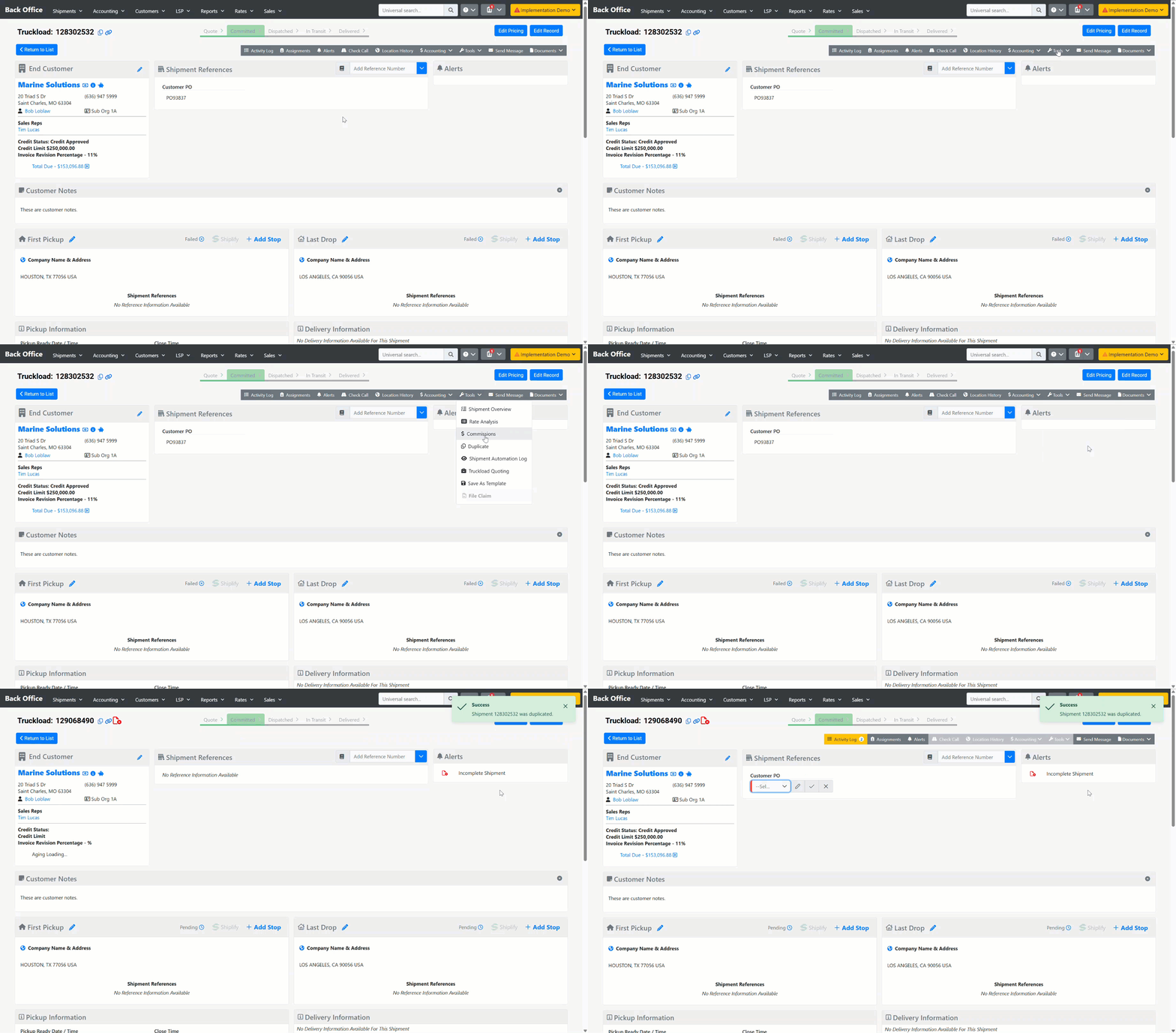
The original shipment is not changed in any way, other than receiving an activity log entry noting the duplication.
What Gets Copied
| Category | What carries over |
|---|---|
| People | Customer, broker, and sales rep. |
| Shipment details | Shipment type, equipment type, trailer length and size, linear feet, mileage, transit days, stackable flag, import/export flag. |
| Stops | All stops (pickup, delivery, and intermediate) — locations are copied, but all scheduling dates, appointment info, and actual times are reset. |
| Commodities | All commodities including weight, class, hazmat info, and packaging details. |
| Transit legs & carriers | All transit legs and carrier assignments. |
| Charge lines | The charge line structure (line items) is copied, but all dollar amounts are reset to $0. |
| Reference numbers | Emergency Contact reference number only — all other reference number types are cleared. |
What Gets Reset
- Shipment ID — a new ID is assigned.
- Status — reset to the organization's default status for the shipment type.
- All pricing — buy rate, sell rate, and accessorial amounts are reset to $0.
- Pickup date — reset to today; times from the original are carried over.
- Actual arrival/departure times — cleared on all stops.
- Appointment dates and statuses — cleared.
- Stop-level reference numbers — cleared.
- Bills and invoices — cleared.
- Contract rate and tariff profile — cleared.
- Commission — recalculated fresh on the new shipment.
What Happens Automatically After Duplication
Once the new shipment is created, the system takes care of a few things in the background:
- An Incomplete Shipment alert is added to the new shipment.
- Activity log entries are written on both the original and the new shipment, noting the duplication, origin/destination, carrier, weight, and handling units.
- Commissions are recalculated on the new shipment.
- For Truckload shipments with a linehaul carrier, a Carrier Rep assignment is added.
- For LTL shipments, pickup and delivery locations are checked for limited access accessorials — any applicable ones are surfaced to the user.
Automations and Webhooks
If you have any Shipment Created automations or webhooks set up, they won't fire the moment a shipment is duplicated. Here's what to expect:
- All automations and webhooks are suppressed while the new shipment has an Incomplete Shipment alert.
- When you save your first update to the new shipment, the Incomplete Shipment alert is cleared, and the system queues the trigger.
- The system then waits 1 minute of inactivity before firing — giving you time to finish making changes.
- Every additional save resets that 1-minute window. Automations and webhooks will not fire until the shipment has been untouched for a full minute.
Note: Reference numbers are excluded from this, so updates to them will still trigger automations and webhooks.
When Duplication is Blocked
The system will prevent duplication and show an error if any of the following are true:
- The customer is on Credit Hold.
- The customer organization is inactive or locked.
- The customer staff member is inactive or locked.
- The user does not have access to the customer's accounting organization.