![TAI_LOGO_CMYK Option 1.2-03.jpg]](https://learn.tai-software.com/hs-fs/hubfs/TAI_LOGO_CMYK%20Option%201.2-03.jpg?height=40&name=TAI_LOGO_CMYK%20Option%201.2-03.jpg)
What this does
Duplicate Shipment now opens a configuration modal instead of silently making one fixed copy. You choose which fields, carriers, and reference numbers carry over to the new shipment, and how many copies (1–20) to create in a single action.
- No more manual cleanup after duplicating, turn off anything you don't want copied (pricing, accessorials, reference numbers) before the new shipment is created.
- Build out a route or a day of loads in one click by setting a Duplicate Count instead of repeating Duplicate one shipment at a time.
User Guide
Before you start, what you need first
- You need access to the shipment you want to copy, and your usual user permission, nothing new is needed to set up.
- If your organization has Hide Carrier enabled, the carrier-related toggles behave the same way they do everywhere else in your account.
How to open the Duplicate Shipment modal
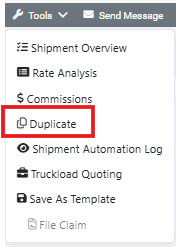
Where to go: open the shipment, then Tools > Duplicate (Back Office)
The modal lists exactly the reference numbers present on this shipment, nothing you don't already have shows up as an option 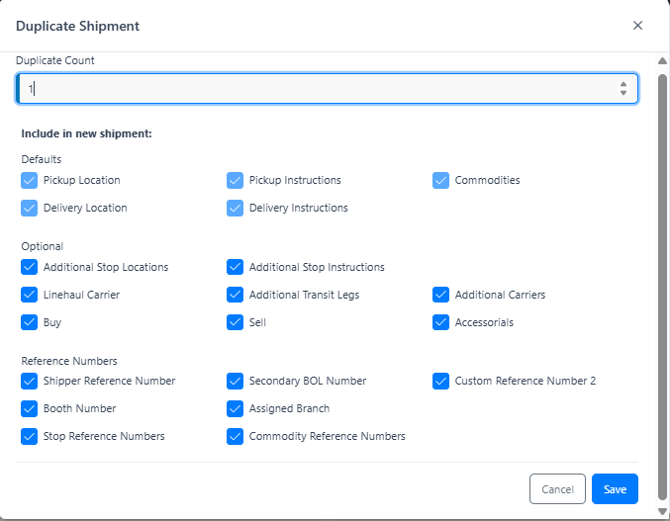
How to choose what copies
- Defaults: Pickup Location, Pickup Instructions, Delivery Location, Delivery Instructions, and Commodities always copy; they're shown checked for transparency.
- Optional: Additional Stop Locations, Additional Stop Instructions, Additional Transit Legs, Additional Carriers, Linehaul Carrier, Buy, Sell, and Accessorials are all on by default and can be turned off individually.
- Turning off Additional Transit Legs also turns off Additional Carriers automatically, there's no leg left to attach a carrier to. Turning Additional Transit Legs back on restores Additional Carriers too.
- Turning off Additional Stop Locations also turns off Additional Stop Instructions the same way.
- Accessorials controls which accessorial line items exist on the copy, it doesn't control their price. Buy and Sell separately control whether dollar amounts show on every charge line, accessorials included. Turn Accessorials on with Sell off, and the accessorial rows still copy — just at $0.00 until you fill in pricing. This also applies to Canadian tax lines (GST/HST/PST): they follow the Accessorials toggle like any other line, and if one copies at $0.00, editing Sell afterward and using Recalculate Taxes restores the correct amount.
- Reference Numbers lists each reference number your shipment actually has, one toggle per type — plus separate all-or-nothing toggles for Stop Reference Numbers and Commodity Reference Numbers.
What never copies
A few things never carry over to a duplicate, no matter what's toggled:- Carrier Rep is always assigned fresh on the new Truckload shipment, the same way it would be on any newly created one, it's never copied from the source.
- Documents, invoices, and bills never carry over. A duplicate starts with a clean paperwork slate; you'll need to attach or generate anything it needs from scratch.
- A small set of other system-tracked reference numbers (like Insurance Certificate Id) also never copy. If you don't see a toggle for one of these, that's expected.
- Any Tariff assigned to the source is never carried over, the new shipment starts with no Tariff assigned, regardless of any toggle.
What happens to stop dates
Dates and times generally copy over from the source, whether a date resets or clears depends on the stop and on whether that date was already in the past:
- First Pickup: the date only resets to today if the source date was already in the past. The time of day always stays exactly as it was.
- Stops in between (anything other than First Pickup and Last Drop): each one's own scheduled and appointment windows clear only if that date was already in the past, a stop with a future date keeps it untouched.
- Last Drop: its date is never copied, you'll always need to set it on the new shipment.
How to create more than one copy at once
Where to go: Duplicate Count, at the top of the Duplicate Shipment modal.
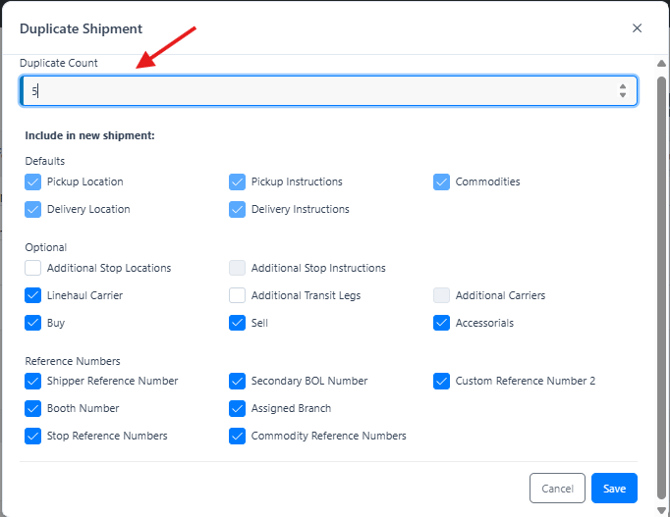
- Enter any whole number from 1 to 20. Save is disabled until the count is valid.
- With Count = 1, you land on the new shipment right away, same as before.
- With Count greater than 1, then land on Shipment Search filtered to the new shipments.
- When duplicating, you'll see a brief "Finalizing N shipments" step.
Tips & best practices
- Every new shipment starts as an Incomplete Shipment until you make your first real edit to it, automations, workflow triggers, and outbound integrations tied to shipment creation won't fire until then, so it's safe to duplicate first and finish setting up the details after.
- If you're building several loads for the same route, turn off Buy/Sell and Accessorials up front so each new shipment starts as a clean quote instead of copying pricing you'll be re-entering anyway.
Frequently asked questions
Why can't I duplicate this shipment?
Duplicate is unavailable while a shipment shows the Incomplete Shipment alert, and it's also blocked when the customer is on credit hold or the customer contact is inactive, the modal tells you which one applies.
Why don't I see a toggle for Carrier Rep?
Carrier Rep is never copied from the source shipment. It's assigned fresh on the new shipment the same way it would be on any newly created one.
What happens to reference numbers I turn off?
The reference number simply won't appear on the new shipment, neither the label nor the value carries over.
Can I still get just one plain copy, like before?
Yes, leave Duplicate Count at 1 and every toggle at its default (all checked), and the result matches the original single-copy Duplicate exactly.
What does "this shipment cannot be duplicated" mean?
You'll see one of two specific messages: one for a credit hold on the account, one for an inactive contact on the shipment. Either way, the toggle list still shows normally, only Save is disabled until the underlying issue (credit hold or contact status) is resolved. Contact support if you need more information.
Will my new shipments start running automations or notifications right away?
No, every new shipment starts as an Incomplete Shipment, and nothing tied to "shipment created" (automations, integrations, notifications) fires until you make your first real edit and save it. That first save is what activates the shipment.
Can I tell which shipment a duplicate came from?
Yes, check the Activity Log on either shipment. The new shipment's log shows which shipment it was duplicated from, and the original shipment's log lists every shipment created from it.
What happens to the Factoring Company on a duplicate?
If the shipment's carrier uses a factoring company, the duplicate reflects whatever that carrier's factoring setup is today, not whatever was on the original shipment when it was first created. If the carrier no longer has a factoring company on file, the duplicate won't have one either.
Is this available in the Customer Portal?
This new Duplicate experience is available in Back Office and it will be available in our new Front Office once this is released. For current Front office version, Duplicate works the way it always has for now.