![TAI_LOGO_CMYK Option 1.2-03.jpg]](https://learn.tai-software.com/hs-fs/hubfs/TAI_LOGO_CMYK%20Option%201.2-03.jpg?height=40&name=TAI_LOGO_CMYK%20Option%201.2-03.jpg)
Power BI and Excel support the ability to pull data from a URL source (Tai Custom Report) and refresh them automatically. Tai's custom reports have a link that can be used for this purpose. When you combine these two features you have the ability to expand your reporting and dashboard capabilities to handleany situation that you need.
The Connection Steps - Tai
-
Open Custom Reports and find the report that you want to link inside Excel.
-
Click on the Copy Link to Clipboard Icon and click CSV as the export type.
-
Click Copy to Clipboard.
The Connection Steps - Excel
-
Open Excel and go to the Data tab on the ribbon.
-
In the "Get & Transform Data" group, click Get Data -> From Other Sources -> From Web.
-
A dialog box will appear. Enter the exact URL of the report you want to pull data from.
-
Excel will prompt you for Authentication -> select Anonymous.
-
After connecting, the Power Query Editor window will open.
-
Once the data looks correct in the preview, click Close & Load on the Home tab of the Power Query Editor.
Here are the steps in action:
In Power BI or excel, there's an option to specify Web as the source for your data:
When you select that option, you will be prompted to enter a URL. You will use the URL after you build and save custom report in Tai. That URL is found within the edit page of a custom report: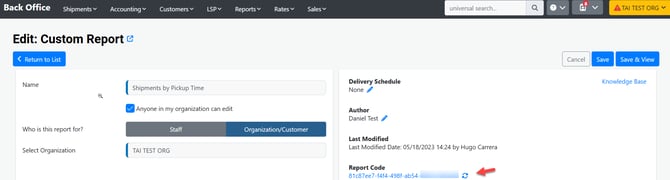

You will then paste that URL in Power BI: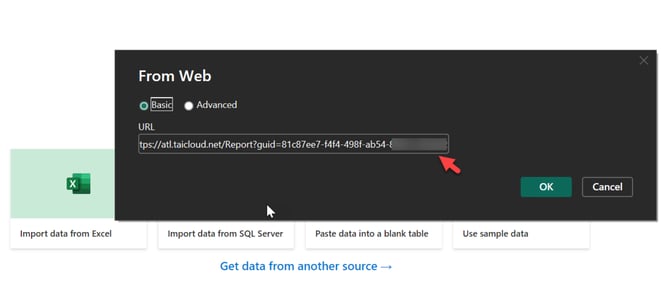
In the navigator, you will select the first table.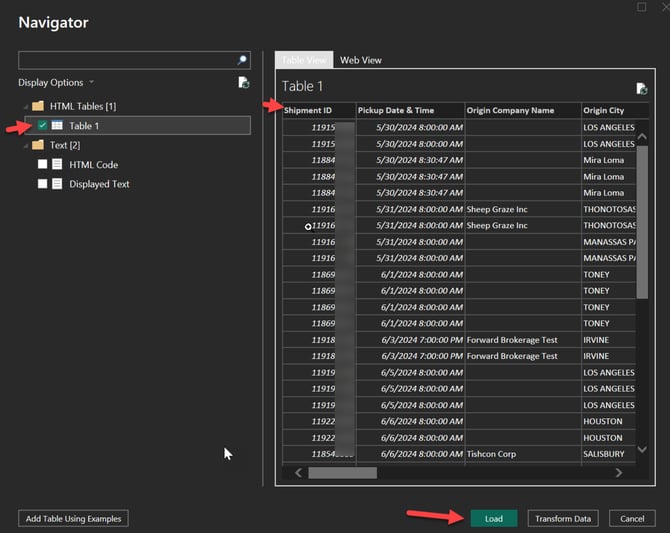
From here, you can click load or review the data and go with the transform option in case you want to change the way the data translates to Power BI.
After you go with either option and load the data into Power BI, you can select the columns on the right hand side and use it for your reporting purposes: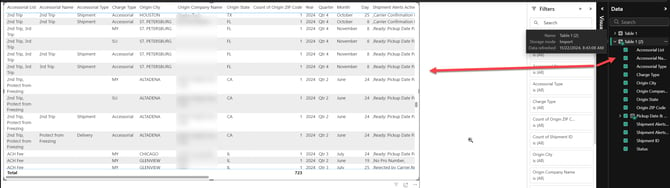
Row limits do not apply to the link
A custom report opened in the browser displays a preview of the first 1,000 rows. That limit is on the on-screen view only.
The CSV, Excel and JSON links copied from Copy Link to Clipboard return the complete result set, so a Power BI or Excel connection built on one of those links keeps receiving every row on every refresh. No change is needed to an existing connection.
Use a CSV or JSON link for any automated pull. An integration pointed at the report's HTML view receives the 1,000-row preview instead of the full data set, and the CSV and JSON routes are both faster and more reliable for that purpose.