
- Knowledge Base
- Shipments
- General
How to Duplicate a Shipment
This article explains how to duplicate shipments, allowing you to quickly create a copy of an existing shipment and make edits as needed.
How to Duplicate a Shipment
Duplicating a shipment enables you to quickly create a copy of an existing shipment, saving you time and maintaining consistency when entering similar shipments.
Duplicating a Shipment
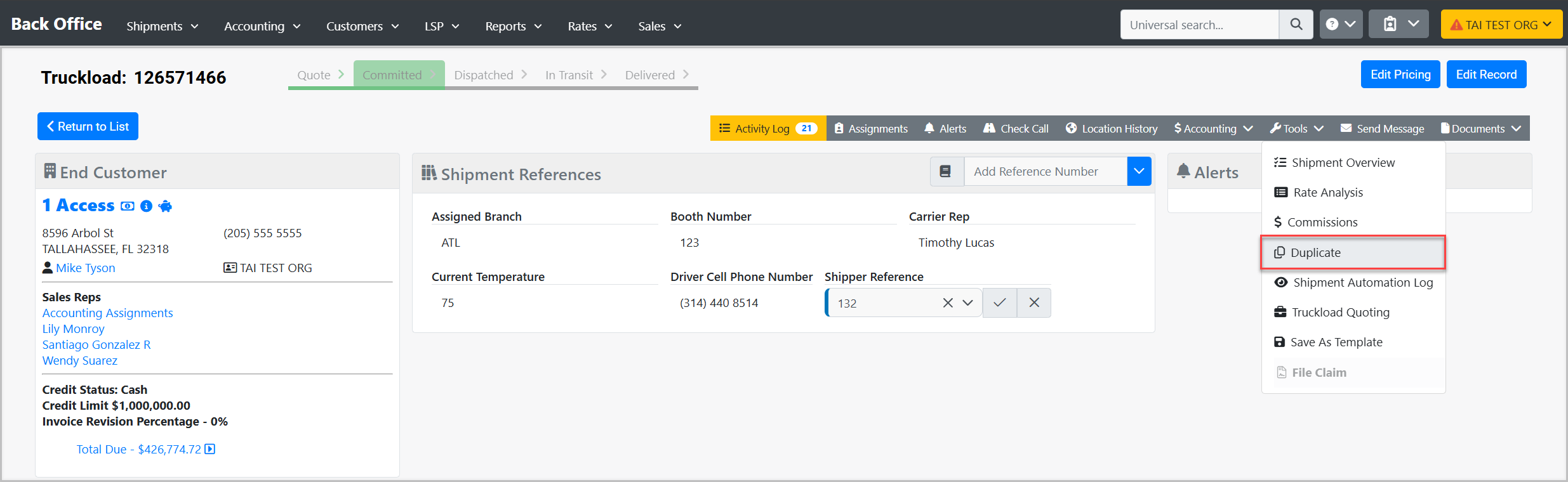
To duplicate a shipment:
-
Open the shipment you want to copy.
-
Click Tools > Duplicate.
When you duplicate a shipment:
-
An exact copy of the current shipment is created.
-
The duplicated shipment is saved immediately.
-
You are taken directly to the Shipment Detail page of the new shipment.
-
A green confirmation message appears in the top-right corner to confirm the duplication was successful.
What Gets Copied
When a shipment is duplicated, the following information is carried over to the new shipment:
-
Shipment Type
-
Customer and Staff
-
Stops
-
Commodities
-
Legs
-
Carriers
-
Accessorials
What Is Not Copied
The following details are not included in the duplicated shipment and must be added manually if needed:
-
Reference Numbers
-
Pricing
-
Tariffs
-
Hierarchy outside of the current accounting level
-
Delivery Information
The duplicated shipment is saved immediately and does not include a review step. Any updates can be made by editing the shipment from the Shipment Detail page after duplication.
For more information, please contact our support team at support@tai-software.com.